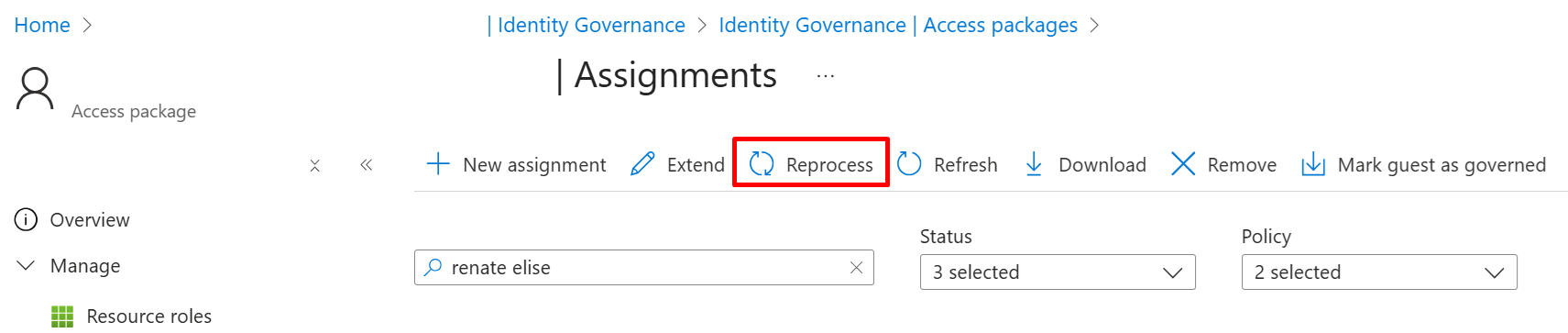
I just had a customer where there were around 3000 access package assignments that has not successfully added users to groups, for some reason. The way to fix this is to find the assignment and click “Reprocess”:
Clicking this button thousands of times is not really how I wanted to spend my evening, so we therefore wanted to figure out which users were affected, and triggering a reprocess for all of these.
Ok let’s say you are building a new PowerShell module or script and you would like to be able to run it on Windows virtual machines locally in your own datacenter, in Azure Functions, in GitHub Actions, in Azure DevOps Pipelines, in Automation Accounts or any other method of running PowerShell – this is perfectly possible, but how can you have it authenticate to Entra ID without a gazillion lines of code? Any how do you test that each scenario actually works? I present to you EntraIDAccessToken – a free and open module for authenticating to Entra ID, both for Microsoft Graph and any other integrated API.
So, you have completed your access reviews for a gazillion groups or access packages in Entra ID, and now would like to show off the result to management? No problem, we can simply dump the results to Excel and do whatever we’d like with them! Let me show you how:
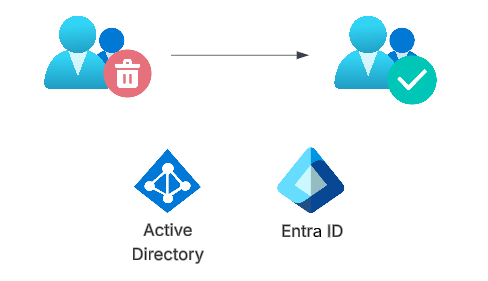
Finally, the public preview of Group Source of Authority is out! What does this mean for you and me? Well, you can take any number of the groups you are currently synchronizing from Active Directory to Entra ID (which are currently read only in Entra ID), and make them writable in Entra ID. And you can even have turn the solution upside down, having Entra ID update the AD group when members are added/removed!
Up until now there has been no good way to have a managed service identity on tenant A granted access to resources or graph scopes in tenant B. Finally there is a way to achieve this!
There is a little caveat though, and that is that you will still need another app registration, but by using this new preview, we no longer need client secrets or certificates. Let’s have a look at how this works!
The Microsoft Graph is powerful, however it can be a bit daunting at times due to the sheer number of endpoints and parameters. Just for the access package feature of entitlement management, you have endpoints for assignments, approvals, approval stages, resource role scopes, assignment policies, assignment requests, catalogs, resources… you get the point. In this blog post we will be working with assigning existing access packages to users, just because that is a simple process that might be difficult to understand from the documentation.
Custom security attributes in Entra ID is a feature that allows you to add attribute sets and attributes to your tenant, which you can use on all your user and application objects. A fairly common ask in Entra ID is the ability to store “secret data”, such as social security numbers, and making sure only certain principals can read these values. Here is where custom security attributes come into play. You can add an attribute set “PersonalInformation” to your tenant, and add “SSN” as an attribute to this attribute set. You can then tag each user with values, which only will be readable by those assigned the “Attribute assignment reader” role on tenant level or attribute set level.
However, currently Entra ID does not allow for these to be a part of issued tokens, not part of outbound synchronization rules and not as criteria for criteria based groups. So yeah, not really a first class citizen currently. For issued tokens, we can do something about it though!
There are often situations where you may want to query the Microsoft Graph for certain stuff, such as any person that is a manager for someone. Let’s have a look on ways to that, and then how we can improve it.
Recently a script popped up in my LinkedIn feed, where the scripts indeed fetches all users that are managers for someone. Now, let it be said that as long as the script works for your use case – go for it! But let’s analyze the script a bit with runtime in mind.
The below is a very simplified version of the script:
# 1. Get all users from the Graph, but keep only the id
$users = Get-MgUser -All | Select-Object Id
# 2. Find all users that are managers by checking whether they have direct reports
$managers = $users | Where-Object {
Get-MgUserDirectReport -UserId $_.Id
}
# 3. Get the details of the managers
$managerDetails = $managers | ForEach-Object {
Get-MgUser -UserId $_.Id | Select-Object Id, DisplayName, Mail, UserPrincipalName
}
This script will essentially:
Get all users in the tenant from the Graph, including the id, displayname, mail and userprincipalname
But then we select to keep only the id
For each user, send a request to get the direct reports of the user, to check whether they are a manager or not
For each user that had direct reports, send a request to get all the required attributes
First of all, we could optimize this a bit by not selecting away the attributes under #1, simply by doings this:
# 1. Get all users from the Graph, but keep only the id
$users = Get-MgUser -All -Property id, displayname, mail, userprincipalname
# 2. Find all users that are managers by checking whether they have direct reports
$managerDetails = $users | Where-Object {
Get-MgUserDirectReport -UserId $_.Id
}
The result is the same, but we do not need to get the managers again. However, while we do reduce the number of requests sent to the Graph, we will need to get direct reports of each and every user in the tenant. This means that if you have 60 000 users, you need to send 60 000 of these requests. Assuming you can do 3 requests per second, this is almost 6 hours of run time.
So, what can we do to improve?
The Graph contains a lot of features that can help us out, such as the $expand option! Let’s see what we can do with that?
First of all, we can get a list of direct reports when getting users:
Or we can get the manager along with the user:
We can use the Graph SDK as well, and check the speed of both:
In my tenant with 67,680 users, this took 142 secondsfor expandingmanager, and 117 seconds for direct reports. That is actually the opposite of what I thought, as I was sure that expanding manager would be way faster, since direct reports are multi valued.
Now, from this we can either go through directReports:
So, the total runtime is way faster, between 2 and 3 minutes, and it is also waysimplier than the original code that we started with, just because we utilized the expand feature.