Finally, the public preview of Group Source of Authority is out! What does this mean for you and me? Well, you can take any number of the groups you are currently synchronizing from Active Directory to Entra ID (which are currently read only in Entra ID), and make them writable in Entra ID. And you can even have turn the solution upside down, having Entra ID update the AD group when members are added/removed!
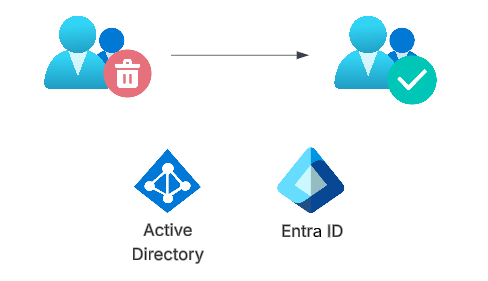
Let’s dig into this feature!
Current infrastructure
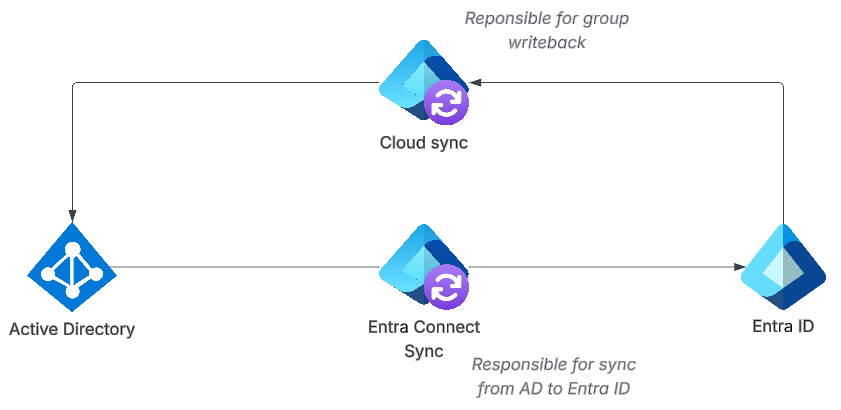
In this blog post we will assume that you have an Active Directory and Entra ID, with Entra Connect Sync set up as follows:

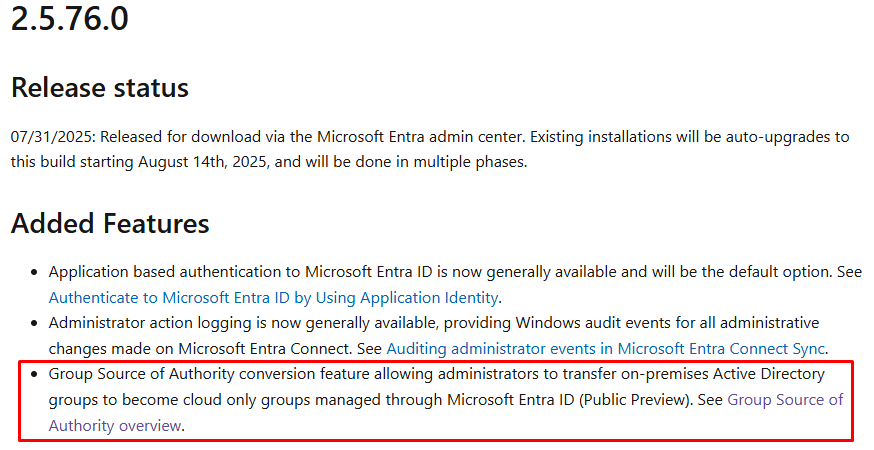
What is important now, is that you have version 2.5.76.0 or later of Entra Connect Sync, as this enables the Group SOA feature:
Converting an AD group to cloud managed
In total we will do two things to a group:
- Converting the AD group to cloud managed
- Enabling group writeback for the group
These are two separate steps. In this section we will do the first. Let’s go!
In our setup we have create three security groups:
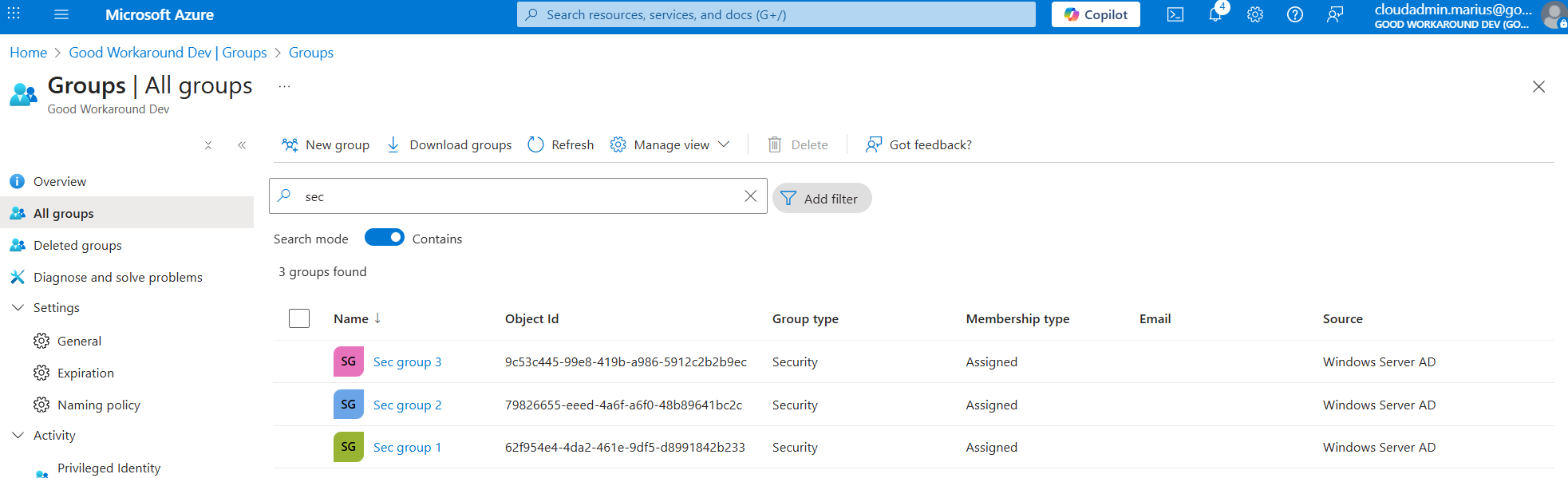
The operation of switching the source of authority is really simple, but there is no user interface currently, so we’ll use the Graph Explorer.
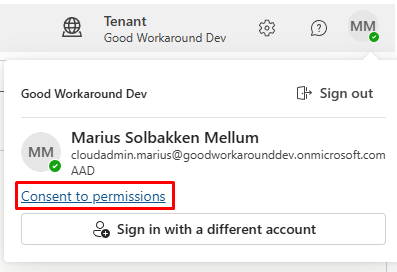
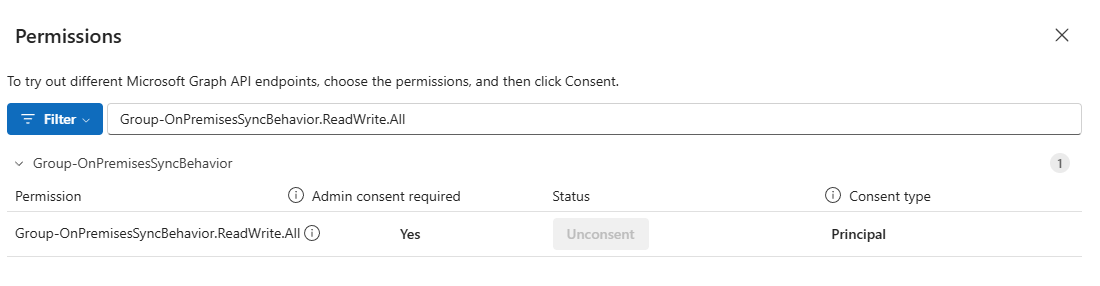
Make sure you are signed in and click Consent to permissions:
Find the permission Group-OnPremisesSyncBehavior.ReadWrite.All and click Consent (Already done in this screenshot):
Let’s start by looking at Sec group 1, with objectid 62f954e4-4da2-461e-9df5-d8991842b233:
GET https://graph.microsoft.com/beta/groups/62f954e4-4da2-461e-9df5-d8991842b233/onPremisesSyncBehavior
Notice the new onPremisesSyncBehavior endpoint, where we can find information about whether a group has been converted to cloud or not:
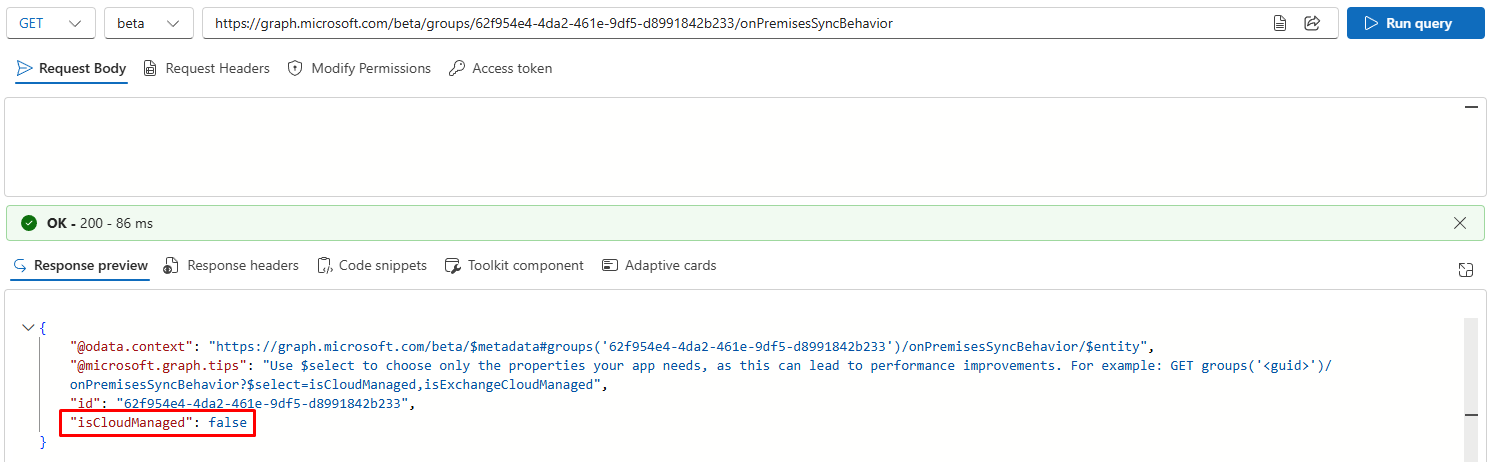
We can see that isCloudManaged is false, and we can update it to true:
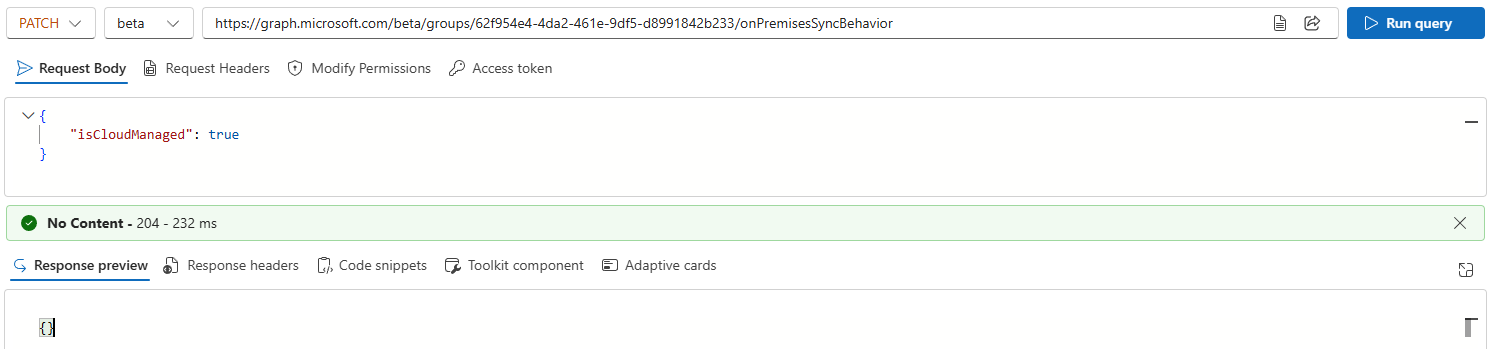
After this patch is now true:
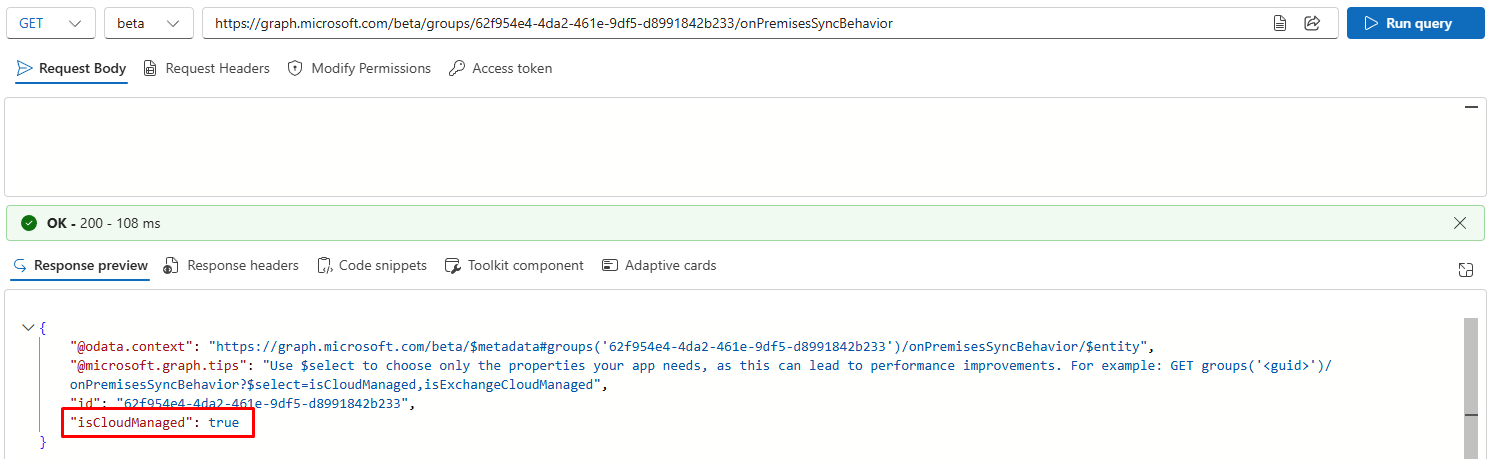
Ok? So what happened now? Let’s have a look at our list of groups:
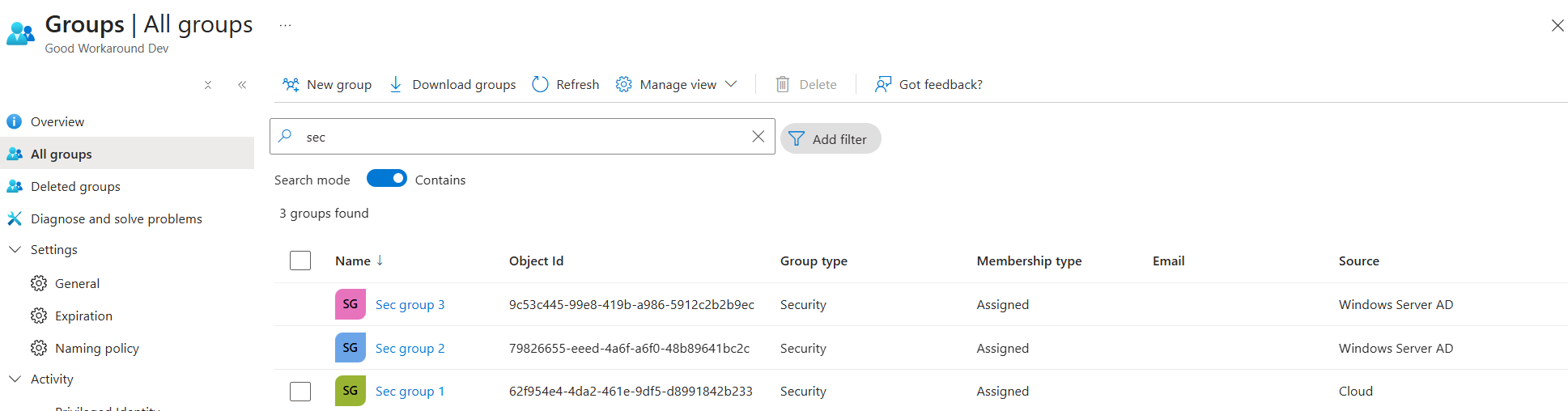
Sec group 1 is now Cloud managed and no longer managed by Windows Server AD!
We can do this like updating the description:
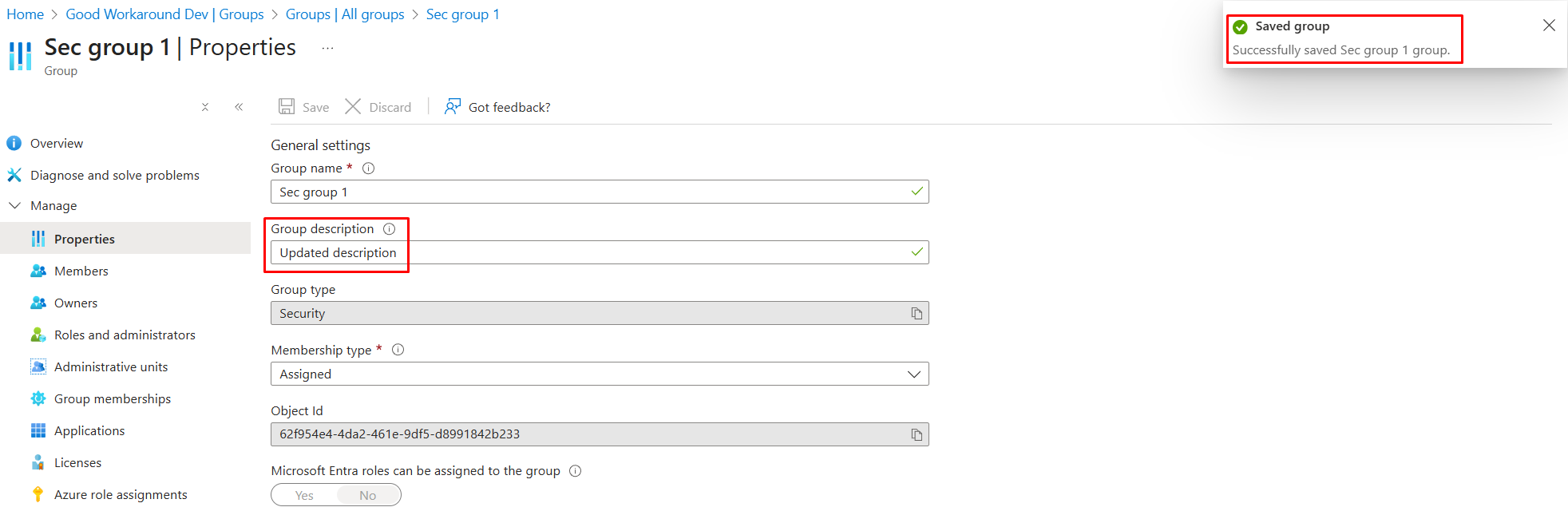
And manage members:
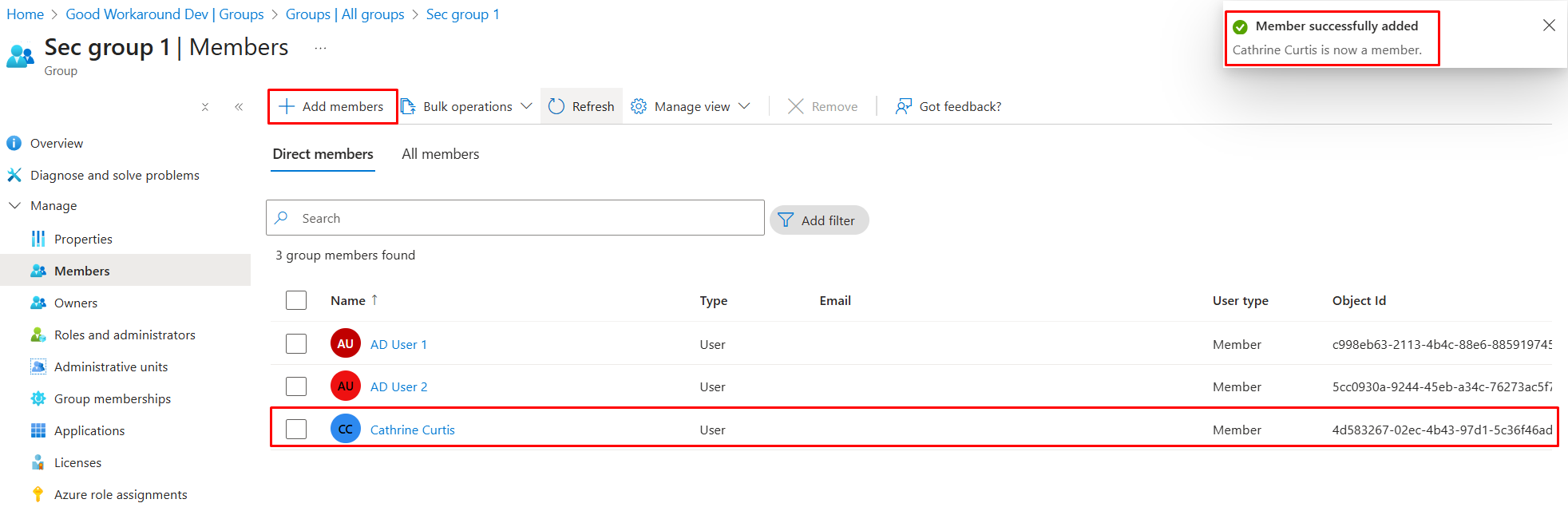
We can of course now handle the group through services like Microsoft Graph, Entitlement Management, Lifecycle workflows and PIM for Groups too, just like any other Entra ID group.
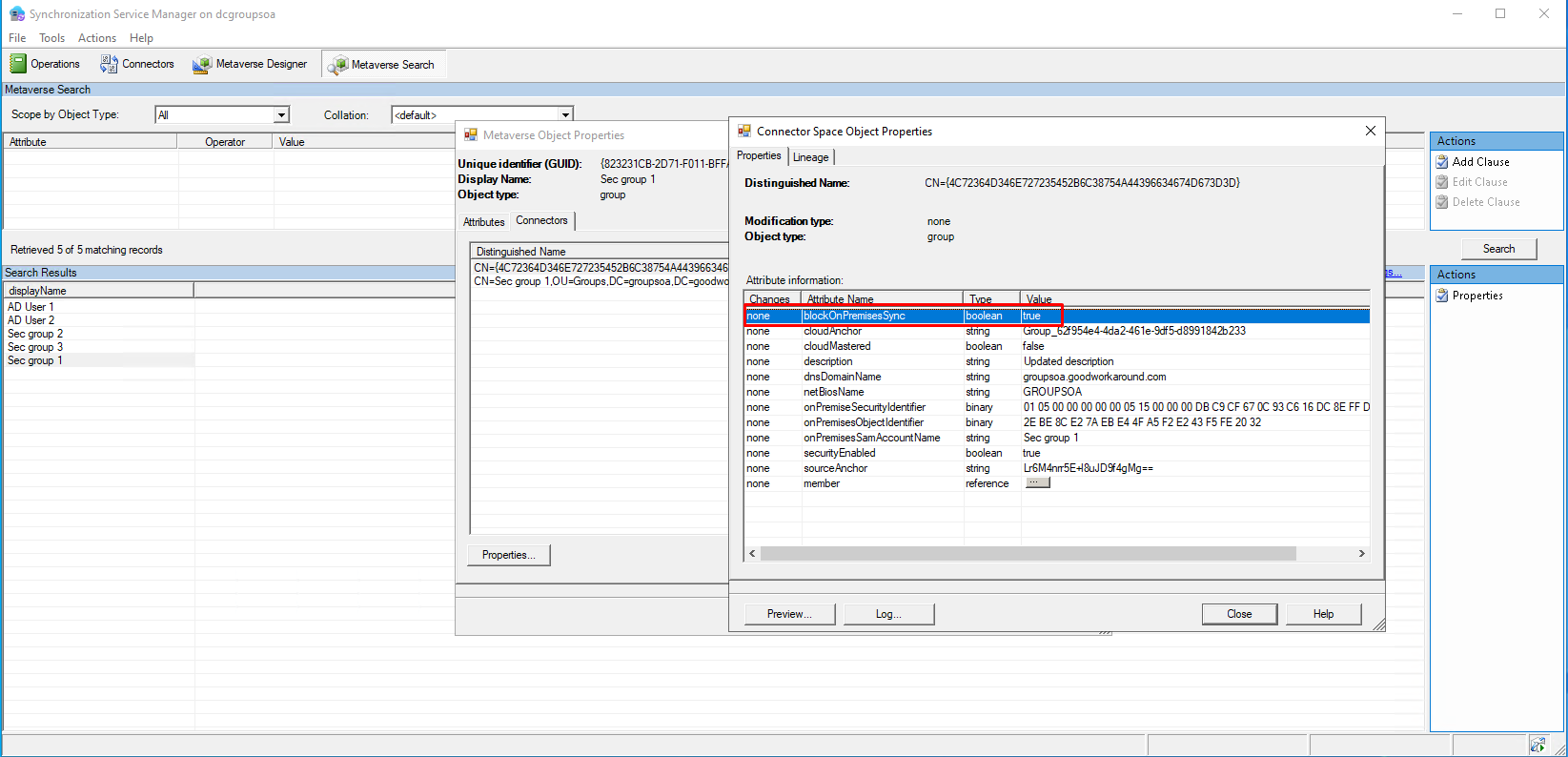
Now, what happened on the Entra ID Connect Sync side of things?
If we use the Synchronization Service Manager, we can find that blockOnPremisesSync has been set to true in the connector space of the Entra ID connector:
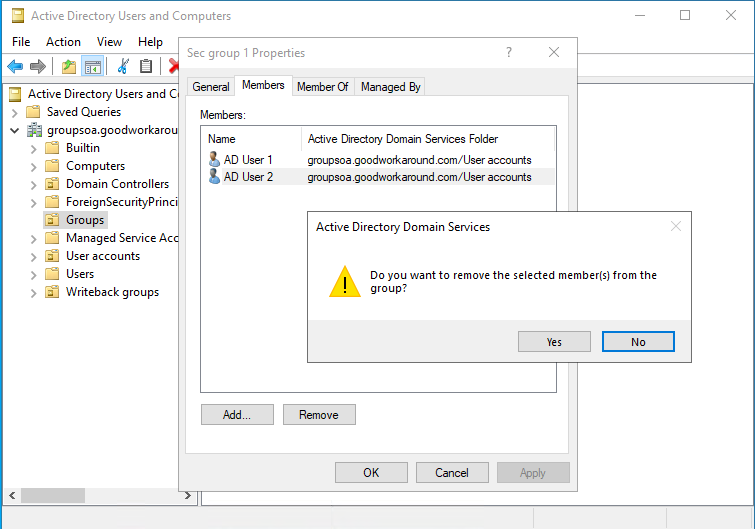
And if we remove a user from the group in Active Directory:
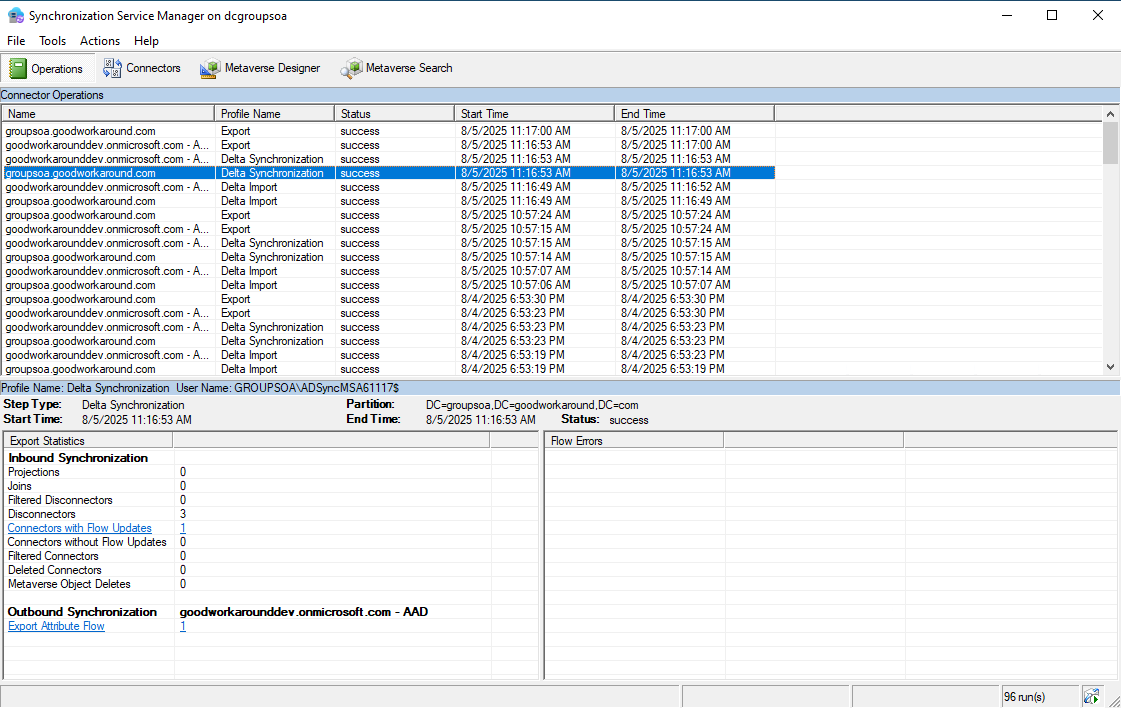
The sync engine will show that something is going on with the group, but the export to Entra ID will simply not happen:
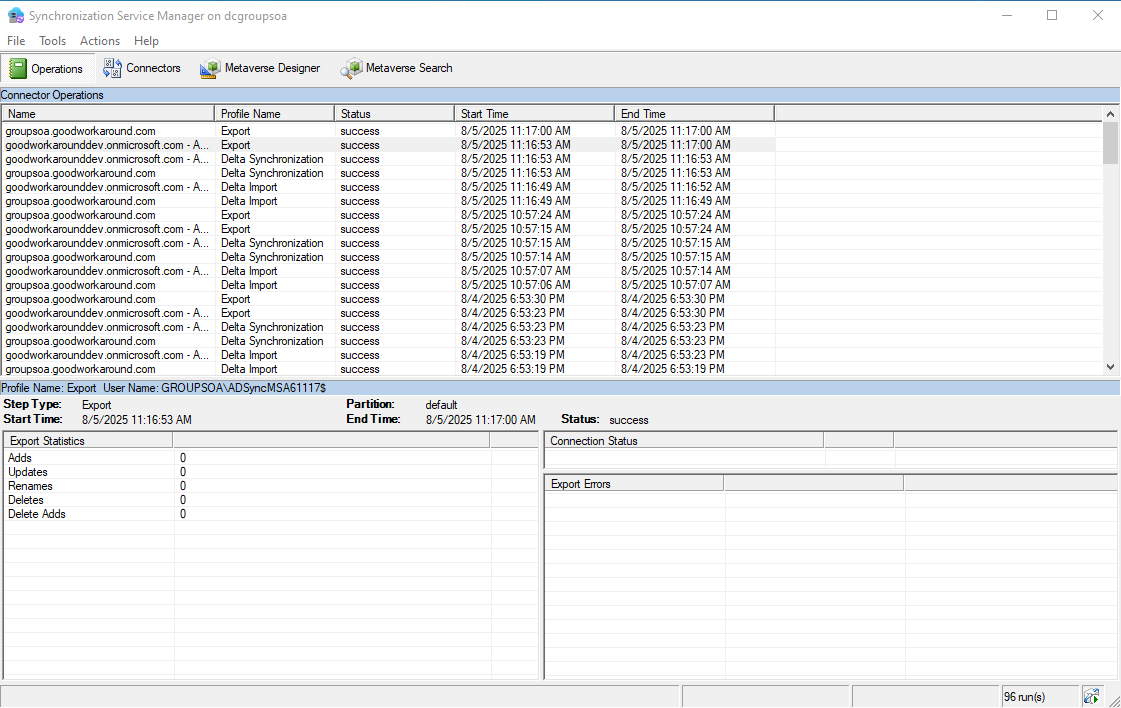
So we have now successfully converted our group from an Active Directory group to an Entra ID group, but as of now, the groups needs to be maintained separately. We can choose to delete the AD group completely, never caring about it again, or we can establish writeback to the group. Let’s try both.
Option 1: Deleting the AD group
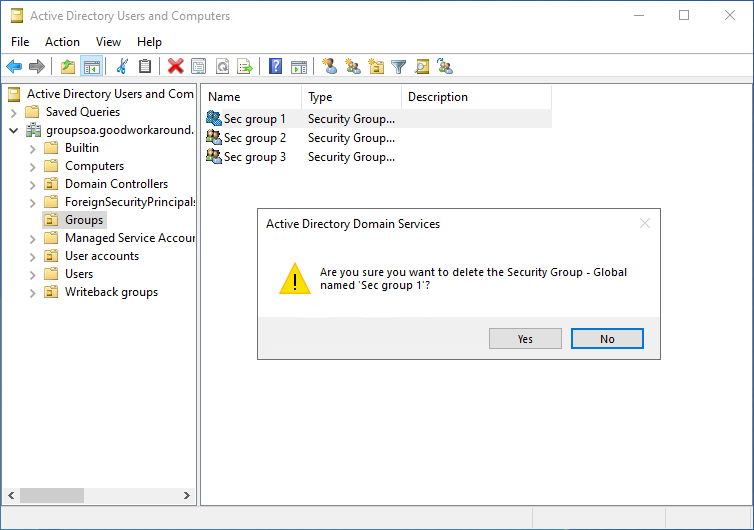
Ok, so the converted group was deleted from AD. What happens in Entra ID Connect Sync now?
Well, the sync engine notices the delete and does a provisioning disconnect:
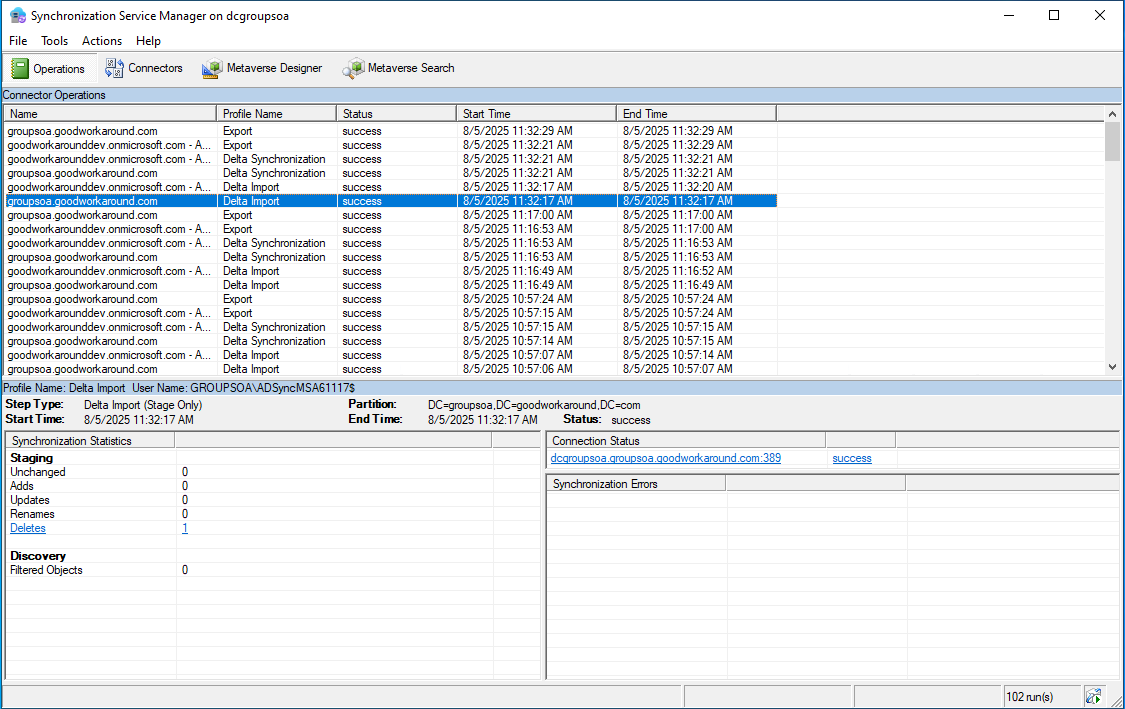
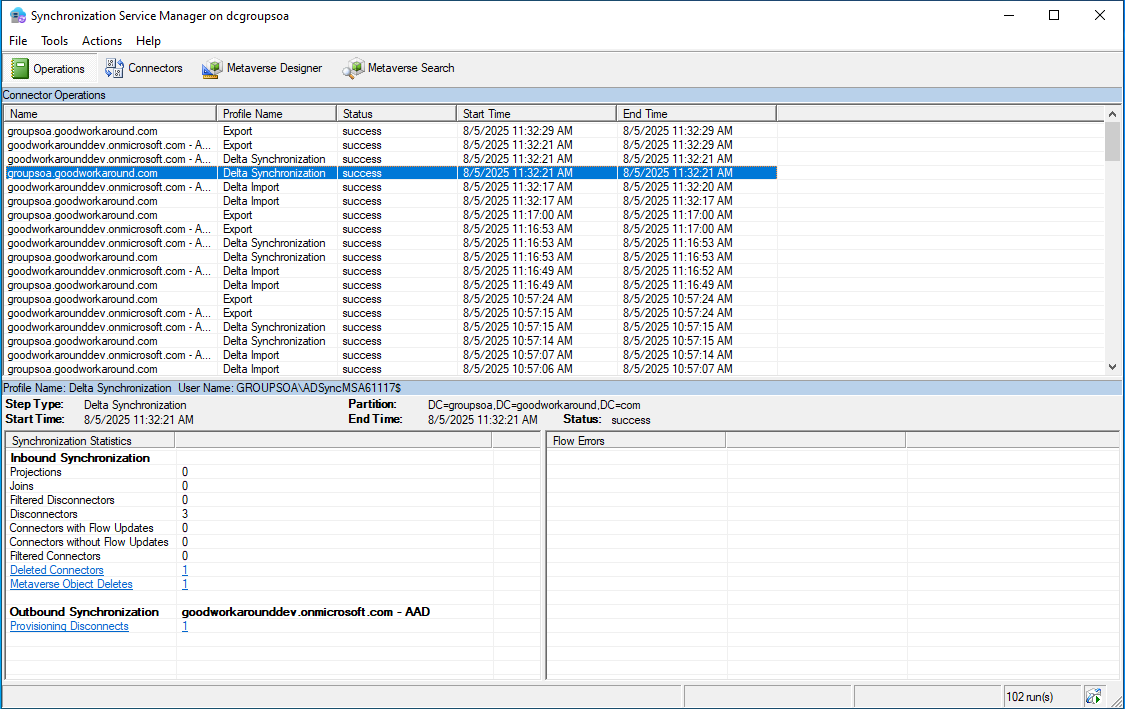
But there is no exported delete to Entra ID:
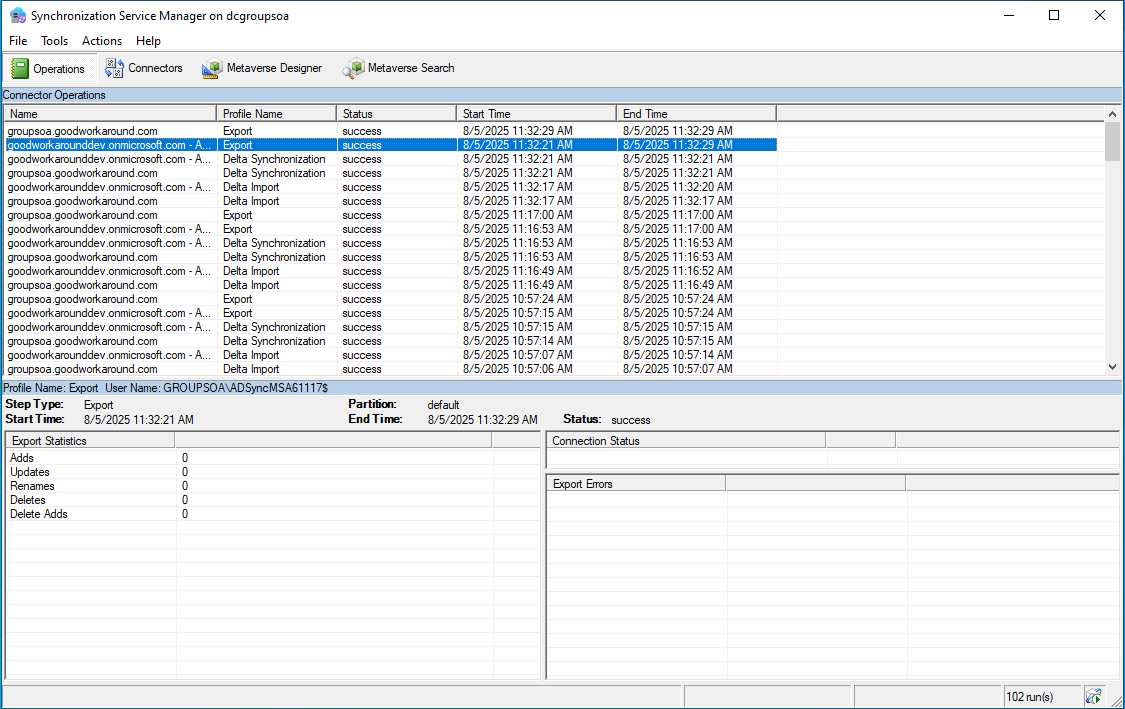
The group has now been fully removed from Active Directory!
Option 2: Letting Entra ID take control over the AD group
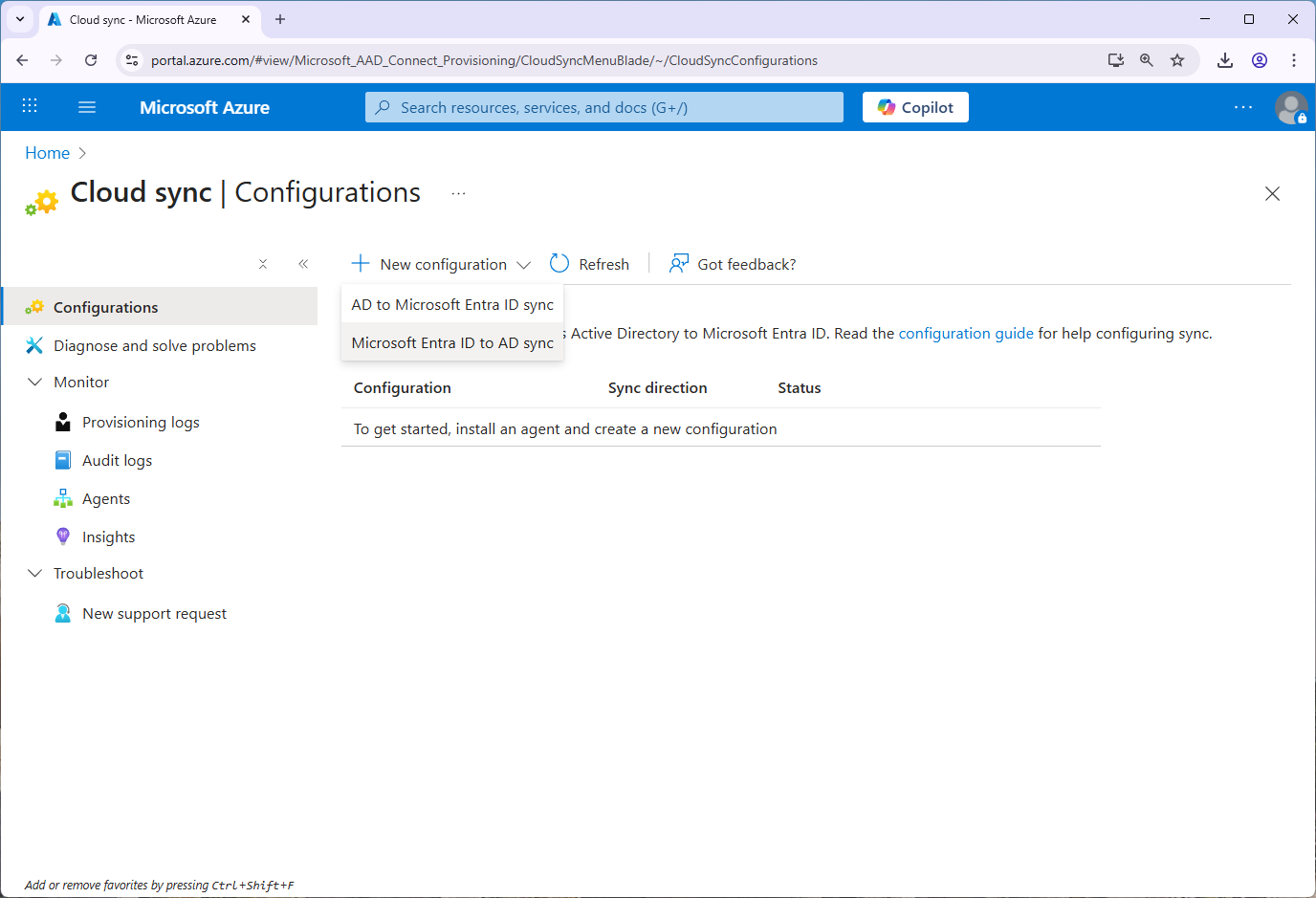
In order to allow Entra ID to control the group, we will use a feature that already exists in Entra ID Connect Cloud Sync, the Provision Microsoft Entra ID to Active Directory feature (Group writeback as it was once called). This means that if you have Entra Connect Sync today, you will be running Cloud sync as well:
Let’s start by converting Sec group 2 to Entra ID managed:
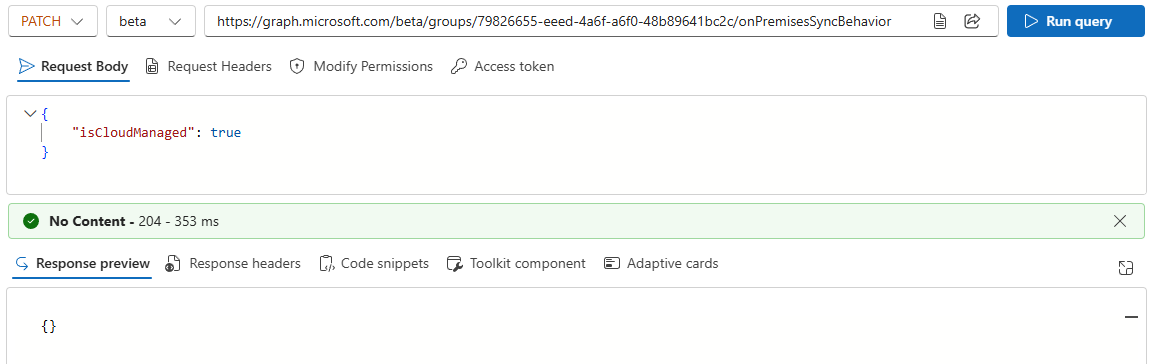
We can now quickly configure the write-back as follows:
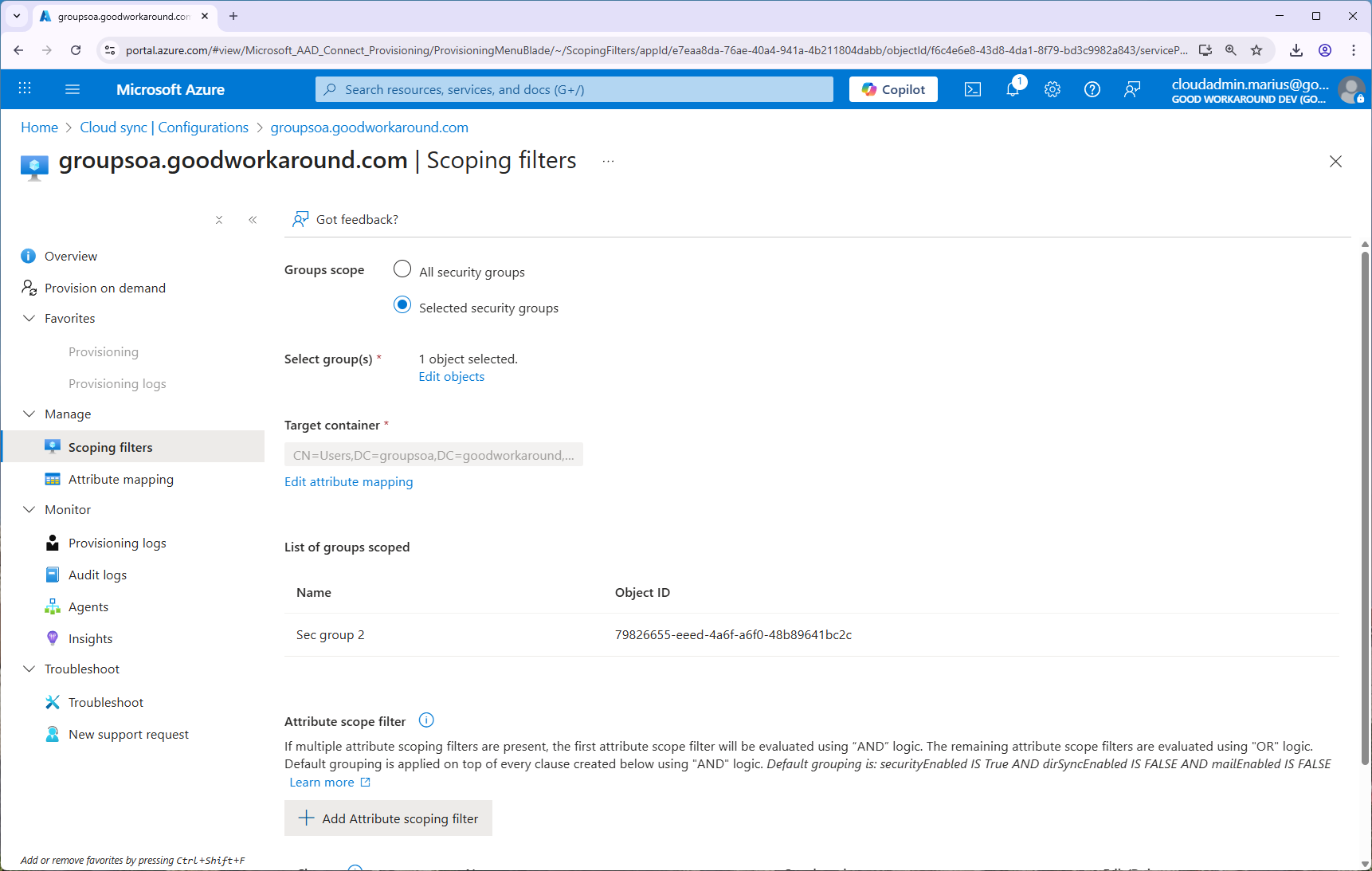
In this scenario I will simply target Sec group 2, but we can of course target multiple groups, scoped by attributes, etc:
Now comes one anoying thing. After using the Provision on demand feature, we get an error:
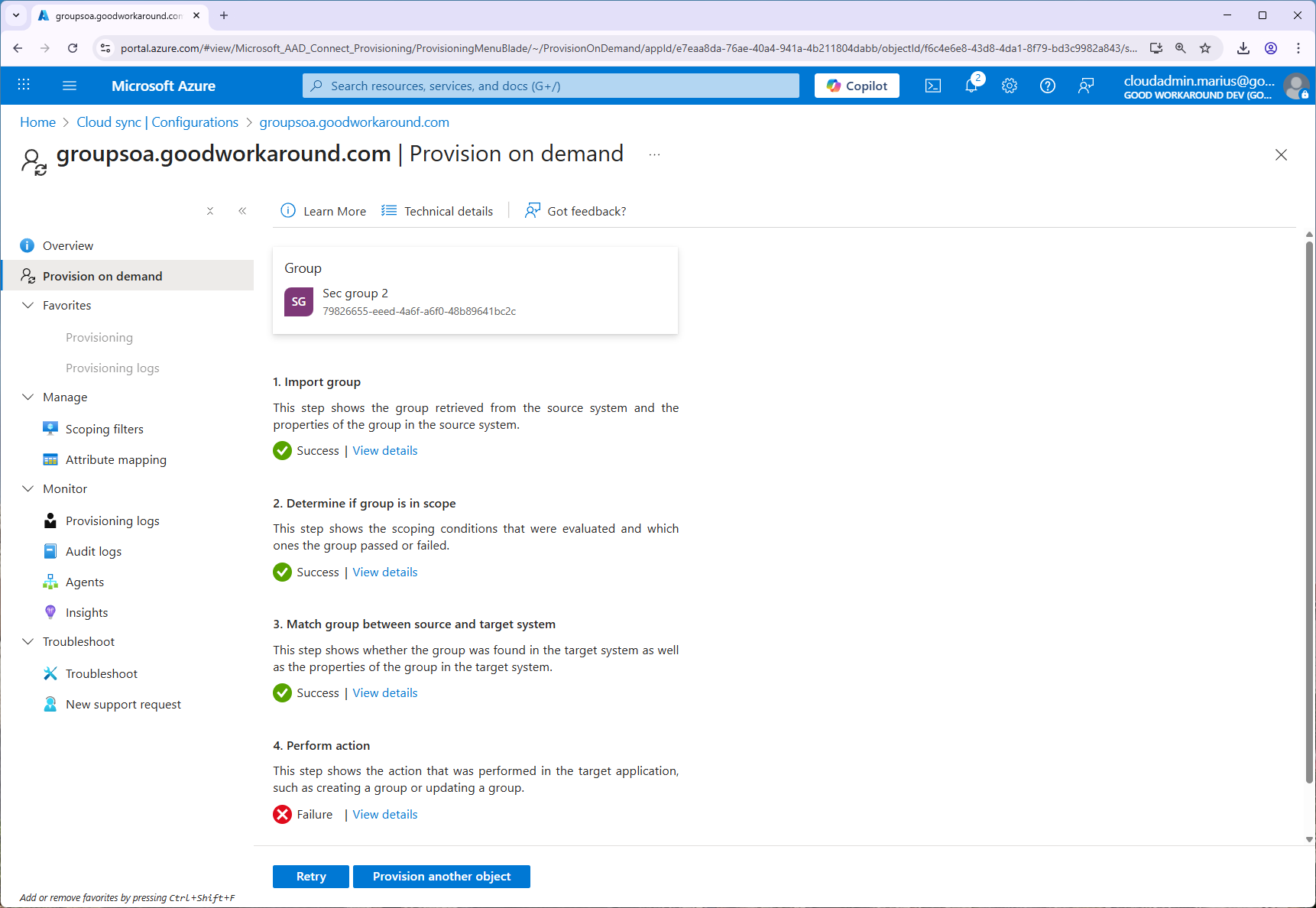
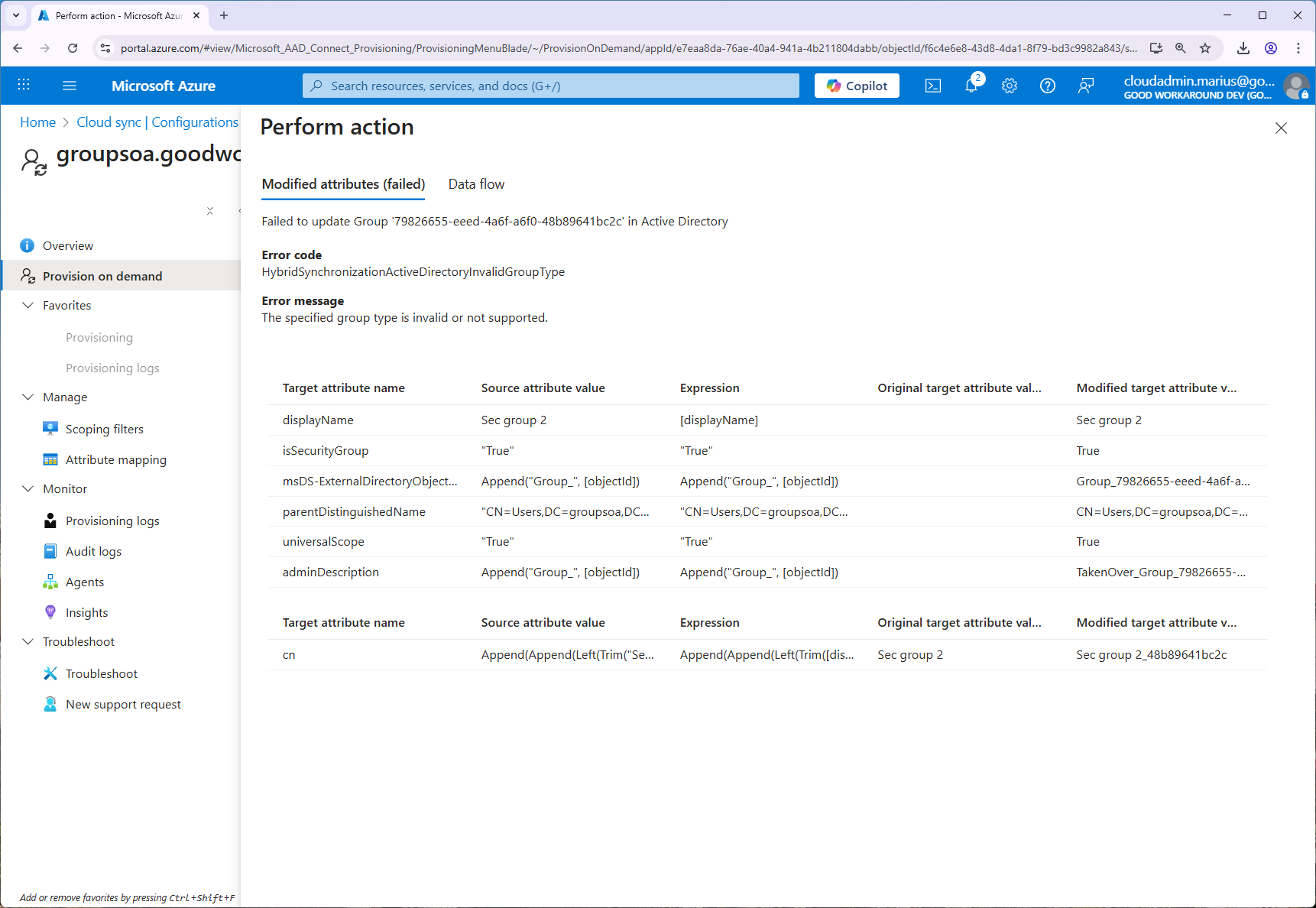
The error HybridSynchronizationActiveDirectoryInvalidGroupType tells us that a global security group is not supported, so we will need to convert it to universal!
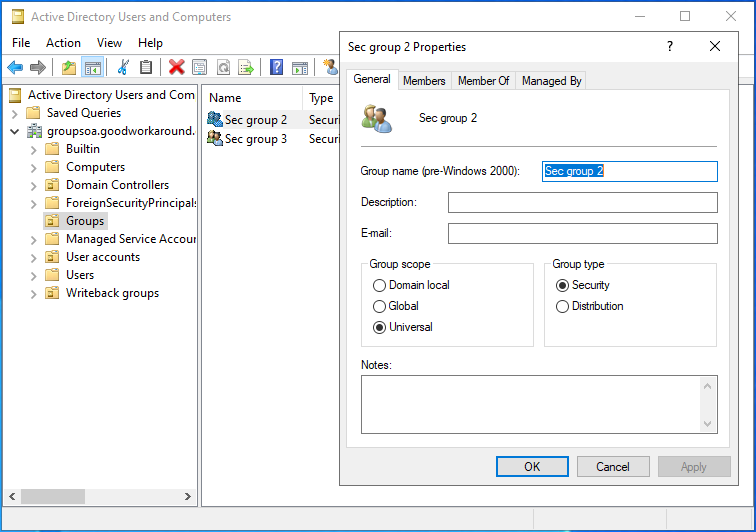
After this, it works just fine:
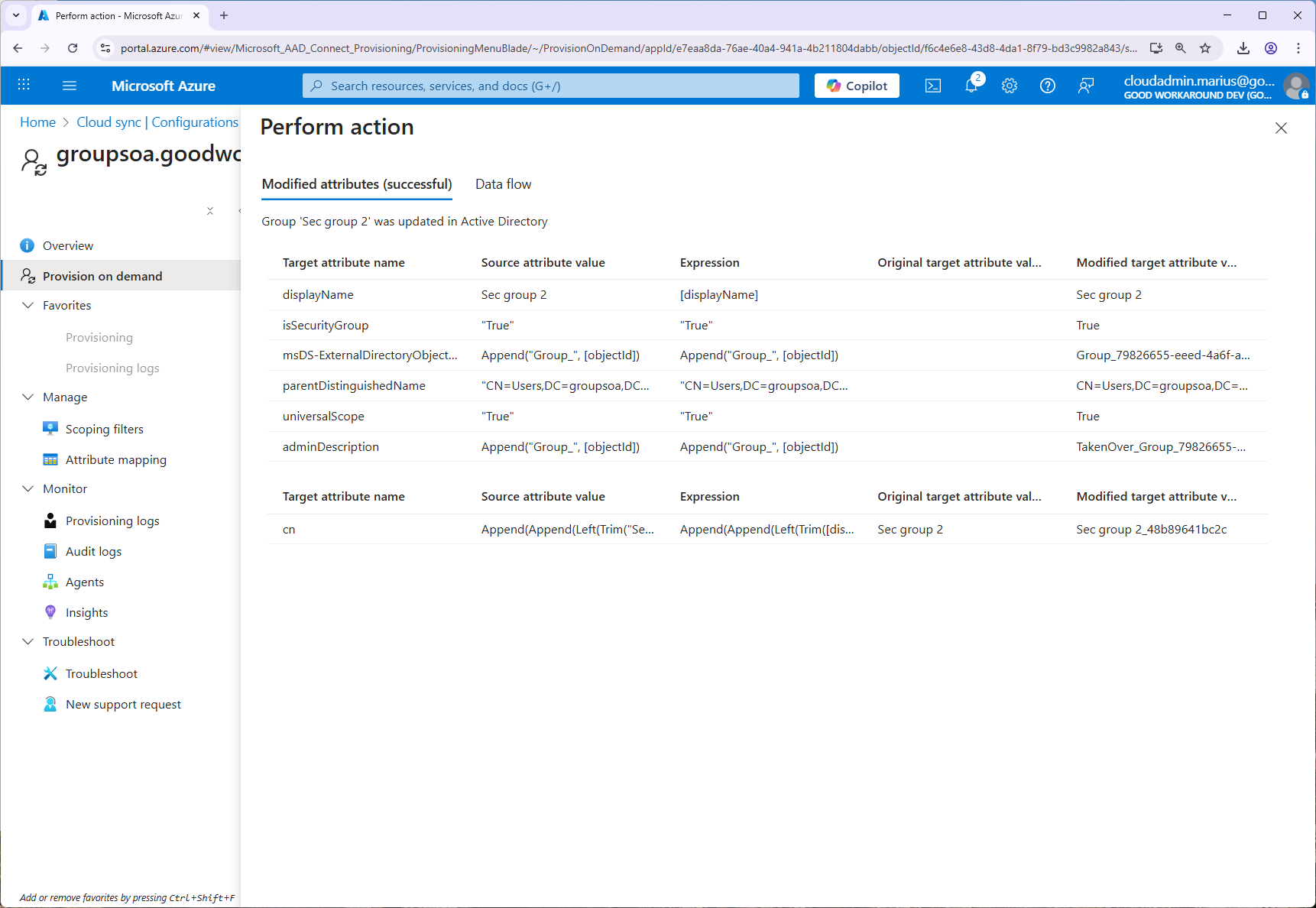
Worth noticing is that this configuration by default will move the group to another OU and update the cn of the group. Also, Entra ID has no group reconciliation feature, meaning that if you go into AD and add or remove a member – Entra ID will not know about this. Only changes happening in Entra ID will be processed, meaning that if you add a member in Entra ID, it will be added in AD as well.
So, that’s it. We can now finally take Entra ID to the next level by limiting the need to access Active Directory directly 🚀

 Good Workaround!