Ok let’s say you are building a new PowerShell module or script and you would like to be able to run it on Windows virtual machines locally in your own datacenter, in Azure Functions, in GitHub Actions, in Azure DevOps Pipelines, in Automation Accounts or any other method of running PowerShell – this is perfectly possible, but how can you have it authenticate to Entra ID without a gazillion lines of code? Any how do you test that each scenario actually works? I present to you EntraIDAccessToken – a free and open module for authenticating to Entra ID, both for Microsoft Graph and any other integrated API.
Continue reading “EntraIDAccessToken, our open module for simplifying Entra ID authentication in your PowerShell scripts and modules”Tag: Azure
Extracting the results of access reviews in Entra ID
So, you have completed your access reviews for a gazillion groups or access packages in Entra ID, and now would like to show off the result to management? No problem, we can simply dump the results to Excel and do whatever we’d like with them! Let me show you how:
Continue reading “Extracting the results of access reviews in Entra ID”Converting AD groups to Entra ID groups
Finally, the public preview of Group Source of Authority is out! What does this mean for you and me? Well, you can take any number of the groups you are currently synchronizing from Active Directory to Entra ID (which are currently read only in Entra ID), and make them writable in Entra ID. And you can even have turn the solution upside down, having Entra ID update the AD group when members are added/removed!
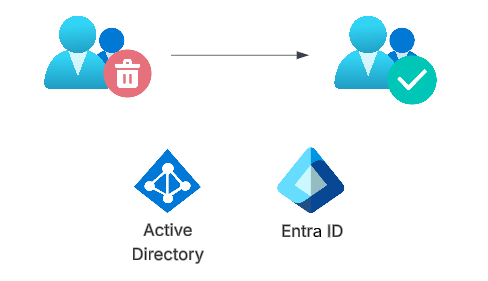
Let’s dig into this feature!
Continue reading “Converting AD groups to Entra ID groups”Accessing resources cross tenant using managed service identities
Up until now there has been no good way to have a managed service identity on tenant A granted access to resources or graph scopes in tenant B. Finally there is a way to achieve this!
There is a little caveat though, and that is that you will still need another app registration, but by using this new preview, we no longer need client secrets or certificates. Let’s have a look at how this works!
Continue reading “Accessing resources cross tenant using managed service identities”Using PowerShell and Graph to handle access package assignments
The Microsoft Graph is powerful, however it can be a bit daunting at times due to the sheer number of endpoints and parameters. Just for the access package feature of entitlement management, you have endpoints for assignments, approvals, approval stages, resource role scopes, assignment policies, assignment requests, catalogs, resources… you get the point. In this blog post we will be working with assigning existing access packages to users, just because that is a simple process that might be difficult to understand from the documentation.
Continue reading “Using PowerShell and Graph to handle access package assignments”Issuing Custom Security Attributes in Entra ID tokens
Custom security attributes in Entra ID is a feature that allows you to add attribute sets and attributes to your tenant, which you can use on all your user and application objects. A fairly common ask in Entra ID is the ability to store “secret data”, such as social security numbers, and making sure only certain principals can read these values. Here is where custom security attributes come into play. You can add an attribute set “PersonalInformation” to your tenant, and add “SSN” as an attribute to this attribute set. You can then tag each user with values, which only will be readable by those assigned the “Attribute assignment reader” role on tenant level or attribute set level.
However, currently Entra ID does not allow for these to be a part of issued tokens, not part of outbound synchronization rules and not as criteria for criteria based groups. So yeah, not really a first class citizen currently. For issued tokens, we can do something about it though!
Continue reading “Issuing Custom Security Attributes in Entra ID tokens”Using your PowerShell profile for something very useful
Have you ever found yourself writing the same PowerShell code over and over, thinking “there should be a built-in function for this”. Here is my trick for an even better PowerShell day! First I’ll show you how to create a PowerShell profile where you can define all of our favorite methods, and then I’ll show you how to use it on many computers, as you will probably want this on your servers as well as your desktop.
Start by opening a PowerShell and type $profile. This default variable contains a path to your PowerShell profile, usually located in the Documents\WindowsPowerShell, which does not exist by default. Run the following two lines to create the folder, and create an empty file.
mkdir (Split-Path $profile) -ErrorAction SilentlyContinue;
if(!(Test-Path $profile))
{
	Set-Content -Path $profile -Value ""
}
After running these you have an empty profile. Use your favorite editor to edit the file.
# PS> ise $profile
The code inside this file will run each time your start a new PowerShell. Here you can define your own methods. What makes this very usefull is the possibility to create a method to download your PowerShell profile from the internet. Here is an example of such a function:
# Function to update the powershellprofile from the internet
function Update-PowerShellProfile() {
    [CmdletBinding()]
    Param()
    Write-Verbose "Updating PowerShell profile"

    if(!(Test-Path (Split-Path $profile))) {
        Write-Verbose ("Profile path did not exist, creating {0}" -f (Split-Path $profile))
        mkdir (Split-Path $profile)
    }

    Write-Debug "Creating System.Net.WebClient"
    $wc = New-Object System.Net.WebClient
    Write-Debug "Downloading file http://pastebin.com/raw.php?i=tdySrDgz"
    $wc.DownloadFile("http://pastebin.com/raw.php?i=tdySrDgz", $profile)

    Write-Output "Reload profile with the cmdlet:  . `$profile"
}
Basically it downloads a some stuff from pastebin and puts into the PowerShell profile. After this, you can either open a new PowerShell to run the profile again, or you can type “. $profile” to re-load the profile.
Here is an example of a full profile (a subset of methods I have in mine). I have my own PowerShell profile hosted in my Dropbox folder, but you choose wherever you want, just change the Update-PowerShellProfile method.
function Connect-ExchangeOnline{
    [CmdletBinding()]
    Param(
        [Parameter(Mandatory=$True,Position=0)]
        [System.Management.Automation.PSCredential]$Credentials
    )
    $Session = New-PSSession -ConfigurationName Microsoft.Exchange -ConnectionUri https://ps.outlook.com/powershell -Authentication Basic -AllowRedirection -Credential $Credentials
    Import-PSSession $session -DisableNameChecking
}

function Disconnect-ExchangeOnline {
    [CmdletBinding()]
    Param()
    Get-PSSession | ?{$_.ComputerName -like "*outlook.com"} | Remove-PSSession
}

# Function to update the powershellprofile from the internet
function Update-PowerShellProfile() {
    [CmdletBinding()]
    Param()
    Write-Verbose "Updating PowerShell profile"

    if(!(Test-Path (Split-Path $profile))) {
        Write-Verbose ("Profile path did not exist, creating {0}" -f (Split-Path $profile))
        mkdir (Split-Path $profile)
    }

    Write-Debug "Creating System.Net.WebClient"
    $wc = New-Object System.Net.WebClient
    Write-Debug "Downloading file http://pastebin.com/raw.php?i=tdySrDgz"
    $wc.DownloadFile("http://pastebin.com/raw.php?i=tdySrDgz", $profile)

    Write-Output "Reload profile with the cmdlet:  . `$profile"
}

# Set the PowerShell prompt to PS>
function prompt{
    Write-Host -ForegroundColor Red "PS" -NoNewline
    Write-Host -ForegroundColor White -NoNewline ">"
    return " "
}


function ConvertTo-Base64
{
    [CmdletBinding(DefaultParameterSetName='String')]
    [OutputType([String])]
    Param
    (
        # String to convert to base64
        [Parameter(Mandatory=$true,
                   ValueFromPipeline=$true,
                   ValueFromRemainingArguments=$false,
                   Position=0,
                   ParameterSetName='String')]
        [ValidateNotNull()]
        [ValidateNotNullOrEmpty()]
        [string]
        $String,

        # Param2 help description
        [Parameter(ParameterSetName='ByteArray')]
        [ValidateNotNull()]
        [ValidateNotNullOrEmpty()]
        [byte[]]
        $ByteArray
    )

    if($String) {
        return [System.Convert]::ToBase64String(([System.Text.Encoding]::UTF8.GetBytes($String)));
    } else {
        return [System.Convert]::ToBase64String($ByteArray);
    }
}


function ConvertFrom-Base64 {
    [CmdletBinding()]
    Param(
        [Parameter(Mandatory=$True,
                   Position=0,
                   ValueFromPipeline=$true)]
        [ValidateNotNull()]
        [ValidateNotNullOrEmpty()]
        [string]
        $Base64String
    )

    return [System.Text.Encoding]::UTF8.GetString(([System.Convert]::FromBase64String($Base64String)));
}


function Split-String
{
    [CmdletBinding()]
    [OutputType([string[]])]
    Param
    (
        # The input string object
        [Parameter(Mandatory=$true,
                   ValueFromPipeline=$true,
                   Position=0)]
        [String] $InputObject,

        # Split delimiter
        [Parameter(Mandatory=$false,
                   ValueFromPipeline=$false,
                   Position=1)]
        [String] $Delimiter = "`n",

        # Do trimming or not
        [Parameter(Mandatory=$false,
                   ValueFromPipeline=$false,
                   Position=2)]
        [Boolean] $Trim = $true

    )

    if($Trim) {
        return $InputObject -split $Delimiter | foreach{$_.Trim()}
    } else {
        return $InputObject -split $Delimiter
    }
}


function ConvertFrom-ImmutableID
{
    [CmdletBinding()]
    [OutputType([GUID])]
    Param
    (
        # Param1 help description
        [Parameter(Mandatory=$true,
                   ValueFromPipelineByPropertyName=$false,
                   ValueFromPipeline=$true,
                   Position=0)]
        $ImmutableID
    )

    return [guid]([system.convert]::frombase64string($ImmutableID) )
}


function New-ObjectFromHashmap
{
    [CmdletBinding()]
    Param
    (
        # Param1 help description
        [Parameter(Mandatory=$true,
                   ValueFromPipeline=$true,
                   Position=0)]
        $Hashmap
    )

    Begin
    {
    }
    Process
    {
        New-Object -TypeName PSCustomObject -Property $Hashmap
    }
    End
    {
    }
}
Then for each new server you are working on, just find a way to bring the Update-PowerShellProfile method, run it and you have the same profile everywhere, such as my Connect-ExchangeOnline method or the Split-String method.
Have fun!
 Good Workaround!