Up until recently, Azure AD login to virtual machines was severely limited, because your device had to be joined to the same Azure AD as the virtual machine. For many, this was fine, but with external consultants this soon becomes cumbersome.
However, this is no longer the case, and you can actually sign in with any user in the same tenant as the virtual machine (No B2B currently). Let me show you how!
What I find interesting is that there was an update to the documentation back in March 2023, that added details about passwordless authentication into VMs. However, there is no real requirement for passwordless here at all, but it is nice that it works.
Summary of requirements is as follows:
- A user account in the same tenant as the virtual machine (no B2B)
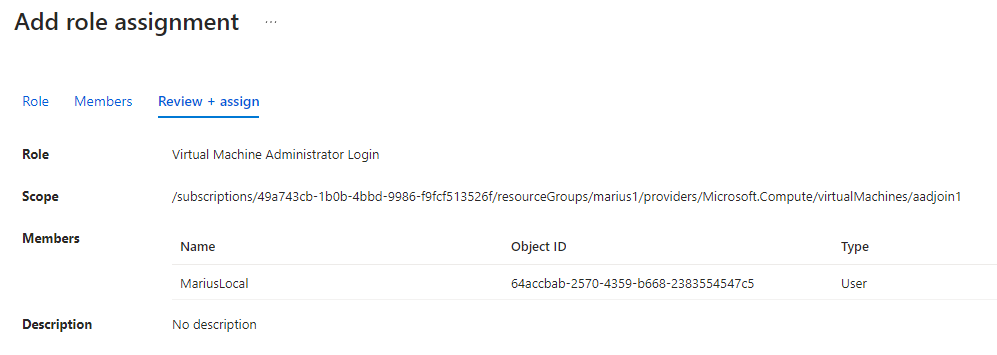
- The user is assigned one of the following Azure RBAC roles (Owner does not work!): Virtual Machine Administrator Login or Virtual Machine User Login
- Your client computer meets the following requirements
- Windows 11 with 2022-10 Cumulative Updates for Windows 11 (KB5018418) or later installed.
- Windows 10, version 20H2 or later with 2022-10 Cumulative Updates for Windows 10 (KB5018410) or later installed.
- Windows Server 2022 with 2022-10 Cumulative Update for Microsoft server operating system (KB5018421) or later installed.
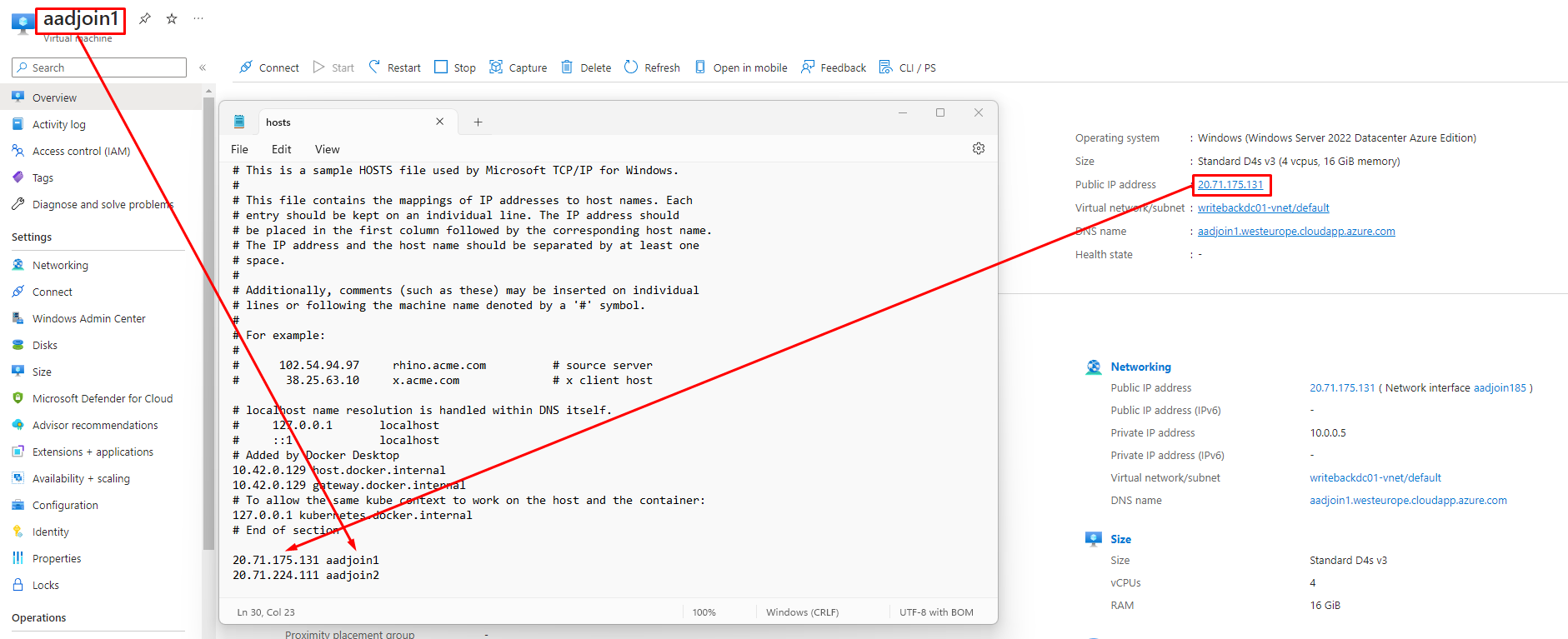
- Your client computer can resolve the hostname of the virtual machine without domain suffix (by hostname only)
First we need our Azure windows virtual machine deployed, with this checkbox enabled:

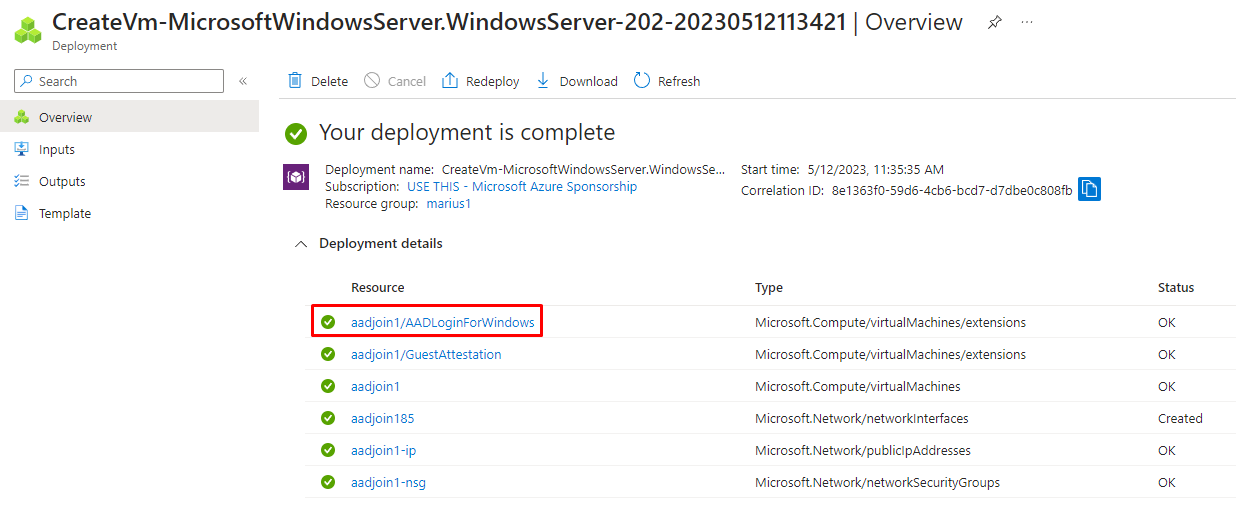
After deployment of the VM, we should see this extension being added:
Second, we will copy the IP-address of the virtual machine, adding it to our hosts file (because I am lazy, and I have not configured a DNS suffix for my computer):
This is important, as if you try signing into the virtual machine with the FQDN, you’ll receive an error like this:

Third, we must assign our user (named MariusLocal) the Azure RBAC role Virtual Machine Administrator Login:
That’s it, we can now sign into our virtual machine using the below steps. Personally I am doing this from a computer Azure AD registered in a completely different tenant than the virtual machine.
- Start your remote desktop client
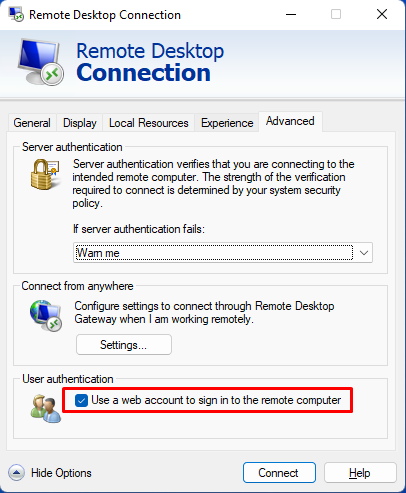
- Go to Advanced and enable Use a web account to sign in to the remote computer
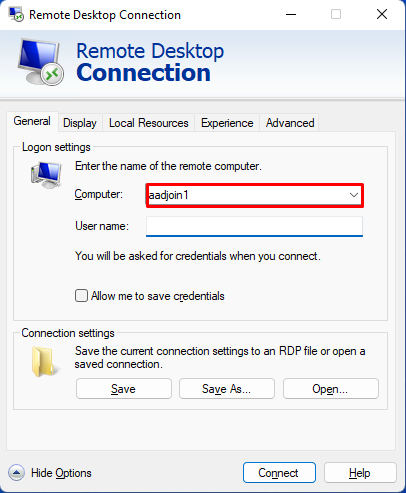
- Go to General and type hostname only
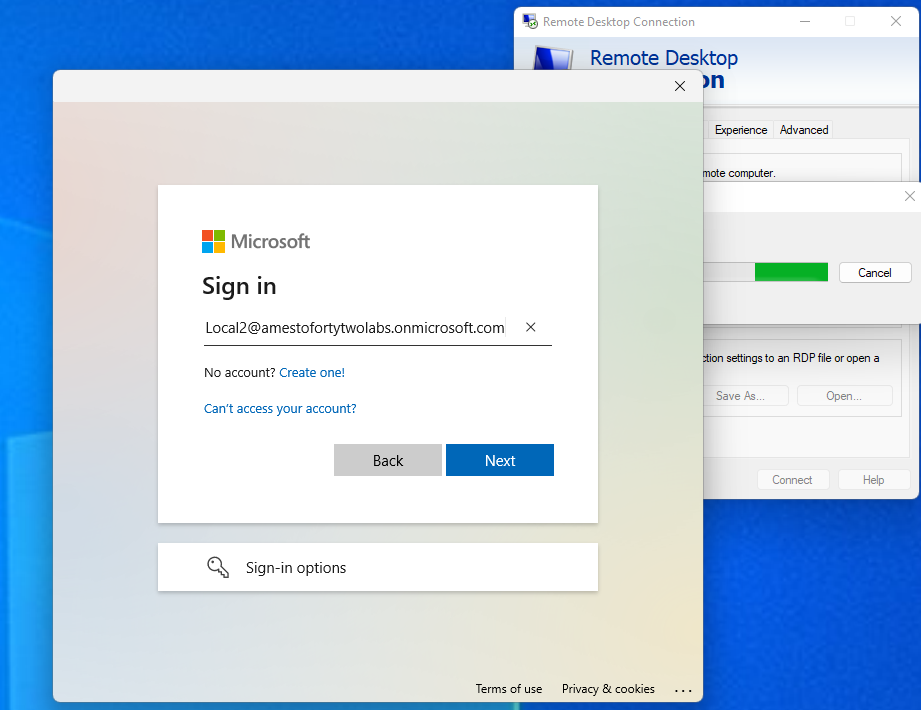
Sign in using regular Azure AD sign-in. Conditional access policies will be applied, and passwordless options are available.
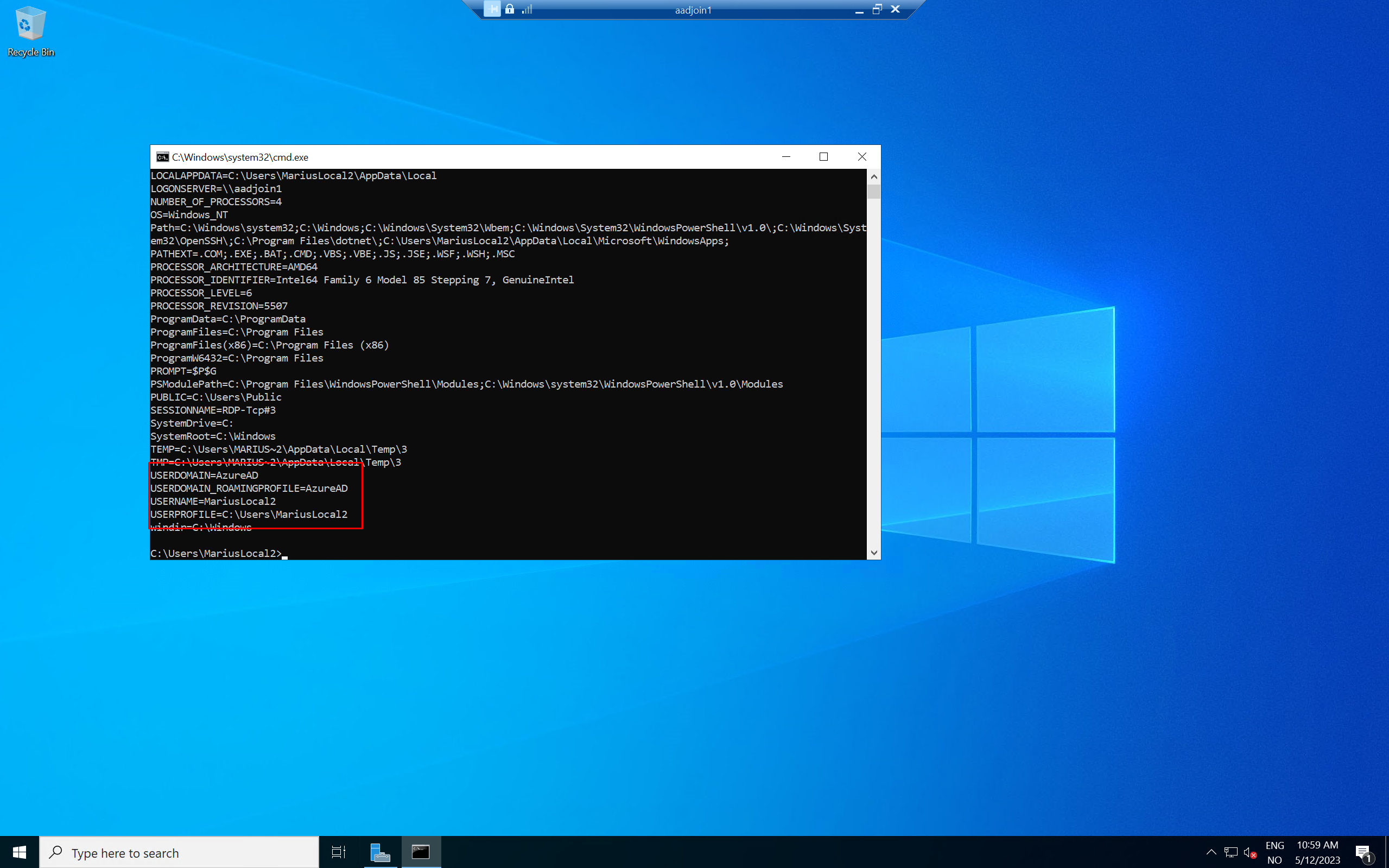
So, that’s it, this is way better than it has even been! 🙂

 Good Workaround!
Consider a scenario with tiered privileged accounts.
How can user sign in to Azure VM with his PUM account in this scenario?
It works OK with work account, as MFA is sent as part of a user Claim (because of WHfB). But can it work with this Tier 1 account without removing MFA requirement for Azure VM sing-in?