Quick blogpost today! Sometimes you need more than the default set of attributes synchronized from Active Directory to Entra ID. Whether it’s employee IDs, location codes, cost centers, or custom application attributes, getting the right data into Entra ID can simplify automation, provisioning, and identity governance.
With Entra ID Cloud Sync, adding custom attributes is straightforward once you know where to look. In this quick guide, I’ll show you how to configure Cloud Sync to bring additional Active Directory attributes into Entra ID.
In my environment, I have three attributes in AD, that I want in Entra ID:
- msDs-cloudExtensionAttribute1 (Start date of the user in the ISO 8601 format)
- msDs-cloudExtensionAttribute2 (End date of the user, also ISO 8601)
- msDs-cloudExtensionAttribute19
In Entra Connect Sync, we had a UI for everything, with Cloud Sync – not so much. But! Microsoft has documented it: https://learn.microsoft.com/en-us/entra/identity/hybrid/cloud-sync/custom-attribute-mapping?tabs=ps
What is important to understand, is that the way custom attributes are stored in Entra is through application extension properties. And more specifically, it needs to be on an application with an identifier uri on the format API://<tenantid>/CloudSyncCustomExtensionsApp. It is not possible to create multiple apps in the same tenant, that has the same identifier uri, so you cannot really go wrong here. This is how to quickly create the app:
# Get the tenant id:
$tenantId = (Get-MgOrganization).Id

# Get the app
$app = Get-MgApplication -Filter "identifierUris/any(uri:uri eq 'API://$tenantId/CloudSyncCustomExtensionsApp')"

# If the app did not exist, create it:
if(!$app) {
    $app = New-MgApplication -DisplayName "CloudSyncCustomExtensionsApp" -IdentifierUris "API://$tenantId/CloudSyncCustomExtensionsApp"
    Start-Sleep 20 # Wait a bit to make sure things are in sync
}

# Get the app's service principal
$sp = Get-MgServicePrincipal -Filter "AppId eq '$($app.AppId)'"

# If it does not exist, create it:
if(!$sp) {
    new-mgservicePrincipal -AppId $app.AppId | Out-Null
}
Ok, so at this point we have the app created – or found if it already exists, and we can create extension properties. We are adding a new property for users, which is done using New-MgApplicationExtensionProperty:
New-MgApplicationExtensionProperty -ApplicationId $app.id -Name "msDsCloudExtensionAttribute20" -DataType String -TargetObjects @("User")
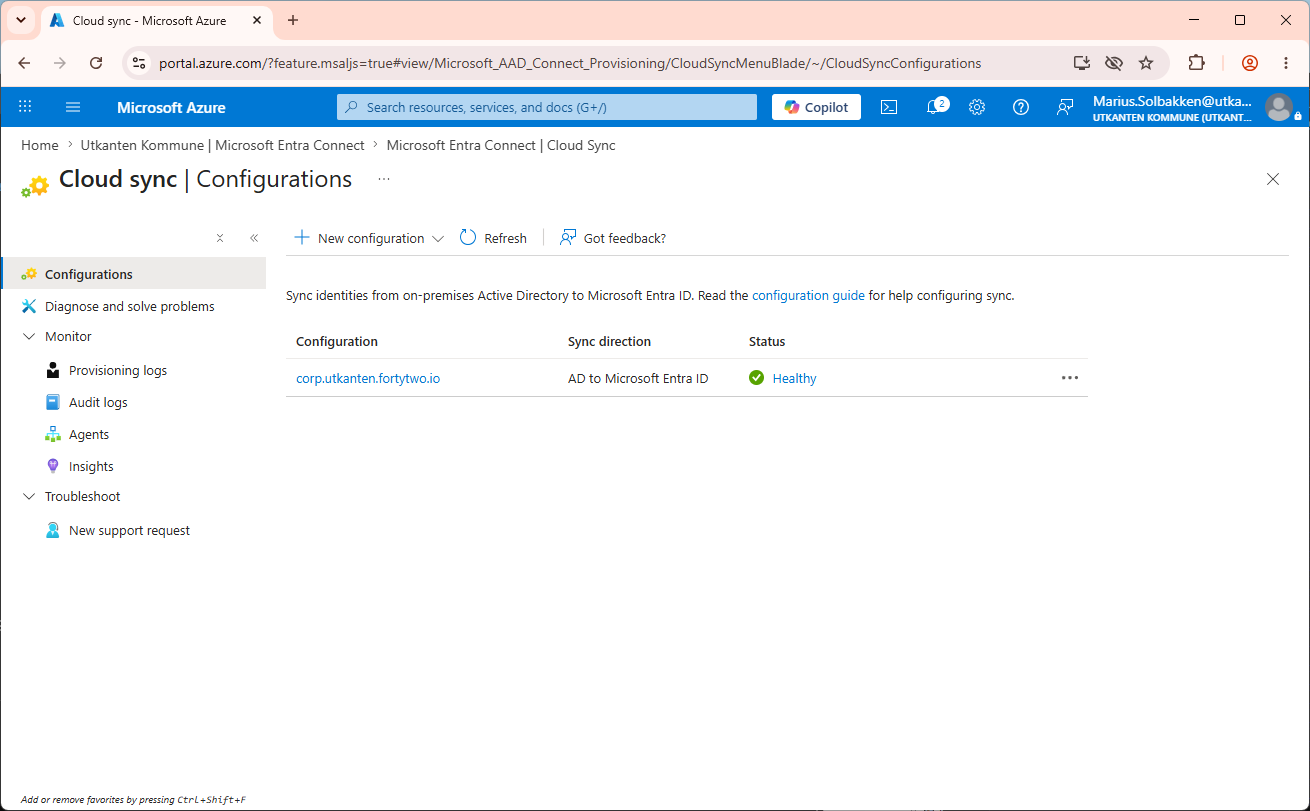
After this has been done, we are ready to configure the attribute flow from AD. We navigate to our Entra Cloud Sync configurations, that you can find under Entra ID > Entra Connect > Cloud sync:
Here I can find my AD to Entra ID configuration:
Clicking on this, I can find Attribute mapping:
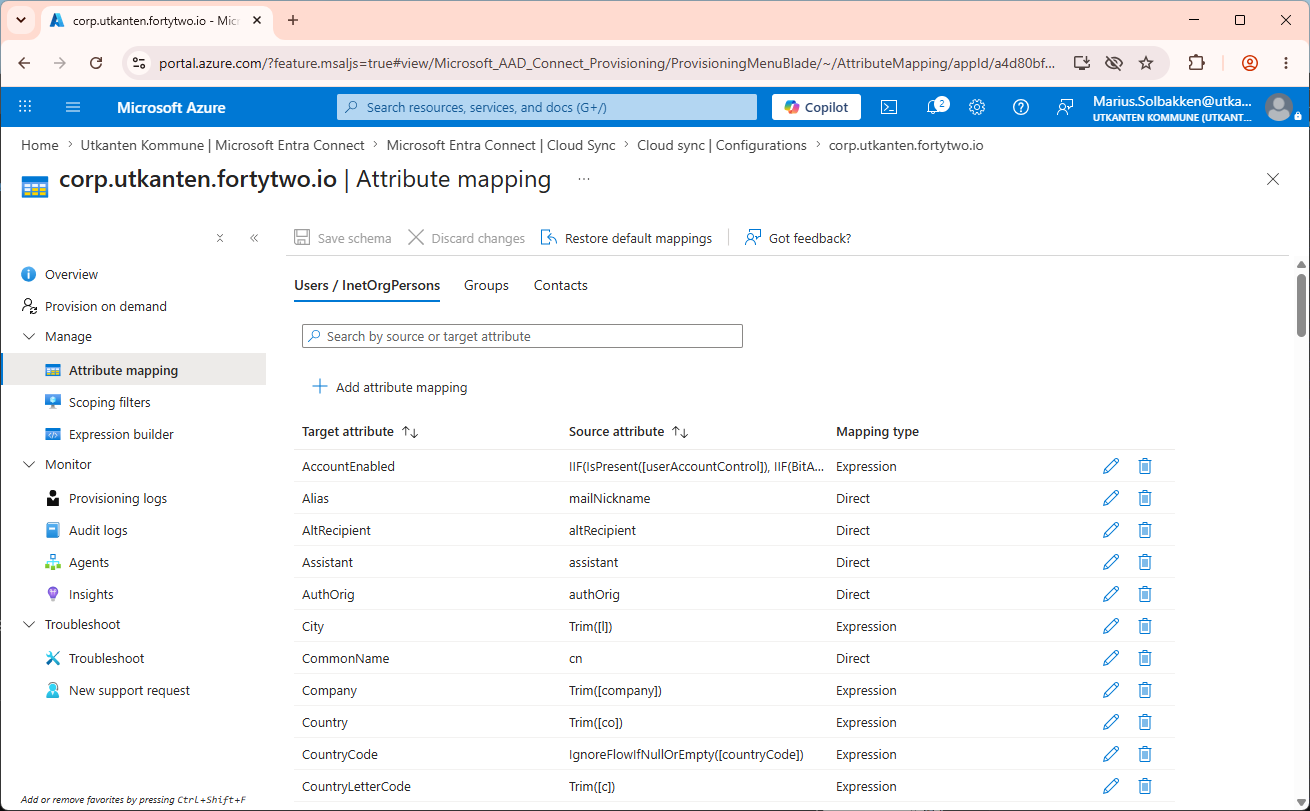
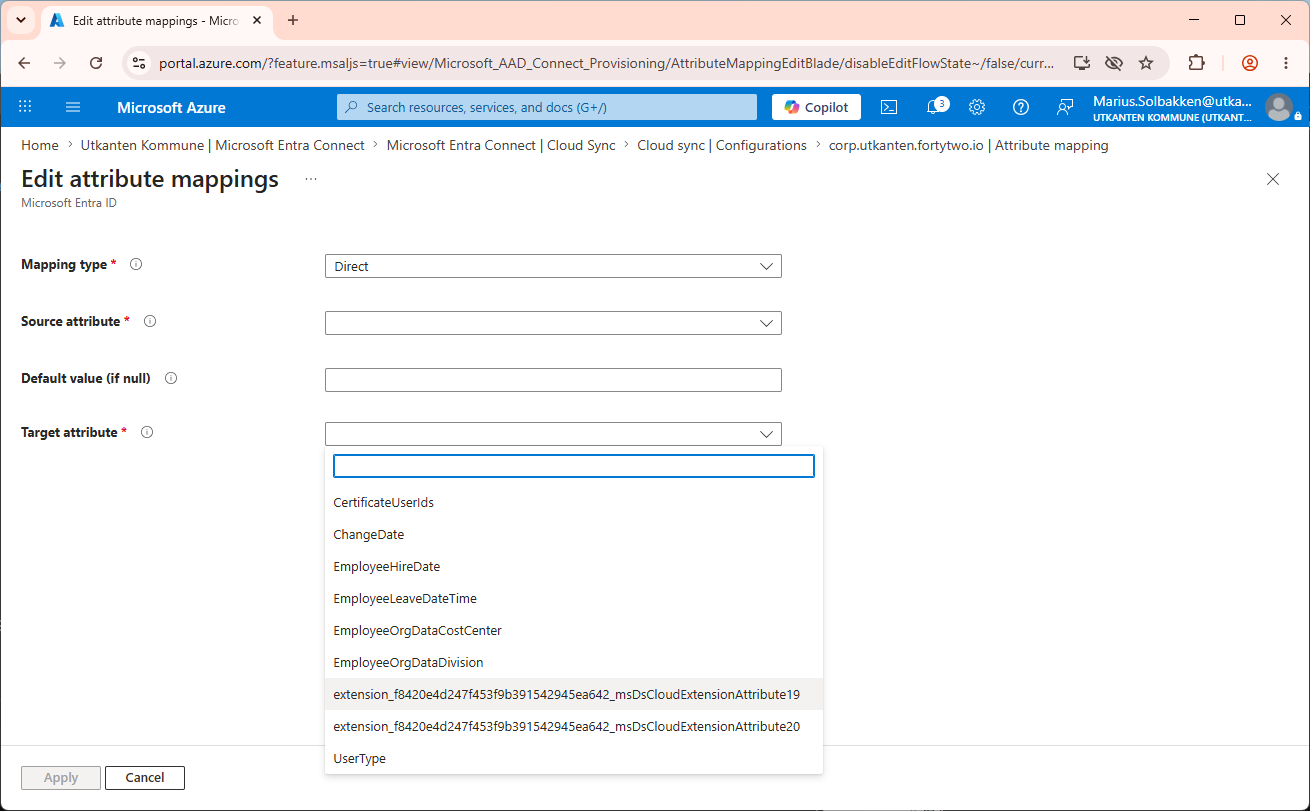
Here I can click + Add attribute mapping, and I should see my target attribute list extended with what I have added:
I can then add my flow from msDs-cloudExtensionAttribute19:
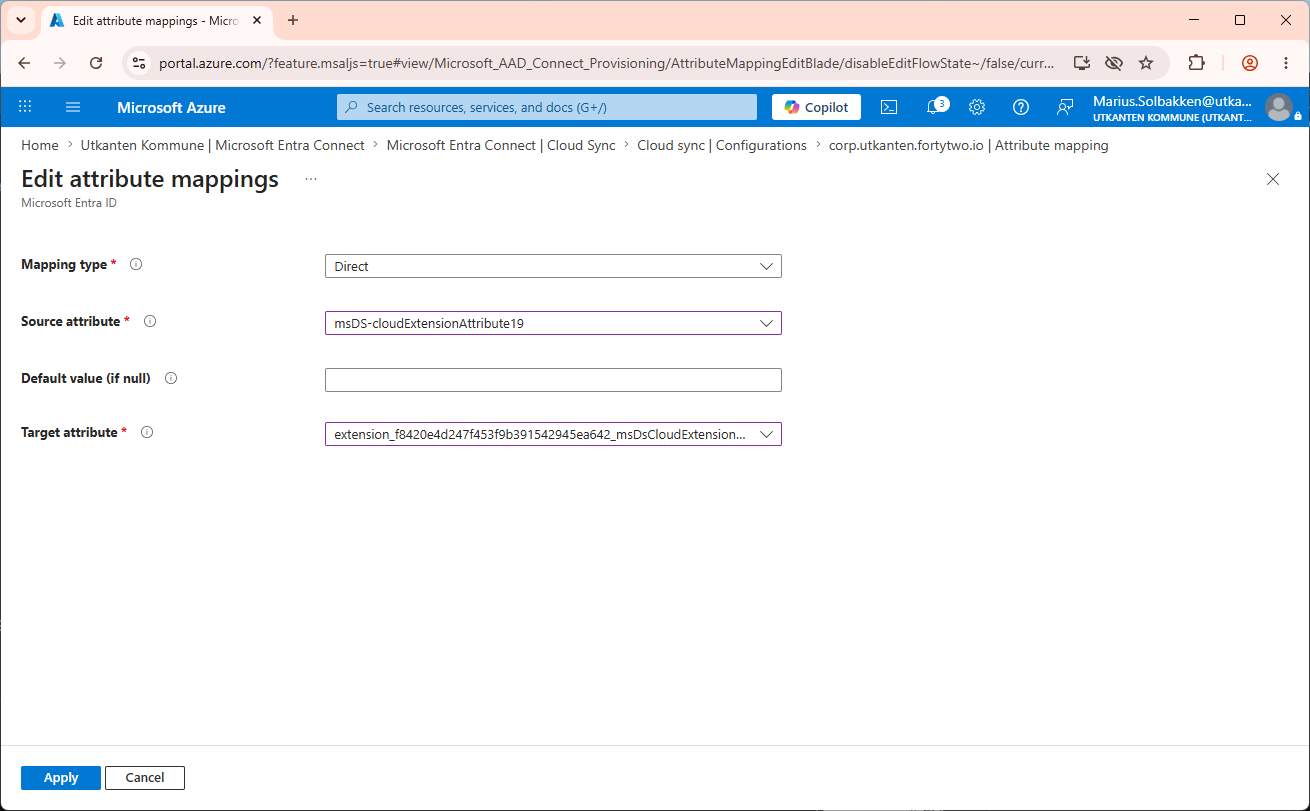
And also add flow from msDs-cloudExtensionAttribute1 to EmployeeHireDate and msDs-cloudExtensionAttribute2 to EmployeeLeaveDateTime:
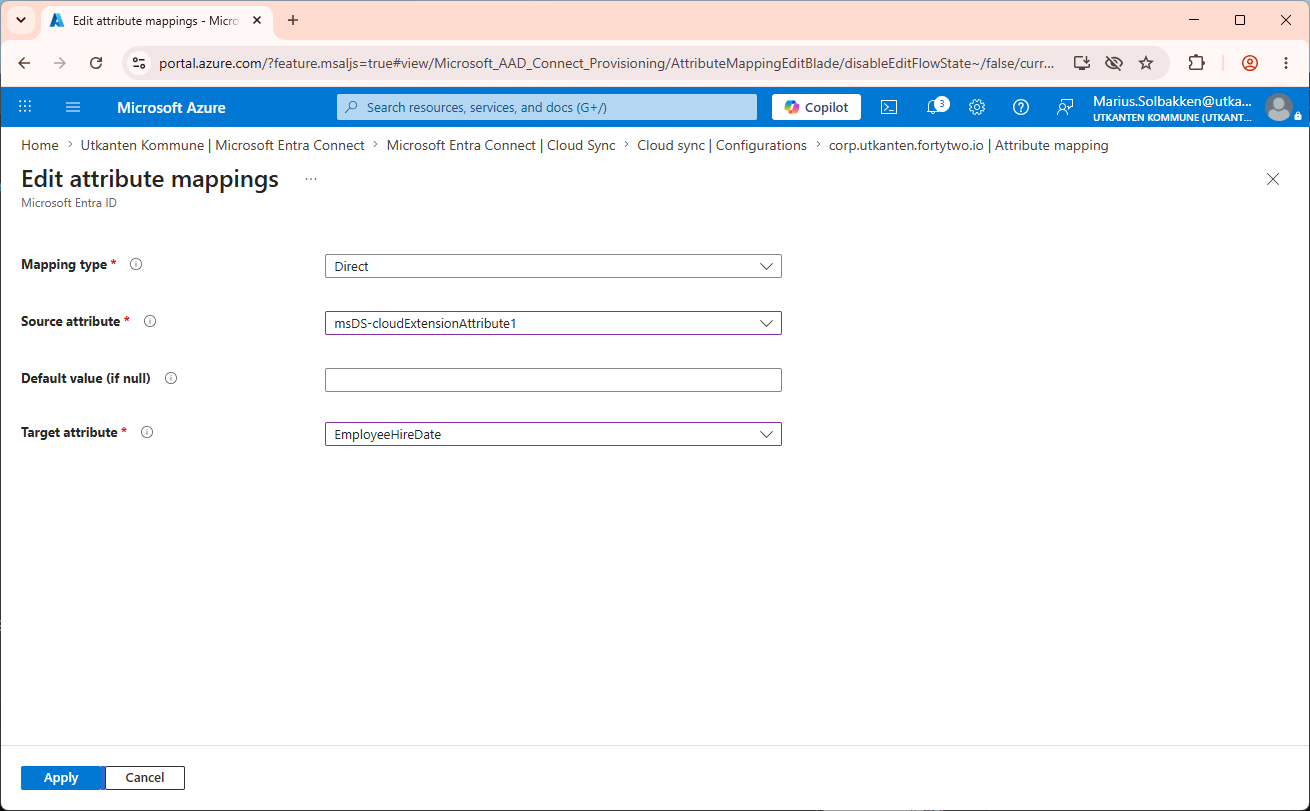
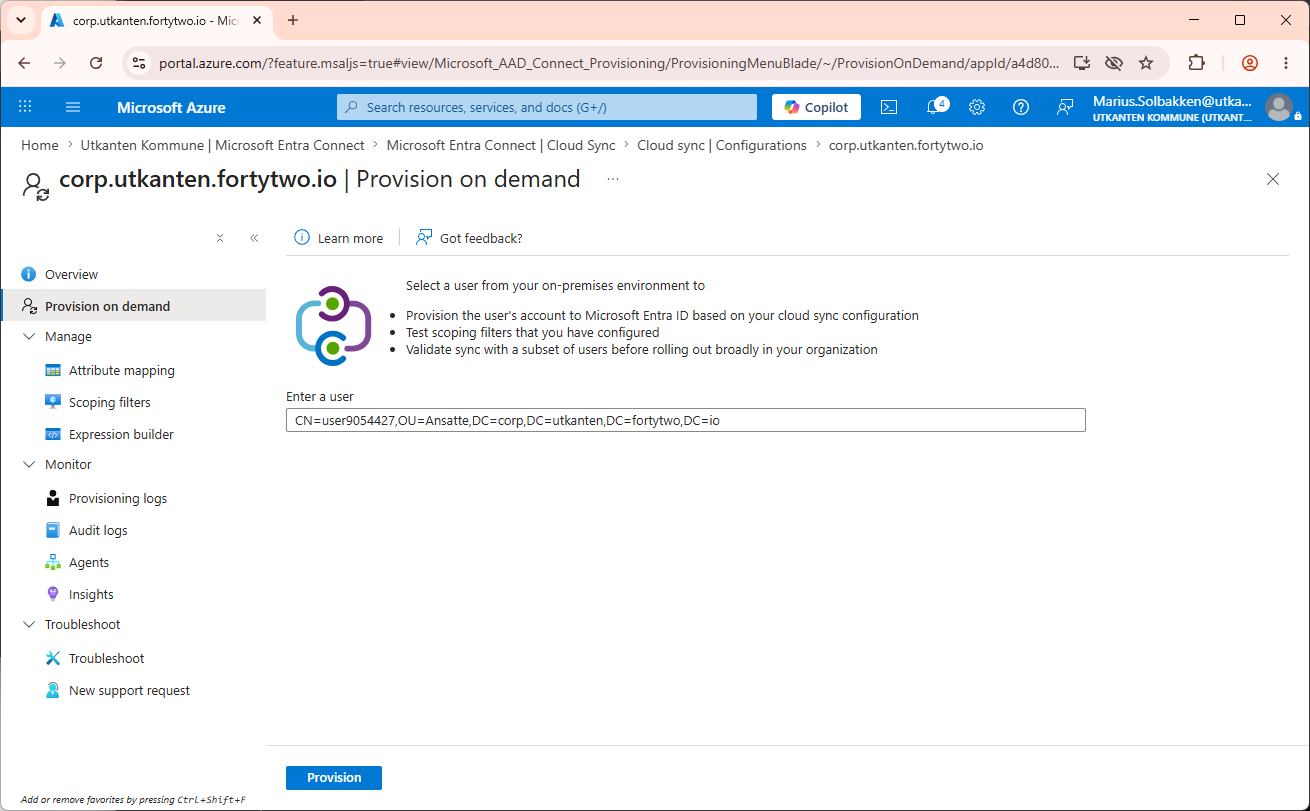
After adding these and clicking Save schema, I can test it on a single user, by utilizing the Provision on demand feature:
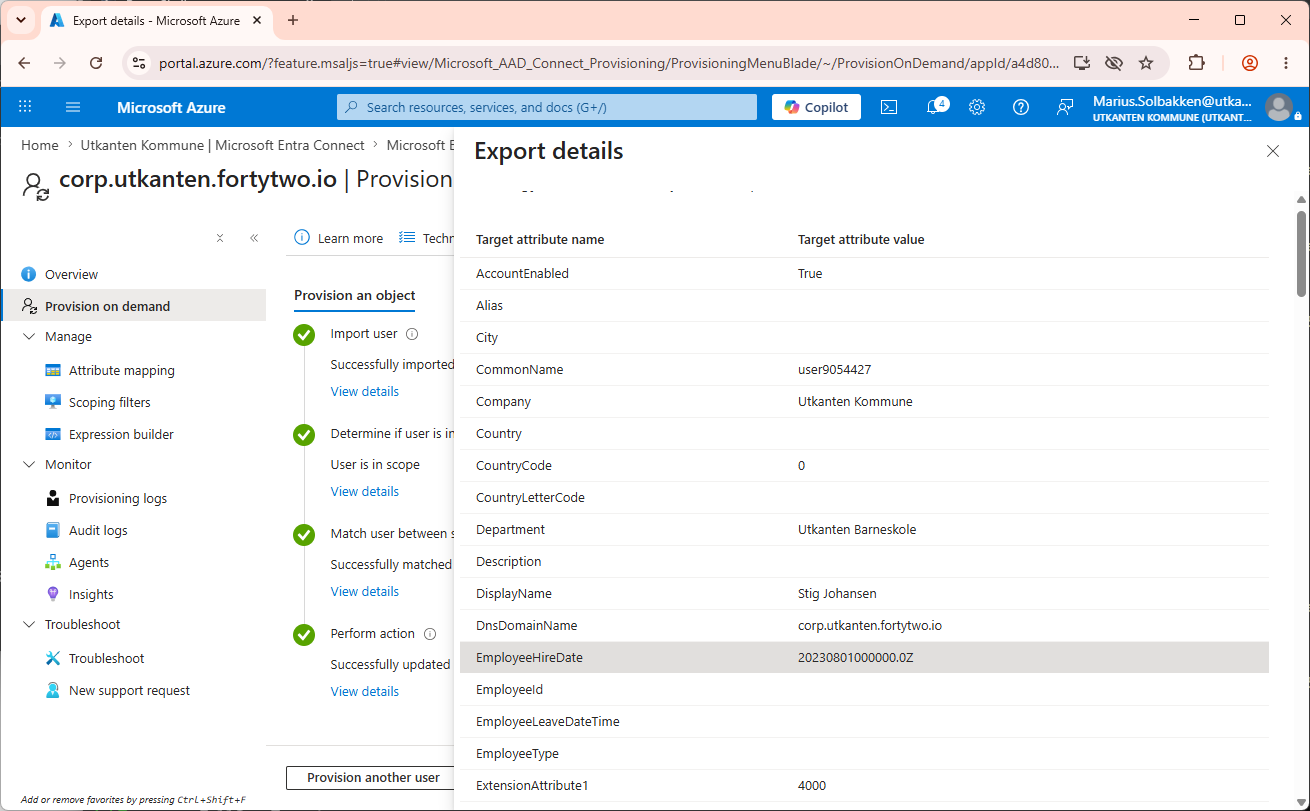
Where I can find the flowed attributes:
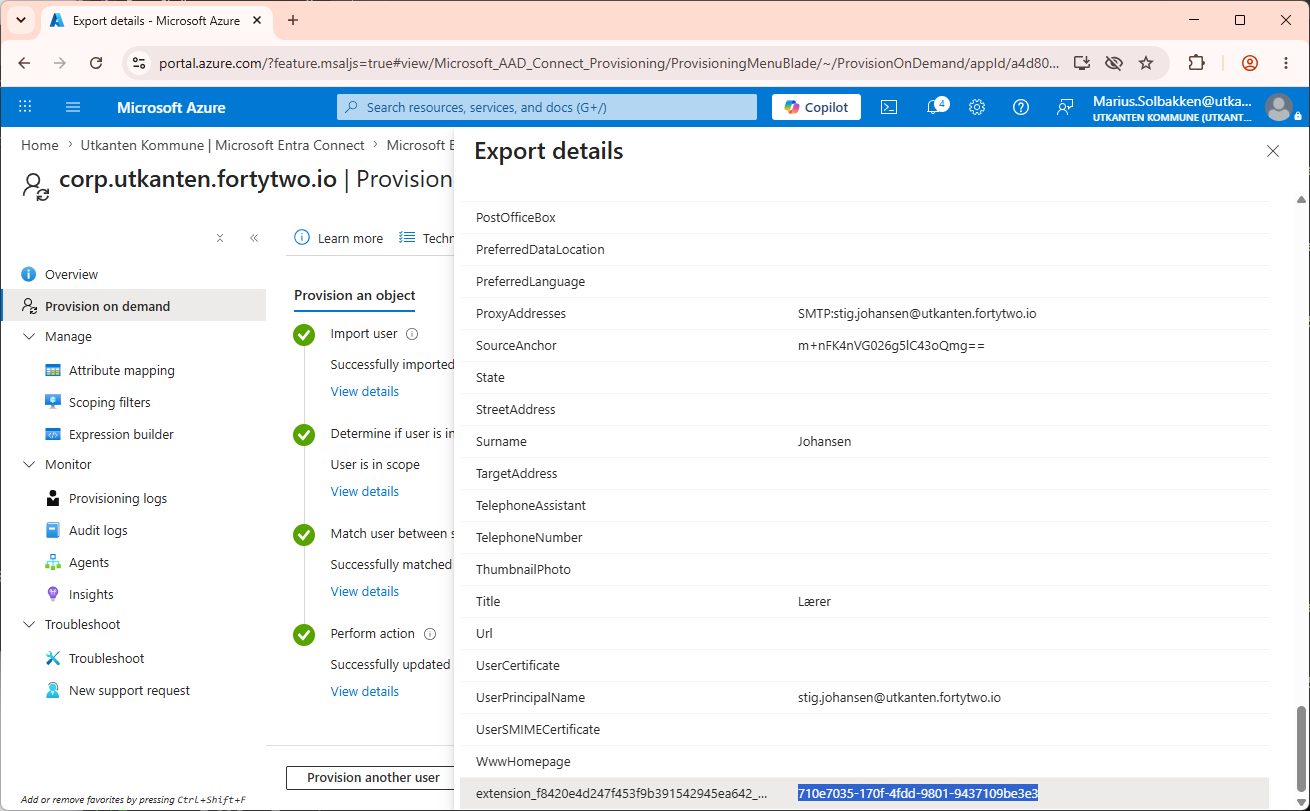
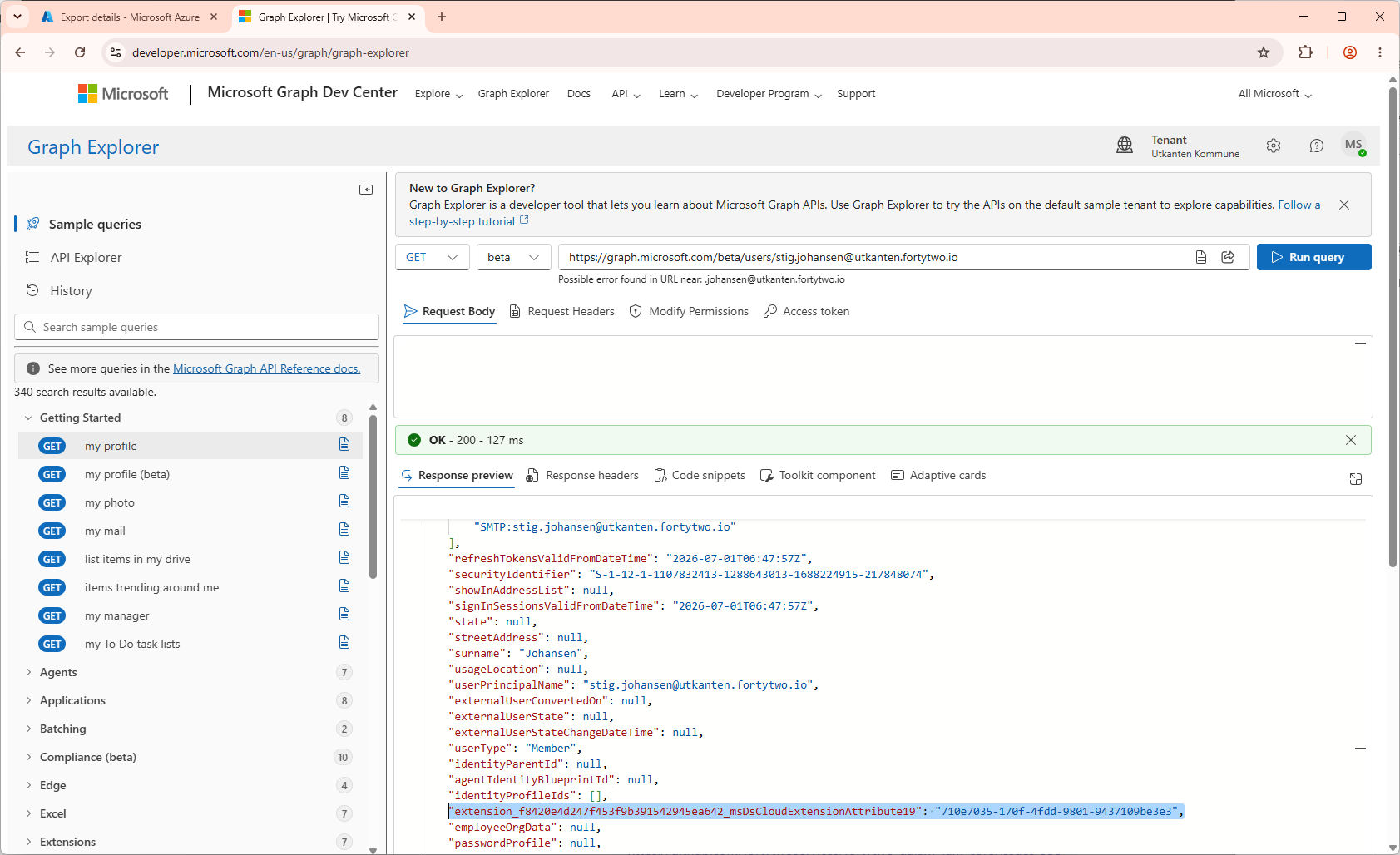
We should now be able to see this value in Graph Explorer, or other methods:
Good luck!


