Let’s say you have an API with Entra ID authentication for your organization, or for your customers, and you want to allow a nice CLI for your application. You maybe also want to allow both users and service principals to sign in, and maybe you want to be quite agnostic on what kind of runtime environment the module will be used in (local PowerShell, Automation accounts, Github actions etc.). Let me show you how we do this in Fortytwo, so that you can incorporate the same simple methods!

The example that I will be using is based on one of our many services, this for allowing users to change their own email address and upn, and also keep track of used email address, to avoid reuse within a timeframe. As a part of this service, it is very useful til be able to migrate lists of old used email addresses into the service, when starting to use the service. We could of course do some kind of CSV upload, or simply provide an API (which we do, of course), but why not allow an even simpler method of premade PowerShell cmdlets all wrapped neatly in a module that can be installed using Install-Module?
Our APIs are all Entra ID authenticated, under the same fqdn (api.fortytwo.io), and they all are authenticated through the same multi tenant application. They support both users and service principals, so how do we avoid building the same code a million times? Well, we use our EntraIDAccessToken module, that I have previously written about.
Let’s dig into what the user experience is like. The first thing a user needs to do, is to install it:
Install-Module Fortytwo.ByttEmail.Client -Scope CurrentUser
After this, all cmdlets are available automatically without the need for loading the module, because we list all the available cmdlets in the CmdletsToExport setting in the module data file. We actually even maintain the list of cmdlets dynamically on release with release-please, but this is not stricly necessary.
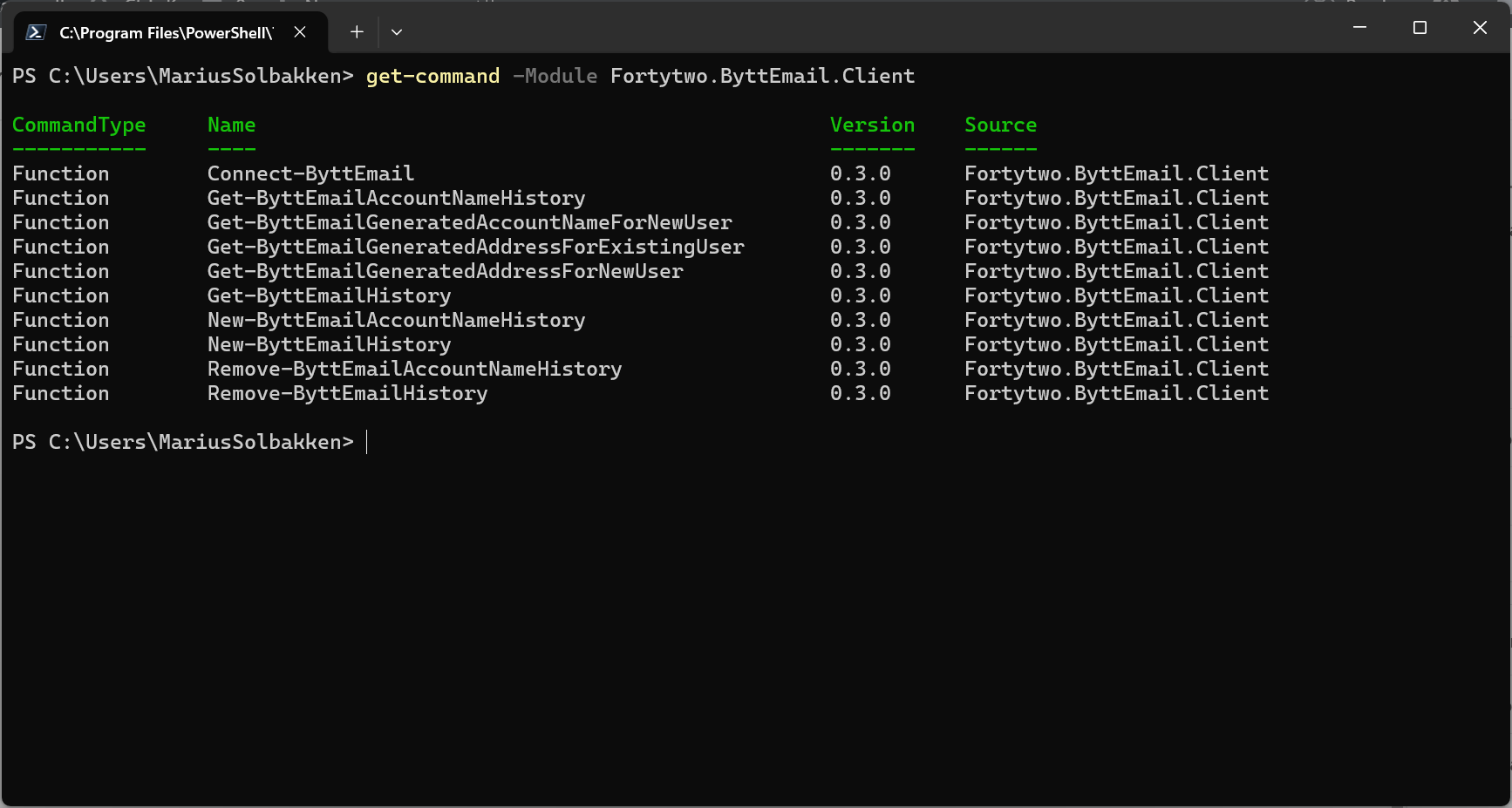
We can now list the available commends, and here we will find the Connect-ByttEmail cmdlet. Much as Connect-MgGraph, this is used to start a session:
If we look at the Connect-ByttEmail cmdlet code, we can find that the default parameter set is interactive, which means that the cmdlet will be starting an interactive sign-on. In the code we can also see that we call the Add-EntraIDInteractiveUserAccessTokenProfile, which comes from the EntraIDAccessToken module (Which the the psd1 file is listed in RequiredModules):
<#
.EXAMPLE
$Credential = Get-Credential
Connect-ByttEmail

#>
function Connect-ByttEmail {
    [CmdletBinding(DefaultParameterSetName = "interactive")]

    Param
    (
        [Parameter(Mandatory = $false)]
        [ValidateScript( { $_ -match '^[a-zA-Z0-9.-]+(:[0-9]+)?$' } )]
        [String] $FQDN = "api.fortytwo.io",

        [Parameter(Mandatory = $false, ParameterSetName = "accesstokenprofile")]
        [String] $EntraIDAccessTokenProfile = "Bytt.Email.Interactive"
    )

    Process {
        $Script:APIRoot = "https://{0}/changeemail/" -f $FQDN.TrimEnd('/')
        $Script:EntraIDAccessTokenProfile = $EntraIDAccessTokenProfile

        if($PSCmdlet.ParameterSetName -eq "interactive") {
            $ClientId = "68bf2f1d-b9e1-4477-8b90-81314861f05f"
            $Scope = "https://api.fortytwo.io/.default"
            if($FQDN -like "localhost*" -or $FQDN -eq "localhost") {
                $Scope = "https://dev-api.byfortytwo.com/.default"
                $ClientId = "b24eb00a-7f91-489b-b321-3b018da0e8a8"
            }

            Add-EntraIDInteractiveUserAccessTokenProfile -ClientId $ClientId -Scope $Scope -Name $EntraIDAccessTokenProfile
        }
        Get-EntraIDAccessToken -Profile $EntraIDAccessTokenProfile | Out-Null
    }
}
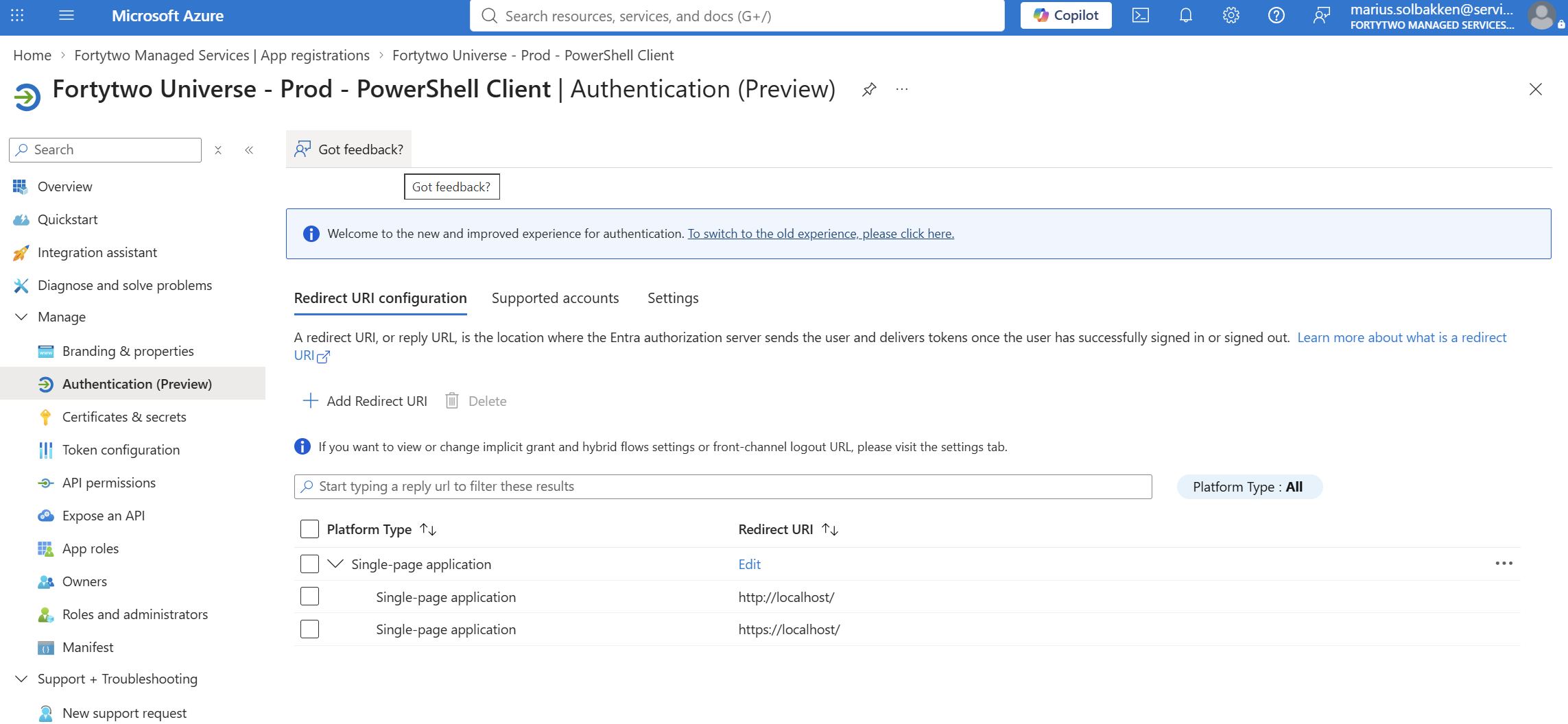
As parameters to the cmdlet, we have a multi tenant app that is our PowerShell Client App. The client app is configured with http://localhost as redirect uri, and the Add-EntraIDInteractiveUserAccessTokenProfile cmdlet listens on a randomized local port:
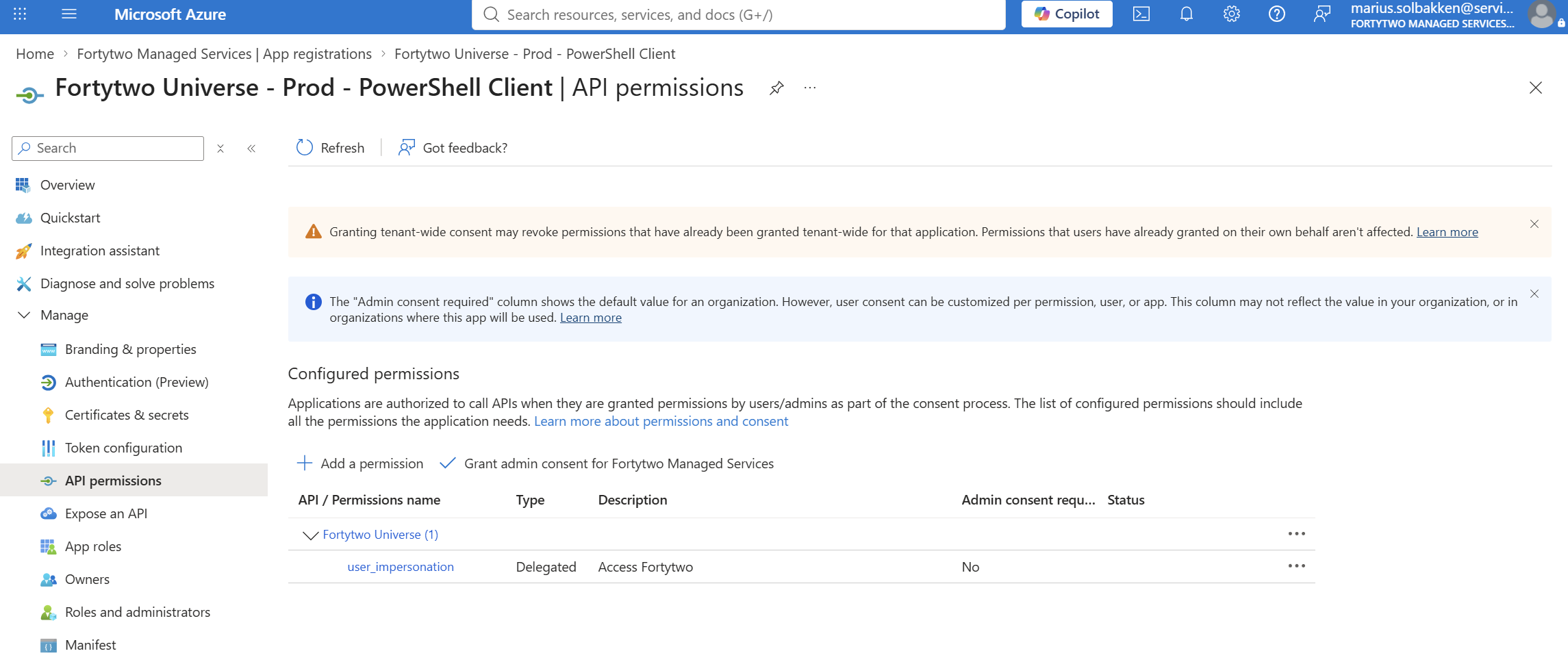
The client requires the user_impersonation scope of our own API:
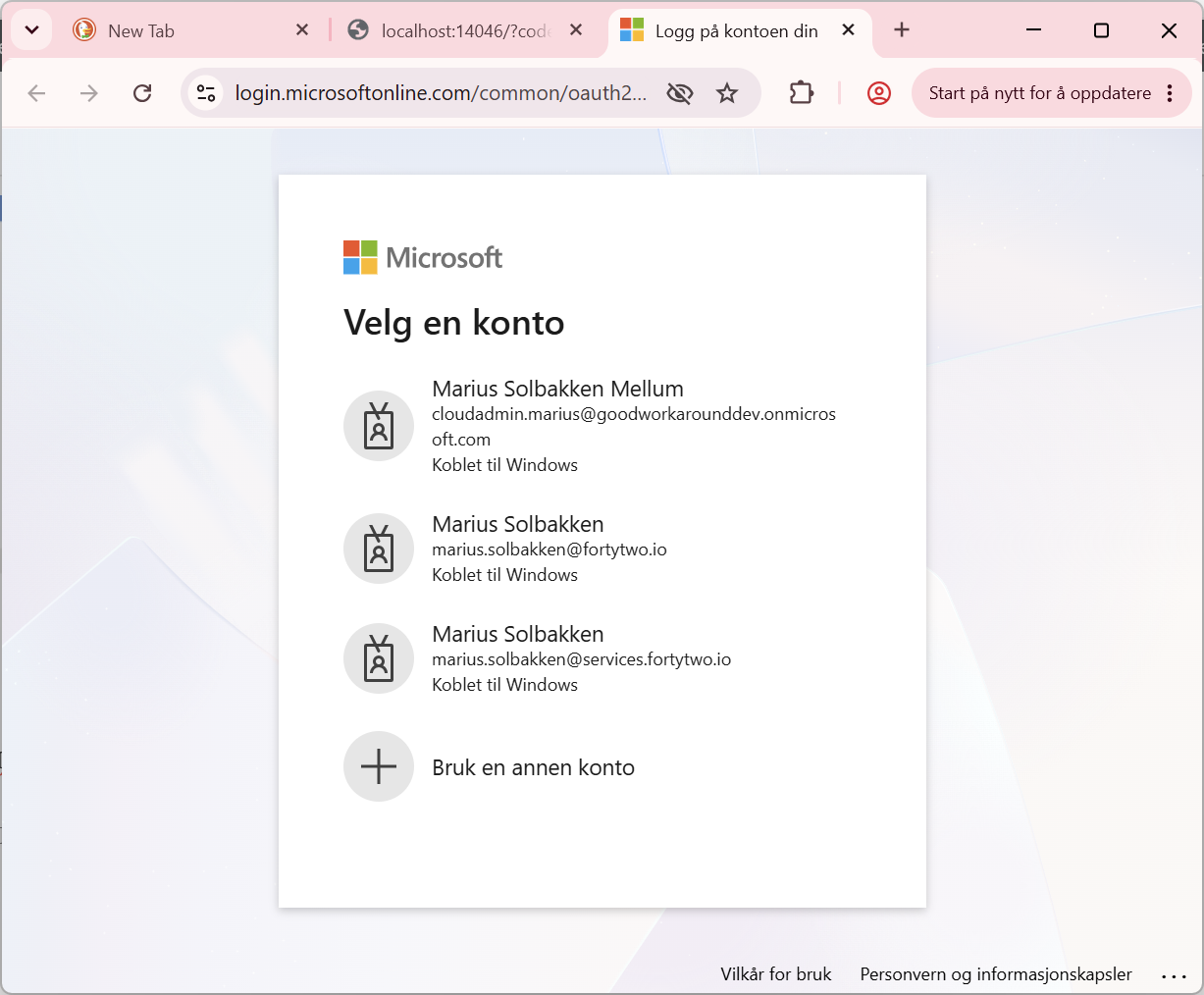
Let’s see what it looks like when we run Connect-ByttEmail:
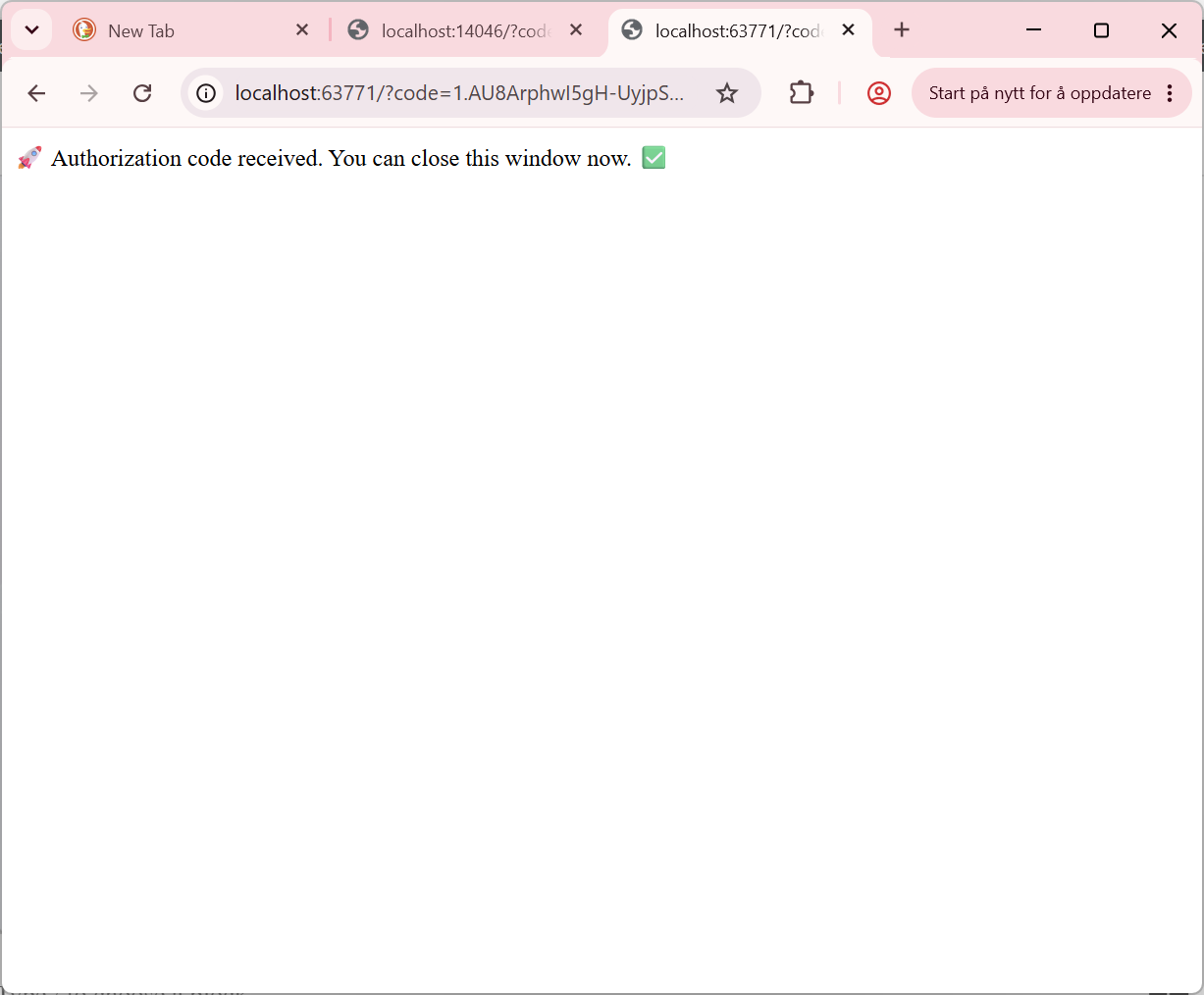
We can now see that an access token profile has been added to the EntraIDAccessToken module:
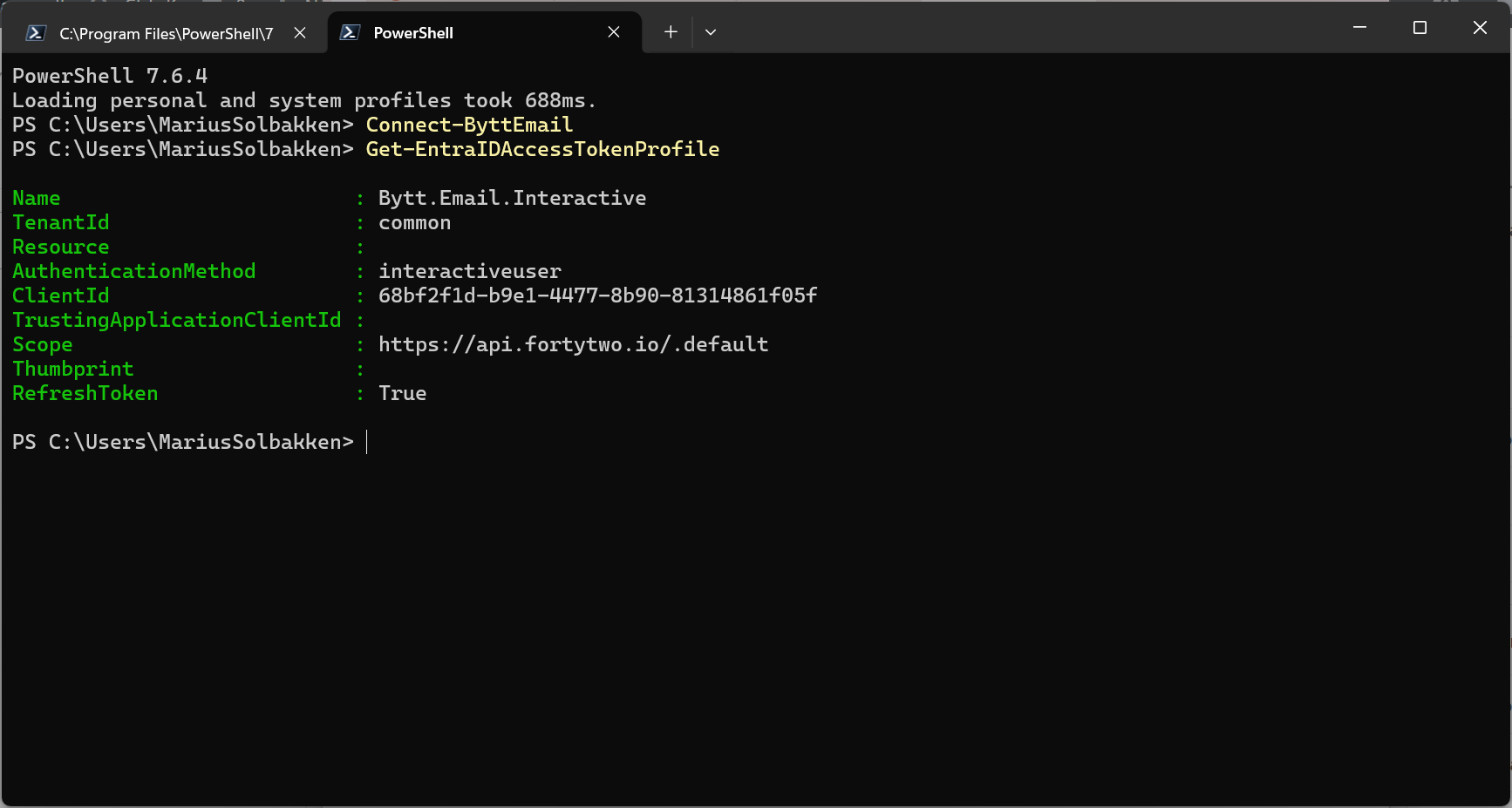
Here you can see the different settings for the access token profile, and that a refresh token is available. And we can even write out the formated version of our access token:
Get-EntraIDAccessToken -Profile Bytt.Email.Interactive | Write-EntraIDAccessToken
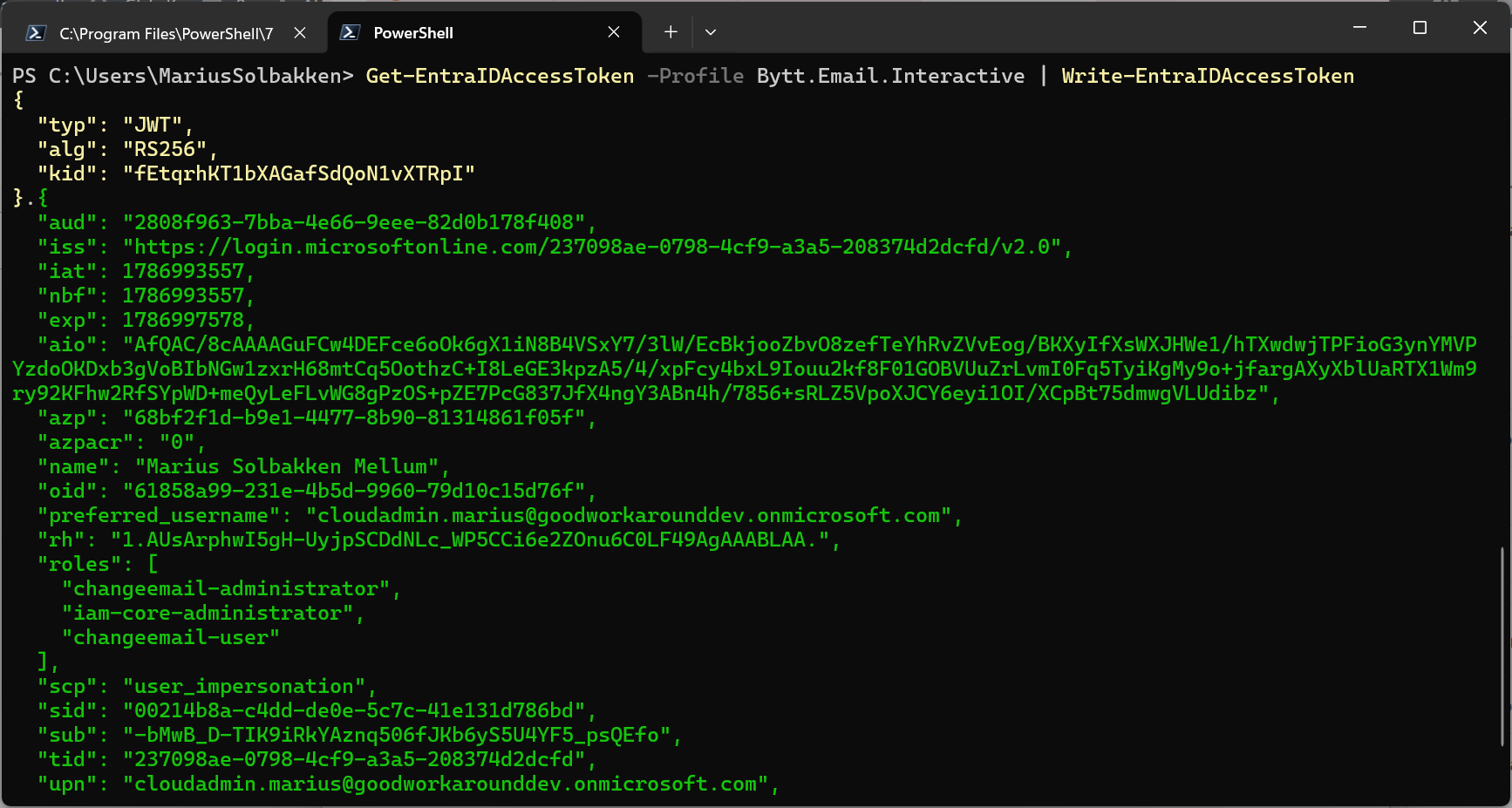
Now, the point is that the Fortytwo.ByttEmail.Client module has essentially only called Add-EntraIDInteractiveUserAccessTokenProfile once, and kept a name of the access token profile. If we now look at one of the cmdlets that we have at our disposal, Get-ByttEmailHistory, we can find that the only thing that the module now does is to call the Get-EntraIDAccessTokenHeader cmdlet to get the access token in an authorization header:
Invoke-RestMethod -Uri $ApiEndpoint -Headers (Get-EntraIDAccessTokenHeader -Profile $Script:EntraIDAccessTokenProfile)
The Get-EntraIDAccessTokenHeader cmdlet also comes from the EntraIDAccessToken module, and takes care of everything needed when it comes to refreshing your access token when it is expired, etc:
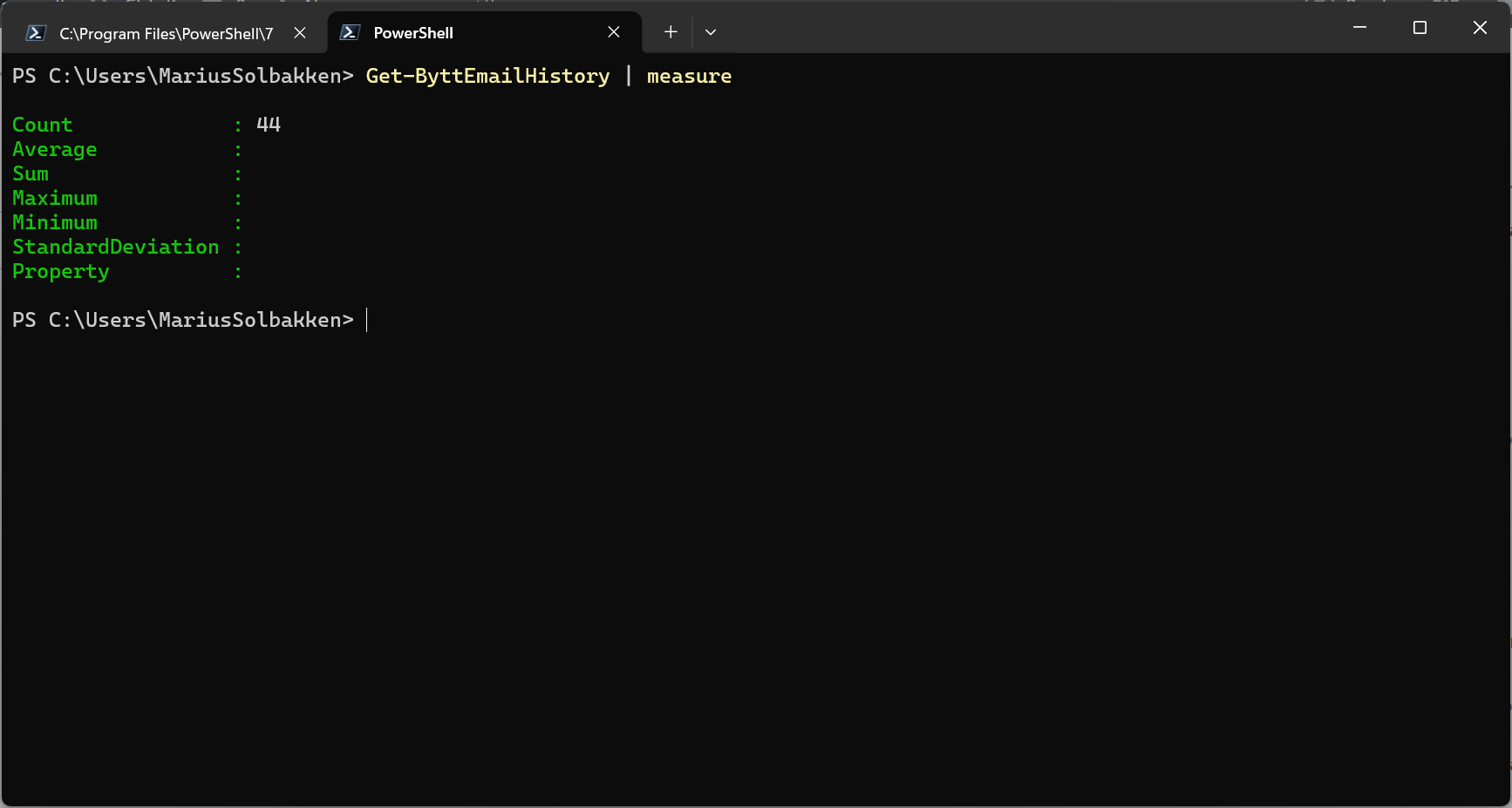
Everything that the user had to do was the following, and the module only needed 2-3 lines of calls to EntraIDAccessToken cmdlets:
install-Module Fortytwo.ByttEmail.Client -Scope CurrentUser -Verbose
Connect-ByttEmail
Get-ByttEmailHistory | measure
We can even provide other types of access token profiles to our connect command, in order to sign in as an application:
Add-EntraIDClientSecretAccessTokenProfile -Name App1 -Scope "https://api.fortytwo.io/.default" -TenantId 237098ae-0798-4cf9-a3a5-208374d2dcfd -ClientId 1f166a5b-d6ed-402b-8f77-00e44eadfb94 -ClientSecret (read-host -AsSecureString)
Connect-ByttEmail -EntraIDAccessTokenProfile App1
See this blogpost or documentation on Github for more details on that.
Anyway, feel free to use any of these examples in your own stuff! Good luck!


