Finally here in public preview 🥁
User writeback! Let’s dig into it!
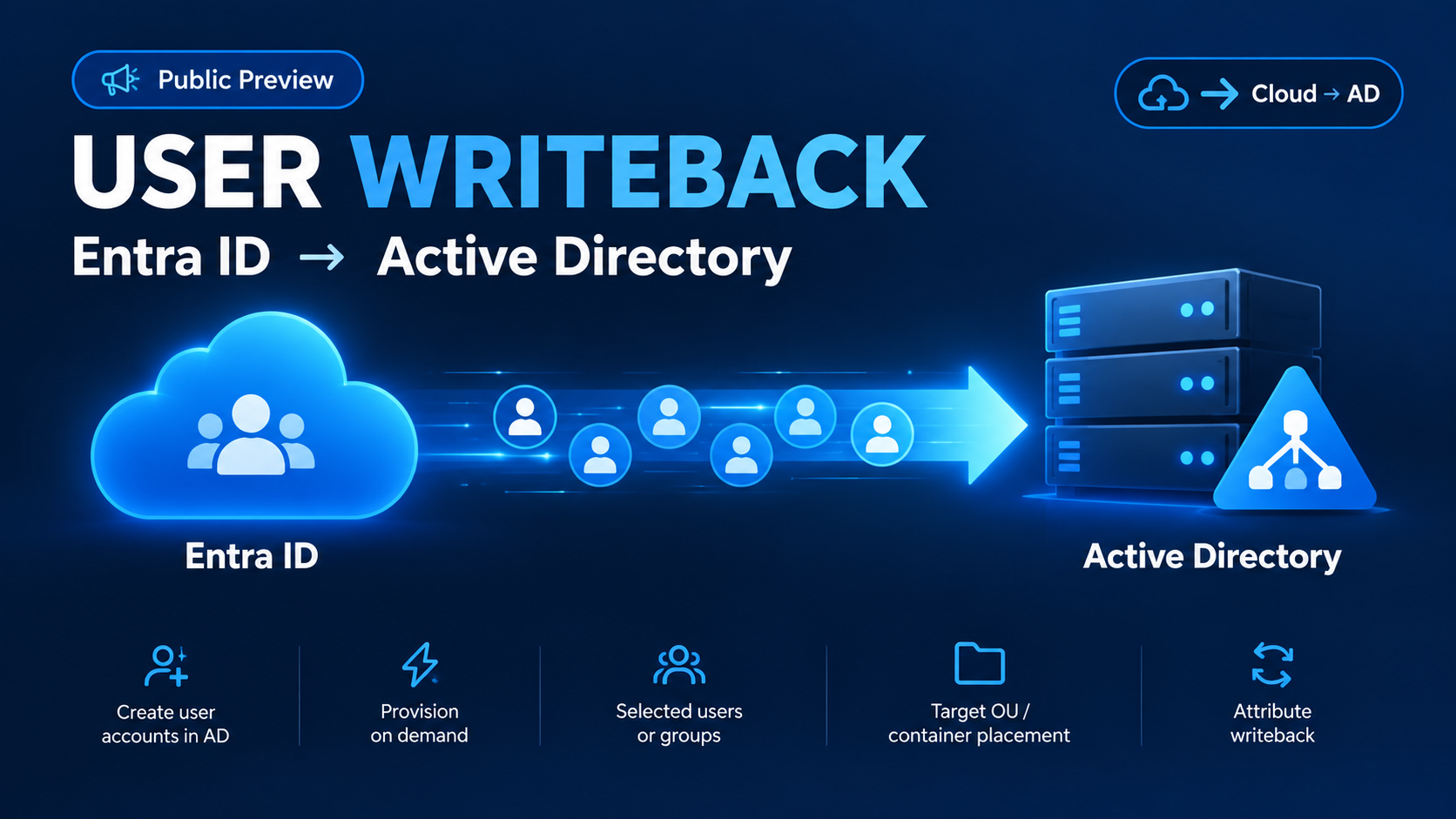
For a long time, we have had group writeback from Entra ID to AD, enabling things like criteria groups and Entitlement Management for groups in AD. Super useful, but we still need to create and manager users in AD, syncing them to Entra ID. Not anymore!
(Just a quick note, I actually have built this module a long time ago, enabling the same thing you will see in this blogpost)
To configure user writeback, go to the Entra portal, find Entra connect and Cloud sync. If you have not already installed a cloud sync agent – do that and come back.
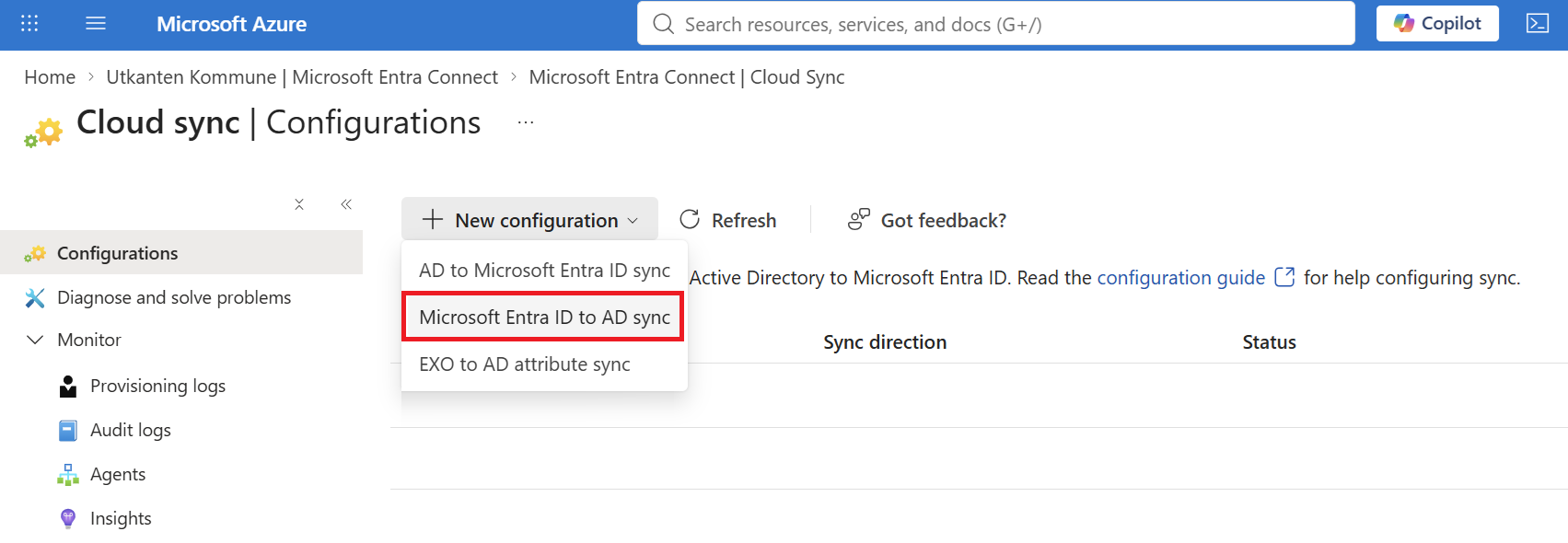
Next, click + New configuration and choose Microsoft Entra ID to AD sync.
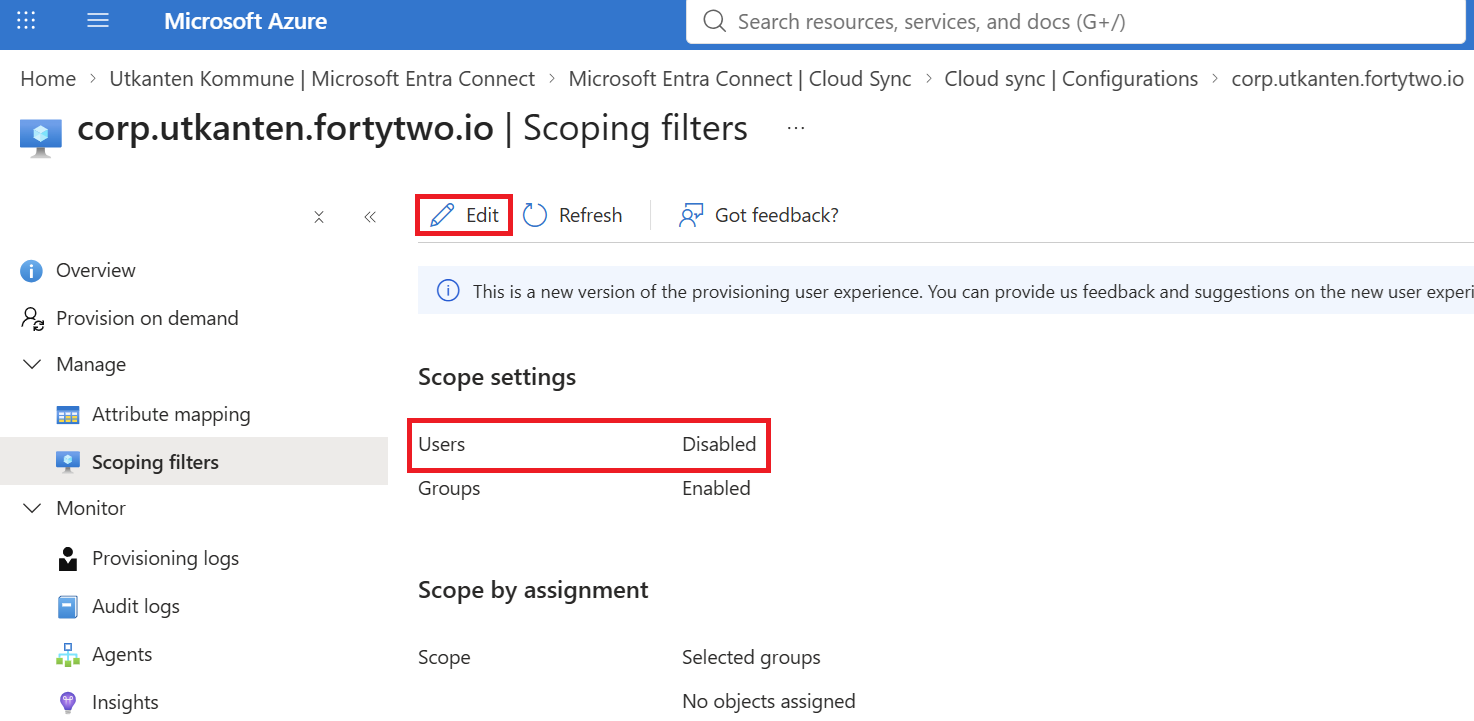
After creating the configuration, go to Scoping filters and notice that Users is Disabled. Click Edit.
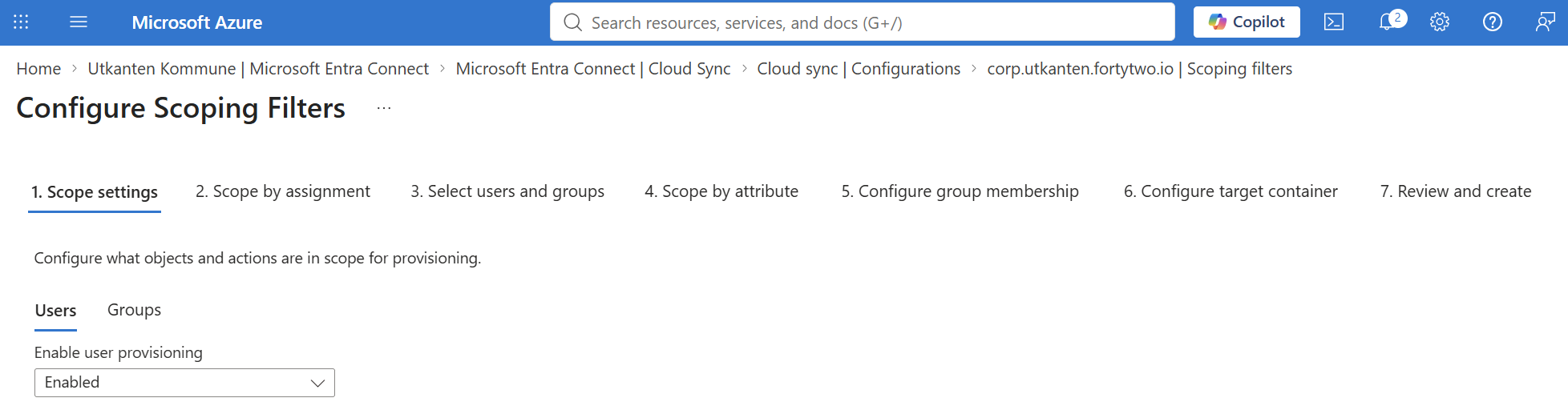
On the first page (Scope settings), make sure Users is Enabled:
Under Scope by assignment, make sure you keep Selected users and groups as the configuration:
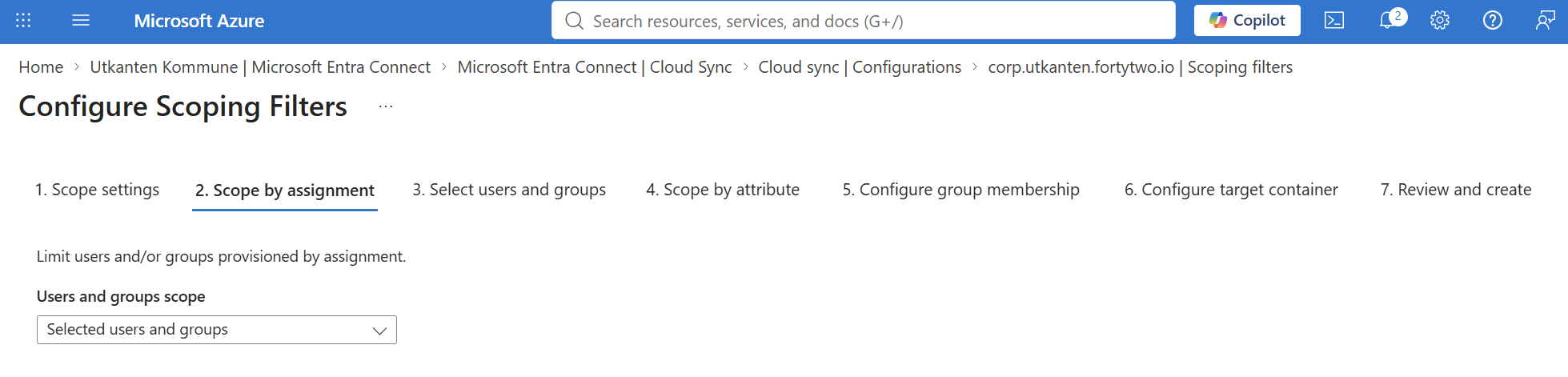
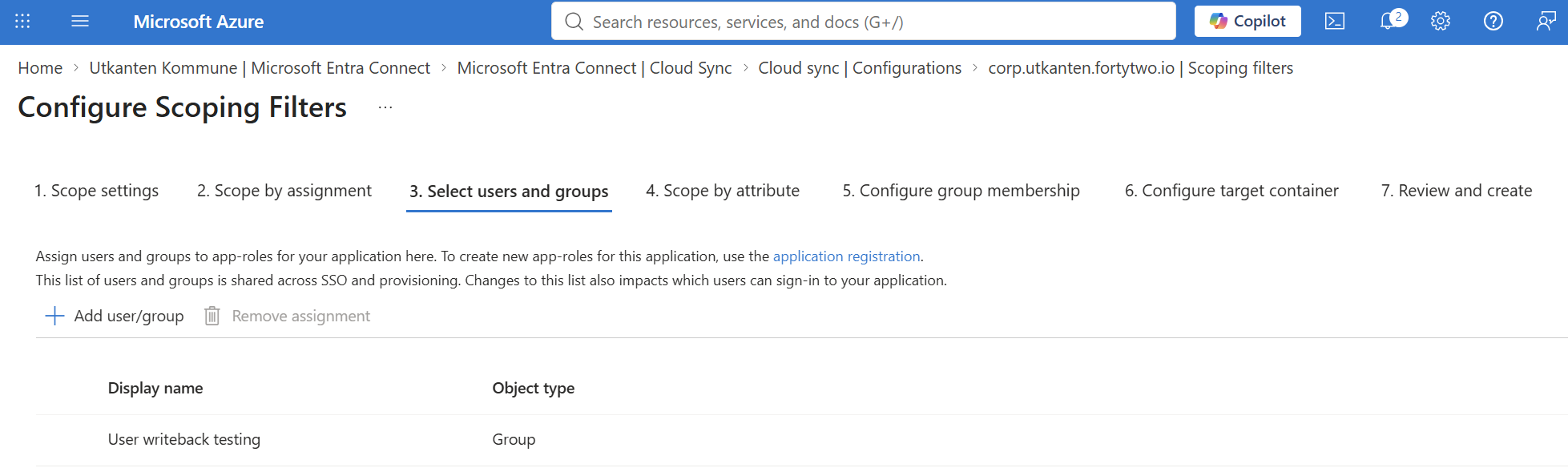
Next, target the Select users and groups to a group you want to be written back:
We skip Scope by attribute and Configure group membership for now, as they are not all that interesting, but we need to configure target container:
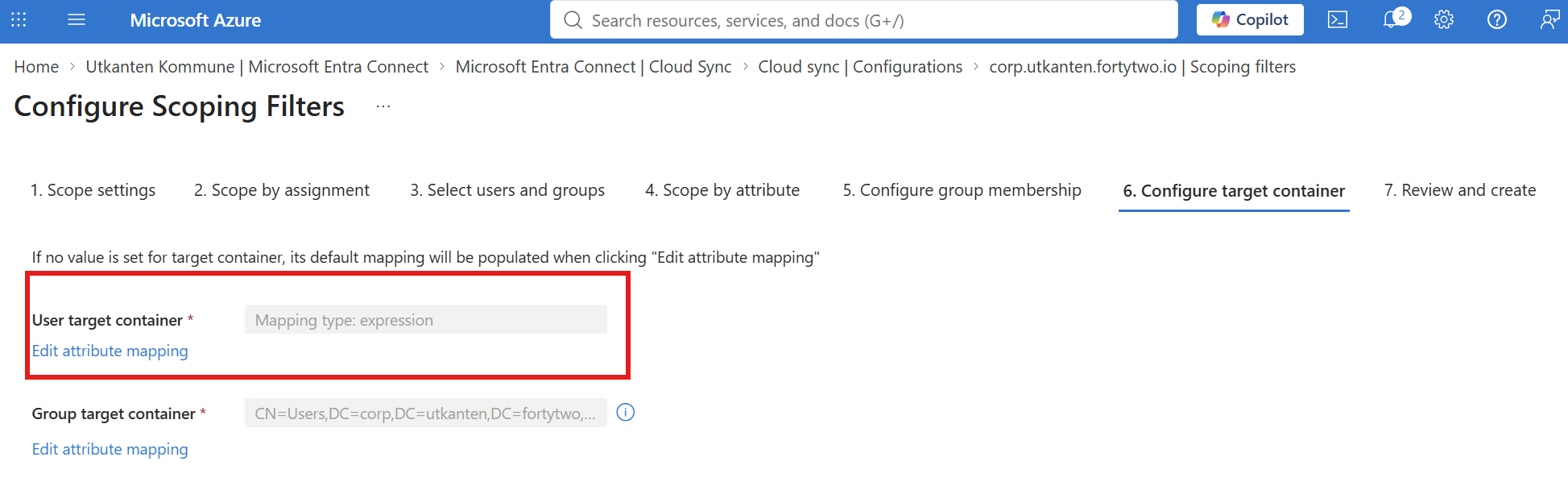
By default, the following crazy expression is used:
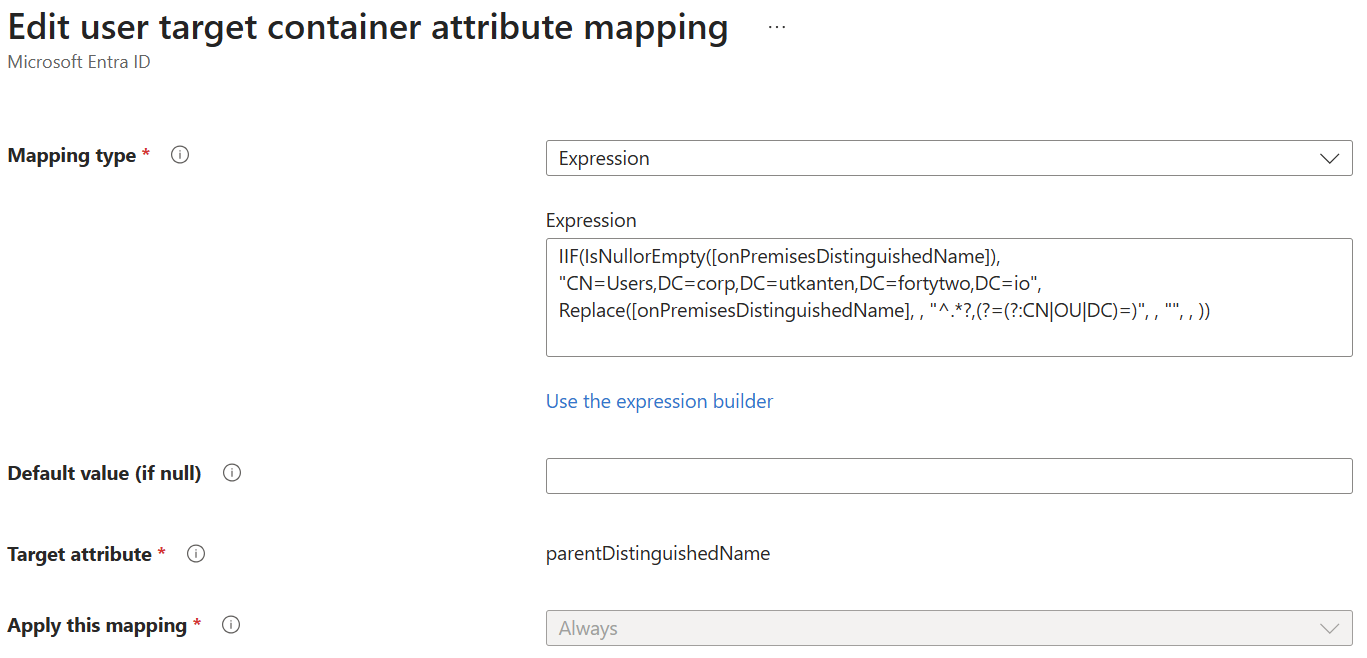
In summary, this essentially checks whether there is an onPremisesDistinguishedName set on the user, and if not uses a default value, otherwise it will do some splitting and find the parent of the container name of the user and place it there. Seems like this is an ok default value for most people.
Review your configuration and Save. Do not worry, if this is a new configuration, it is not enabled yet.
After we have edited the scoping of this rule, we can try out the Provision on demand for a single user:
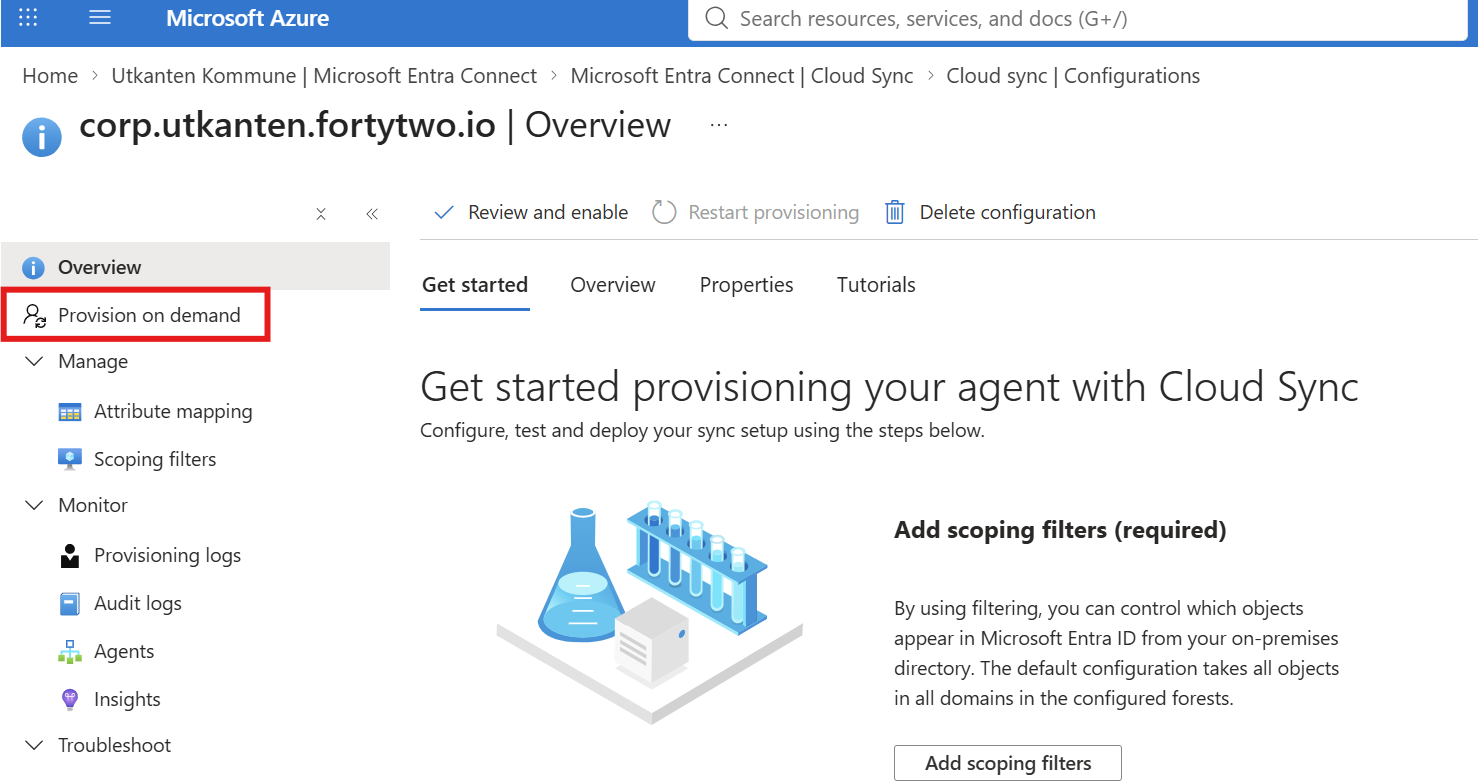
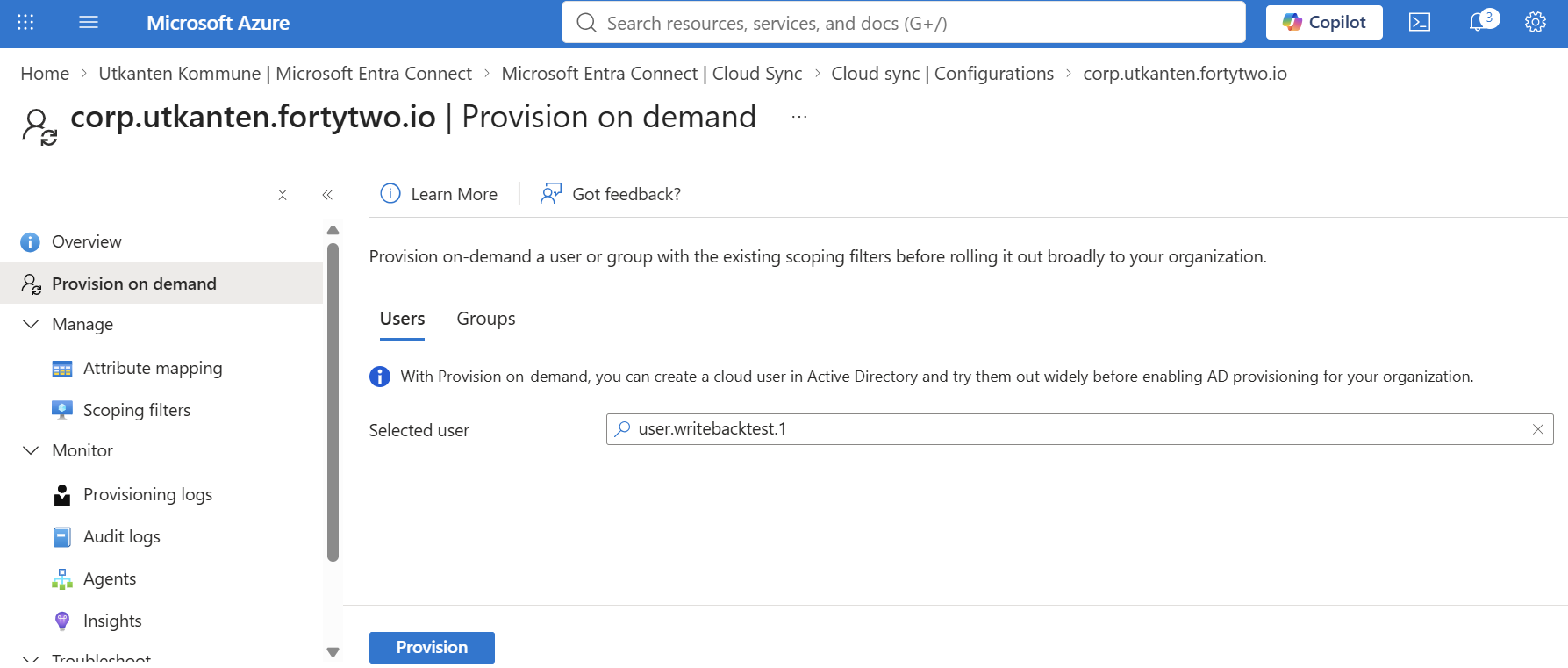
After clicking Provision, we can see that the user was actually created in AD:
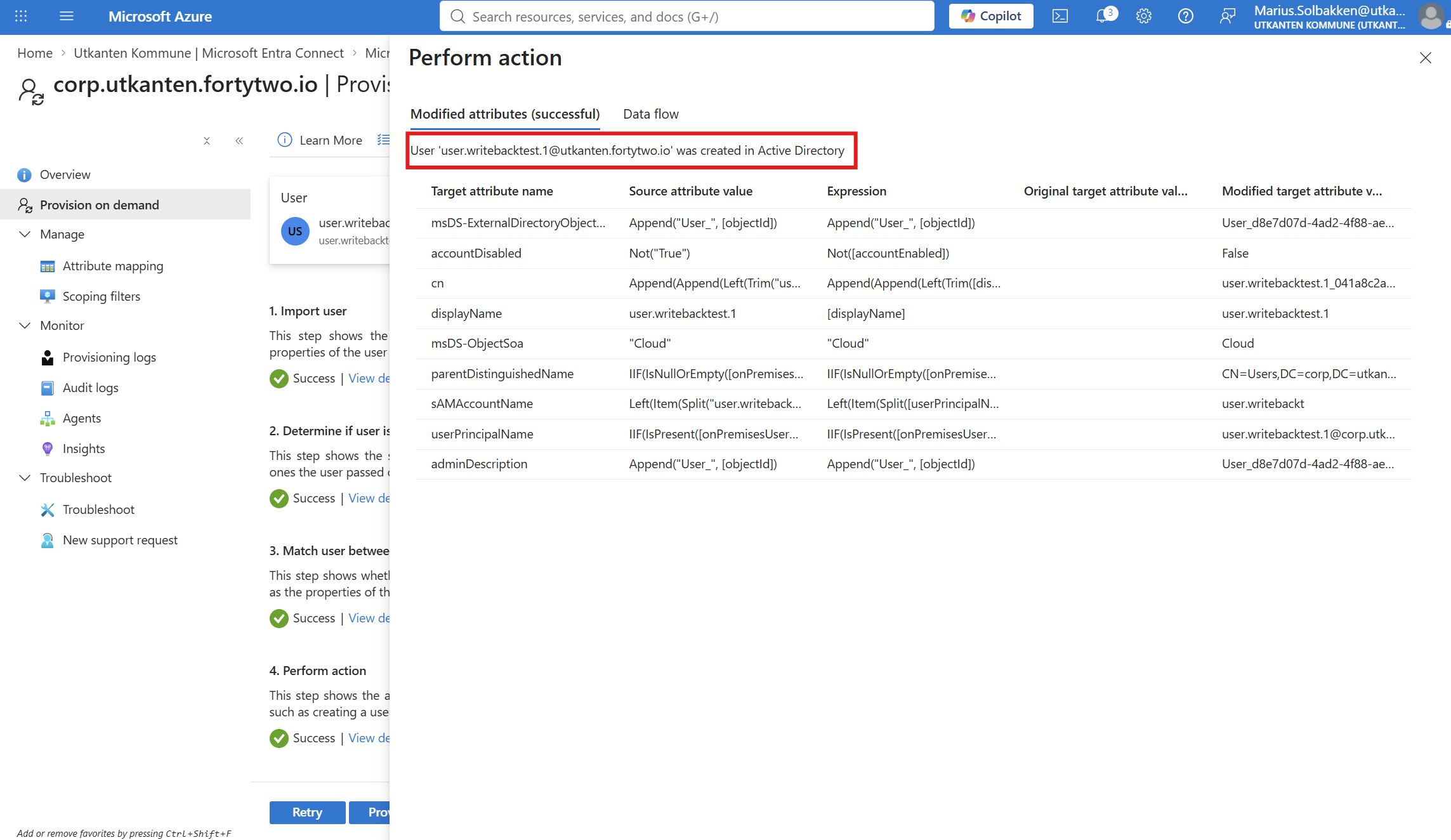
Now, let’s have a look at the default attributes:
| Attribute | Explanation |
| msDS-ExternalDirectoryObjectId | An anchor value that will always be User_<OBJECTID>, used for cloud sync to be able to re-join users in case you delete the configuration etc. |
| accountDisabled | Virtual boolean attribute that represents the 2. bit of userAccountControl |
| cn | The container name of the user object (The first part of the DN). By default, this will update on all users because the expression is: Append(Append(Left(Trim([displayName]), 51), “_”), Mid([objectId], 25, 12)) Here you might want to check the onPremisesDistinguishedName attribute instead, if you are converting existing users to writebacked. |
| displayName | … |
| msDS-ObjectSoa | Fixed value “Cloud”. I believe this is used also by the legacy connect sync engine to make sure you do not write back users that are synced OUT again to Entra ID. |
| parentDistinguishedName | Virtual string attribute that supports moving the user between different OUs in AD. |
| sAMAccountName | The sAMAccountName is written back as a substring of the UPN prefix: Left(Item(Split([userPrincipalName], “@”), 1), 15) This is definitively something that you might want to have a look at whether suits you. |
| userPrincipalName | Logically enough the UPN of the user – but actually, the rule is for some reason this: IIF(IsPresent([onPremisesUserPrincipalName]), [onPremisesUserPrincipalName], Append(Item(Split([userPrincipalName], “@”), 1), Append(“@”, %DomainFQDN%))) To me, this makes NO SENSE. I’m fixing this later down in the post. |
| adminDescription | Same as the msDS-ExternalDirectoryObjectId, used to have legacy Entra Connect sync not sync OUT users we have written back. |
Why so few attributes? Well, actually there are way more – I just did not populate any attribute on the account. Let’s do that!
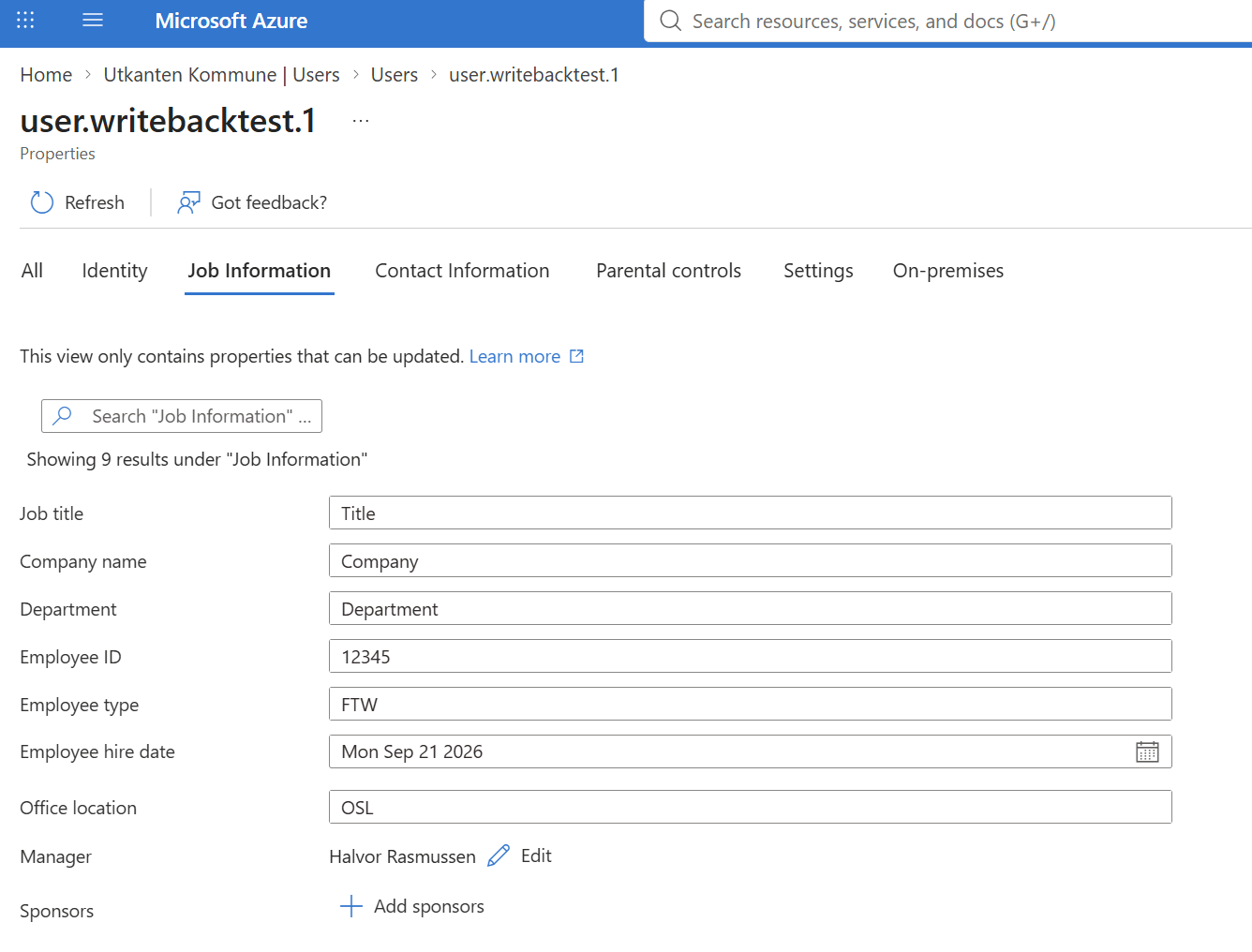
After a new Provision on demand:
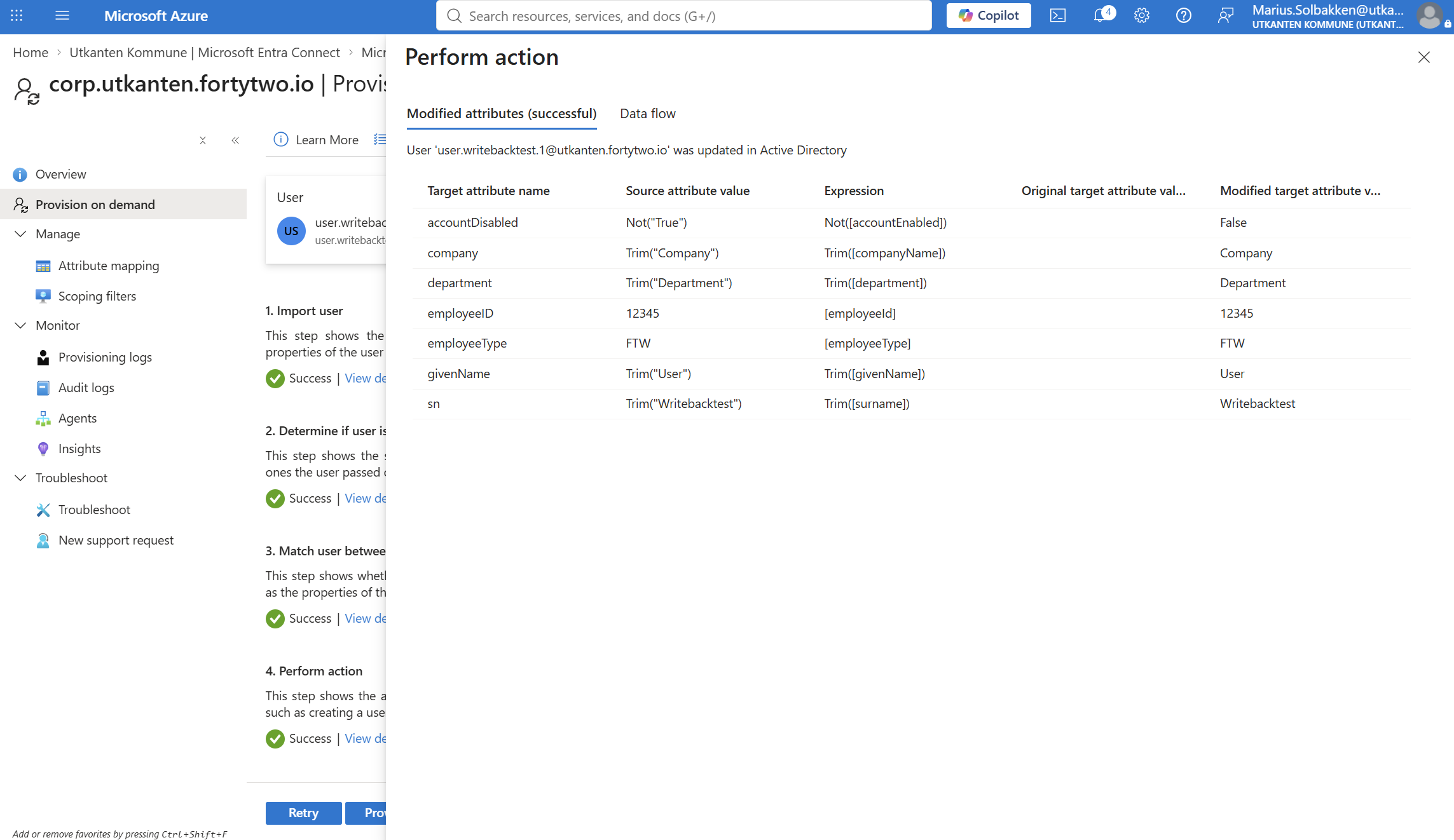
We see that the attriubtes were all updated. 🖖
We can of course also see this user in AD:
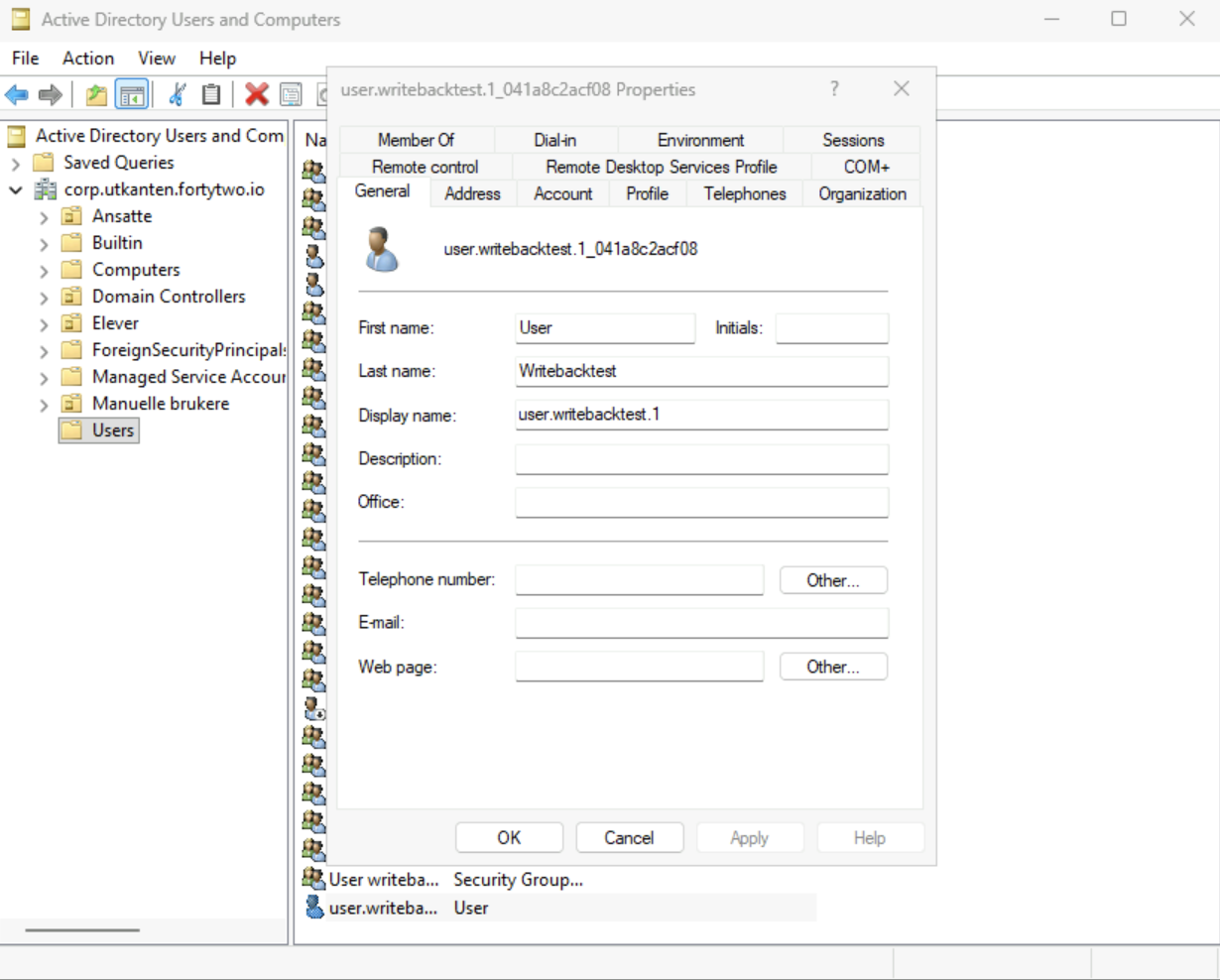
Now, one interesting thing is that the UPN does not seem to be correct in AD:
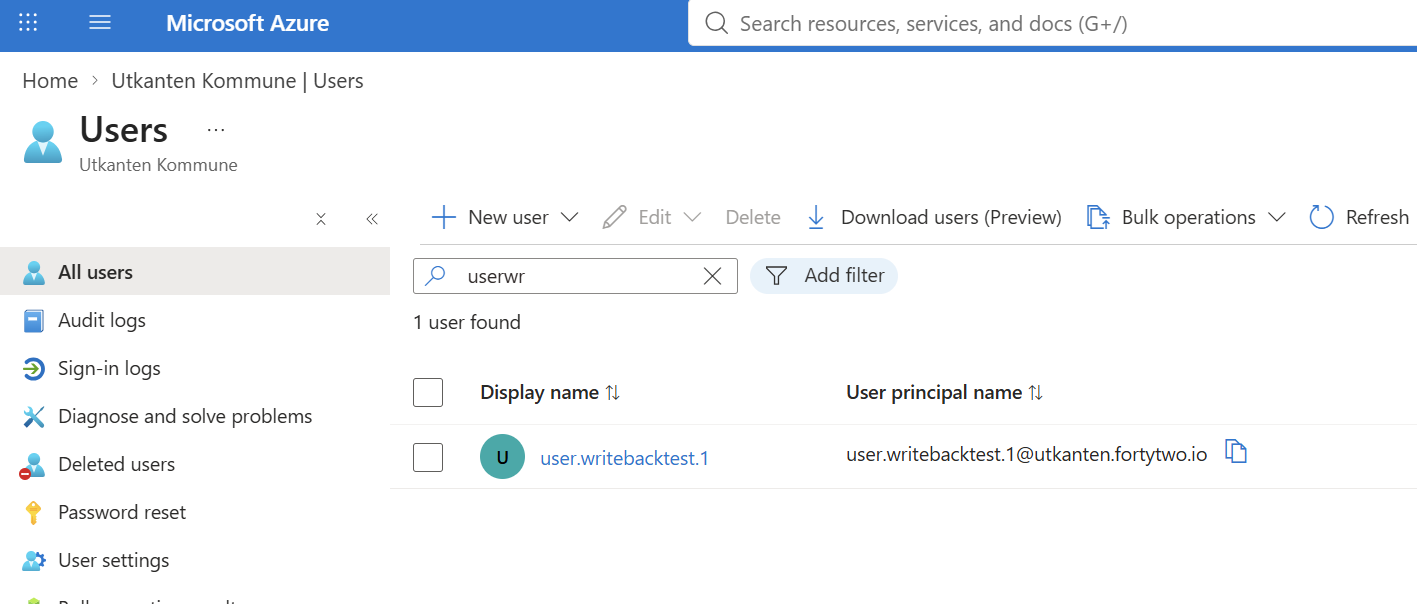
This however, is something we can fix! Let’s simply change this silly rule:
IIF(IsPresent([onPremisesUserPrincipalName]), [onPremisesUserPrincipalName], Append(Item(Split([userPrincipalName], "@"), 1), Append("@", %DomainFQDN%)))
We can simply map it directly to the UPN by going to the Attribute mapping:
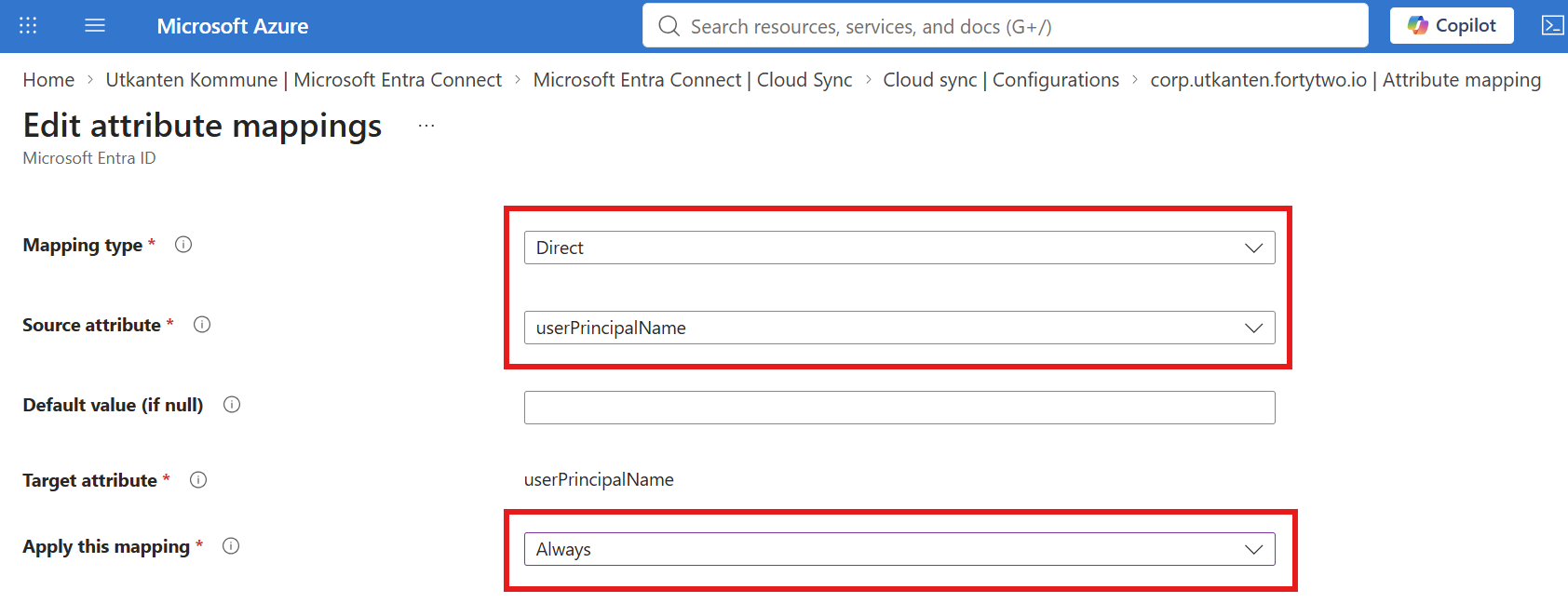
Notice that we changed to Always, instead of only on creations.
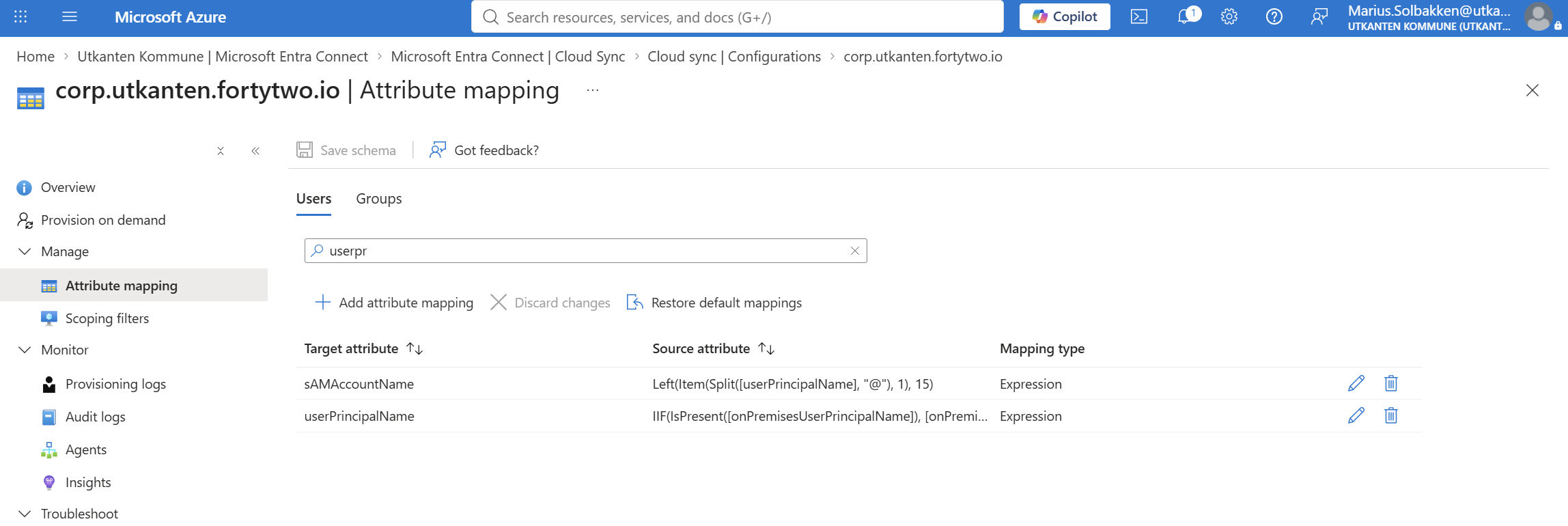
Here we can update the UPN mapping:
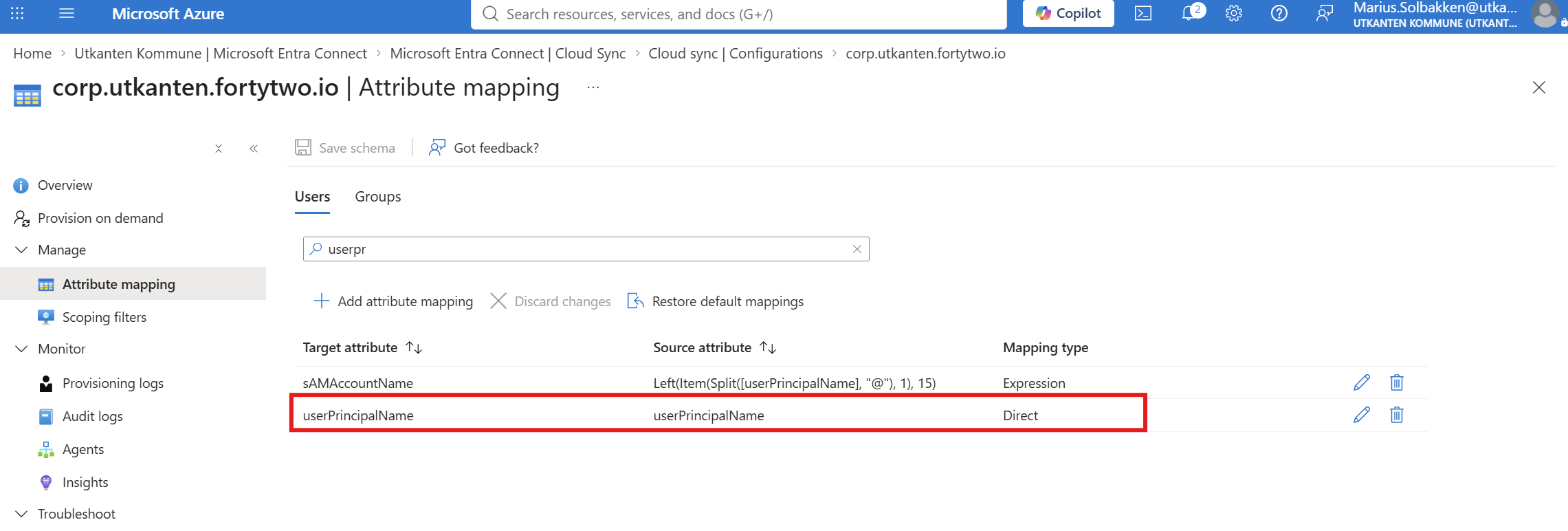
And now we can see the UPN being updated too!
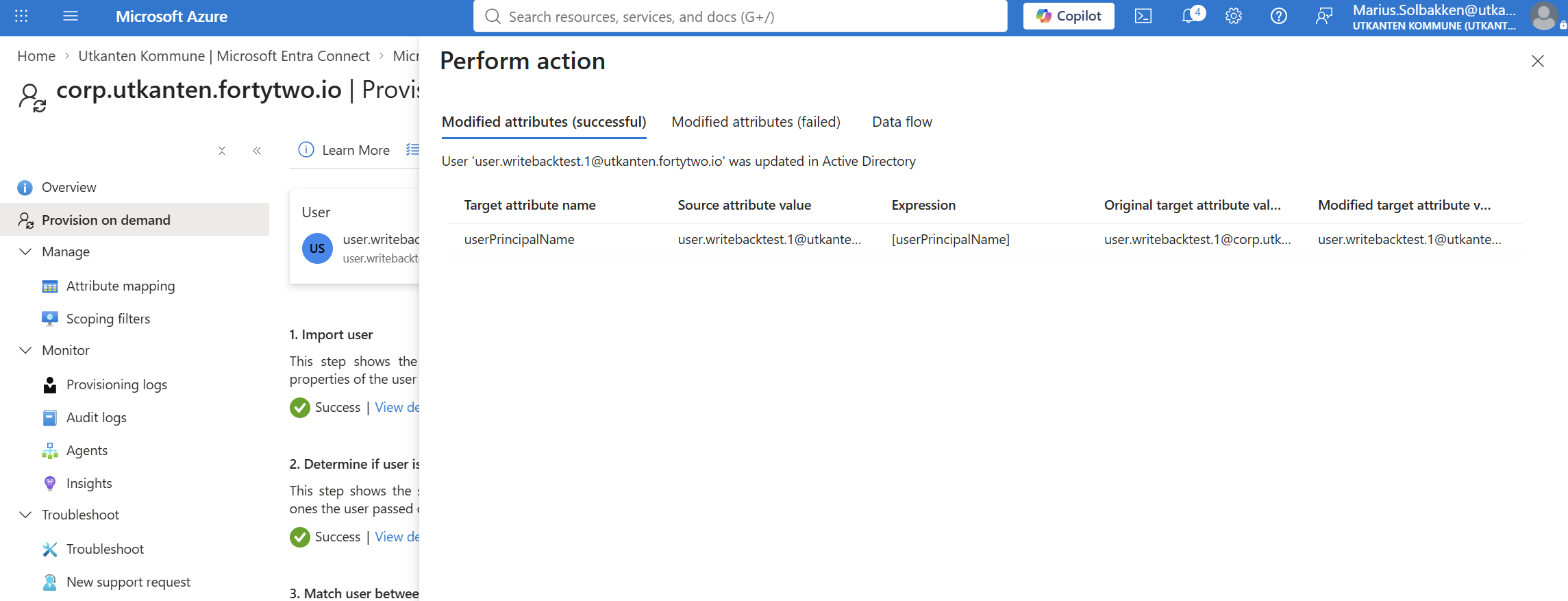
What does this actually mean?
Well, this means that you can work ONLY with the Microsoft Graph to create user accounts, without needing to worry about AD at all. This also means that we can combine this with things like access packages, where certain APs adds users to a group that gives them an AD account – while the rest of the user base is cloud only.
A note on passwords
Note that right now, there is no password writeback for these users. This means that you should really be passwordless for this to be feasable. Hopefully the password writeback will be enabled for these types of users soon!
Have fun testing it out!


Microsoft Entra ID to AD sync is grayed out on my tenant – is there anything that needs to be done prior to enable this preview feature?