PowerShell script to enable litigation hold for all user mailboxes in Exchange

The following PowerShell script will enable litigation hold for all user mailboxes in your environment. The script will work for Exchange 2010 and 2013, both On-Premise or Online.

# First you need to be connected to the Exchange PowerShell.

$pagesize = 100; # The number of mailboxes per loop
$inc = 0; # Start increment value

# Continue until all mailboxes are litigation hold enabled
do {
    Write-Output "Getting mailboxes"
    # Get UserMailboxes that does not have litigation hold enabled
    $mailboxes = Get-Mailbox -Filter {LitigationHoldEnabled -eq $false -and RecipientTypeDetails -eq "UserMailbox"} -ResultSize $pagesize -WarningAction SilentlyContinue
    if($mailboxes) { Write-Output ("Current mailbox count: {0}" -f ($inc += $mailboxes.Count))}
    # Enable litigation hold
    $mailboxes | Set-Mailbox -LitigationHoldEnabled $true -WarningAction SilentlyContinue
} while($mailboxes);

Write-Output "Done"

It is possible to add additional filtering by editing the filter for the Get-Mailbox cmdlet.

Howto – ADFS on Windows Server 2012 R2 with Office 365

Windows Server 2012 R2 is RTM and published on MSDN. Active Directory Federation Services (ADFS) 3.0 have some major differences from the 2012 version (ADFS 2.1). The ADFS Proxy is gone, replaced by the Web Application Proxy (WAP), a part of the Remote Access role. The WAP is an replacement for the ADFS proxy and can also be used to publish other applications such as SharePoint and Outlook Web Access. Also Bring Your Own Device (BYOD) is possible with the new Device Registration Service / Workplace Join and there are better support for two-factor authentication. IIS is no longer used, which removes a lot of the customization possibilities. This article is about how to configure the new ADFS for Office 365.

Let’s get right to it. My setup is a non-redundant system with a single ADFS server and a single Web Application Proxy (WAP). My federation server farm will in this case be called sts.goodworkaround.com. From this guide it should be easy to extrapolate how to set up the service in a load balanced and highly available cluster.

In earlier versions of ADFS, it was recommended to install it on dedicated servers. This was partly because ADFS ran inside IIS and required quite a lot of resources. Since ADFS no longer reqiures IIS, there is much less overhead, and you can now install ADFS on your domain controllers. Keep in mind that you cannot use Windows Network Load Balancing (NLB) with DCs, and must use an external load balancer if you require high availability in this configuration.

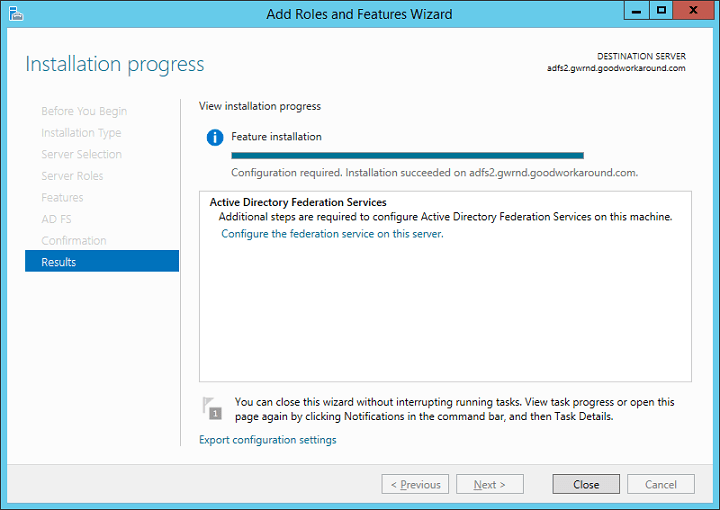
Start by installing the Active Directory Federation Services role with Server Manager.


After completing, click “Configure the federation service on this server”. In the new window that opens, choose default option which is “Create the first federation server in a federation server farm”. Even though you do not plan to create a farm, even a single server is still a farm and you can at any time extend your one-server farm to a bigger farm by adding additional nodes.
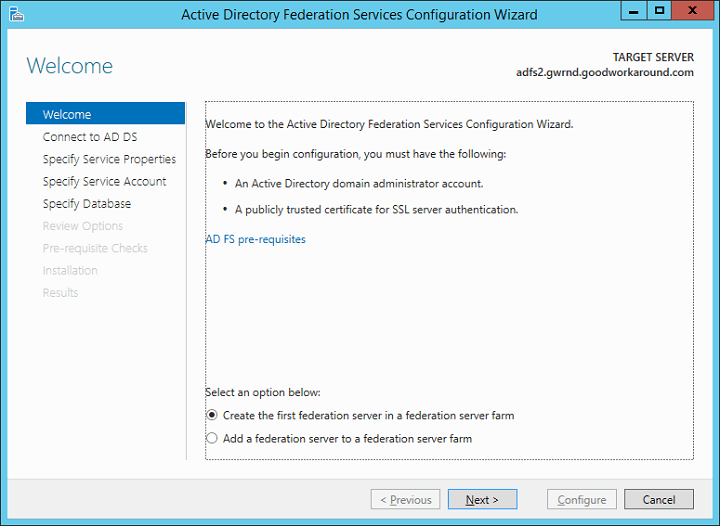
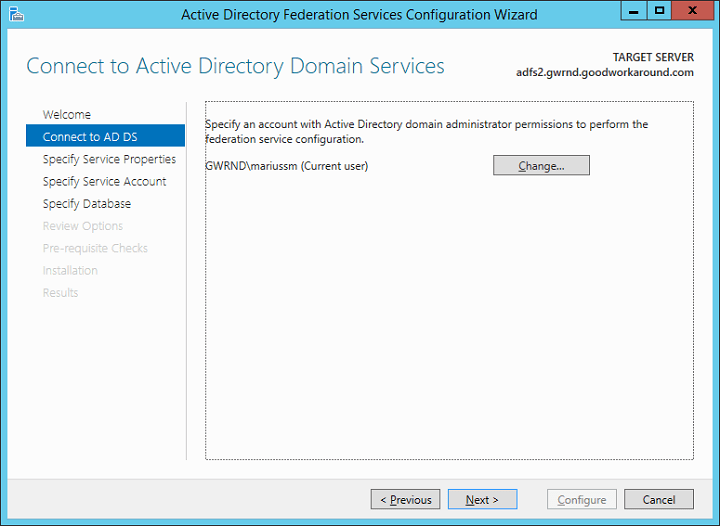
Choose the account used for the action. I recommend using a Domain Administrator, but you can get away with using an account by granting write permissions to a container in AD.
After choosing the account, it’s time to import the certificate and setting the federation server farm name. The certificate can be a wildcard (like mine), or with a subject. The federation server farm name must match the subject of the certificate. The certificate must be 2048-bit or more.
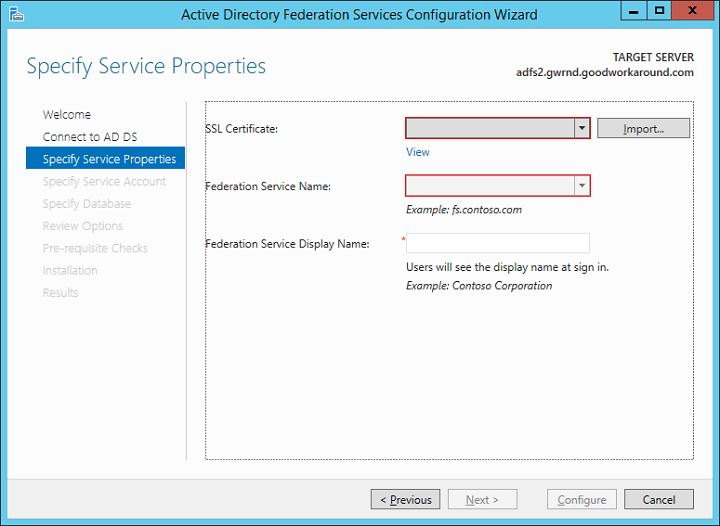
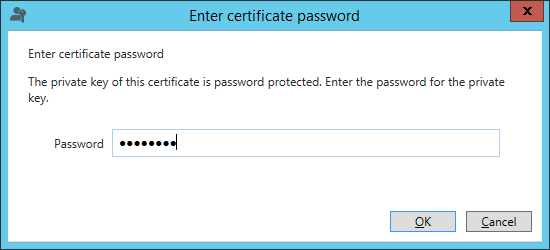
Click import and type the password for the pfx file. If you do not have the certificate available as a pfx container, you must convert it to this format. An easy way is to use IIS on a different host and import and export it from there.
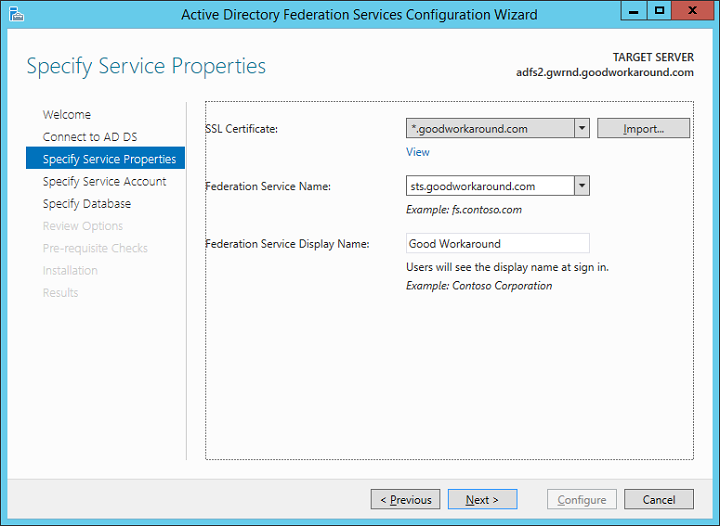
After importing the certificate, depending on the certificate type, choose a federation server name and a display name. The display name can be changed at a later stage, but the federation server name can not.
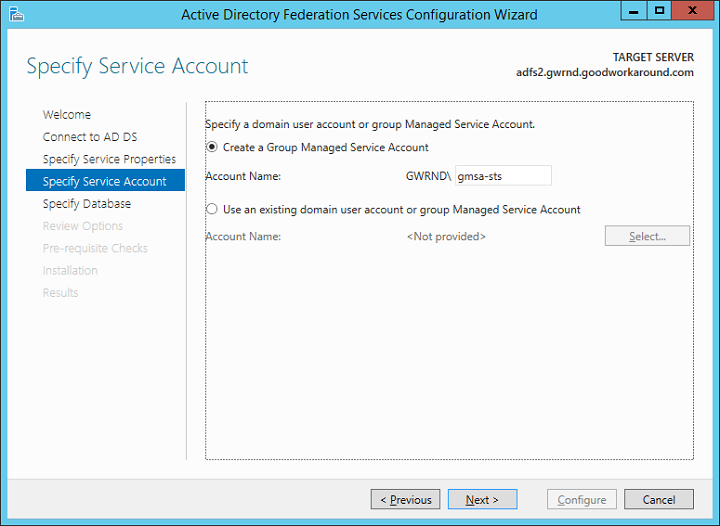
On the specify service account page, there are two options. The first option is to create a group managed service account (GMSA). This option requires at least one Windows Server 2012 domain controller in the domain where the GMSA is created. The GMSA option is the easiest and automates both password management and servicePrincipalName. The second option is to use an already existing GMSA or a regular user account. The wizard will automatically configure SPN for the user, if it has permissions. The user will automatically be granted the necessary permissions.
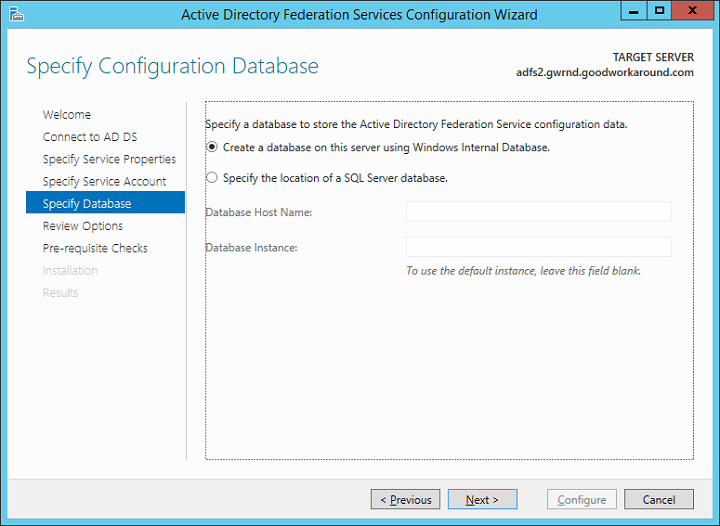
Next, choose the type of configuration database. Here too there are two options. The default option is using Windows Integrated Database (WID). WID is mostly the same as SQL Server Express, and to my experience, this is sufficient for most customers and actually recommended when the federation server farm contains less than 8 servers. If installing more than 8 servers in the federation server farm, choose SQL instead. Note that there are some security features that requires SQL server.
Next yourself through the following screens.
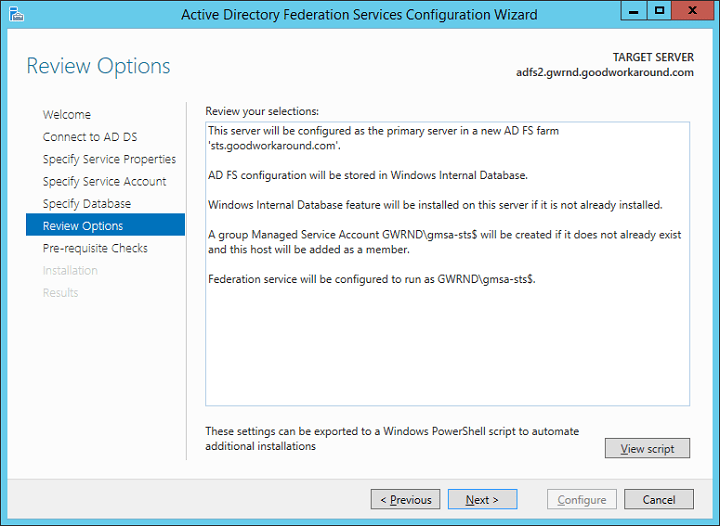

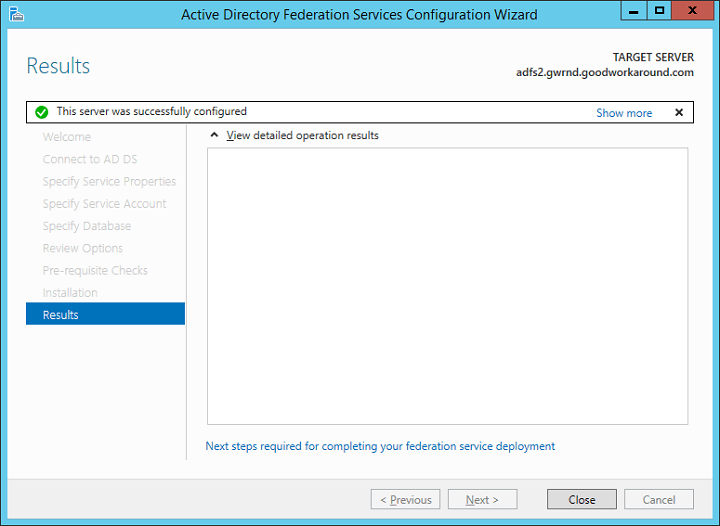
Voila! You have deployed your first ADFS server. Now let’s continue configuring DNS and testing the server.

Start by creating a A-record (Do not use a cname record, as this will give you errors with windows authentication / single sign-on!) that points to the server’s IP address. If you are doing a highly available setup, point the A record to your load balancing IP address.

Now, use the url https://sts.goodworkaround.com/adfs/ls/IdpInitiatedSignon.aspx to test your federation server. Start by testing from a domain user on a domain joined client. You should see something like the following.
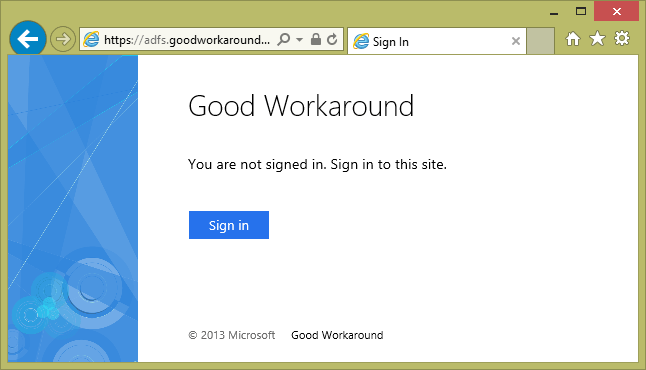
If you have added the site as a Intranet Site in security settings, you should get Single Sign-On (SSO) and get directly to the following.
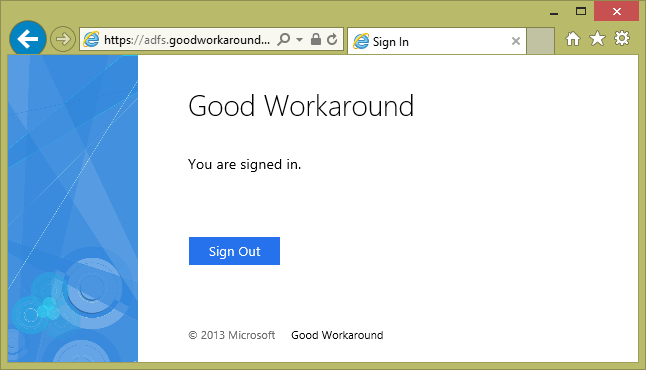
If your browser do not trust the site or do not support Windows authentication, you will be requested for credentials.

Now that the ADFS server is tested, let’s continue on and installing the Web Application Proxy (WAP). The WAP will be used to present ADFS to the internet. You can use any kind of reverse proxy to do this, such as TMG or F5. The WAP server requires to resolve your federation server name to your federation server. It is best practice to have the server running the WAP standalone and not part of the same domain as the ADFS servers. This because the WAP server is directly presented to the internet.

WAP is new in 2012 R2 and is a part of the Remote Access role. Use Server Manager to install the Remote Access role.
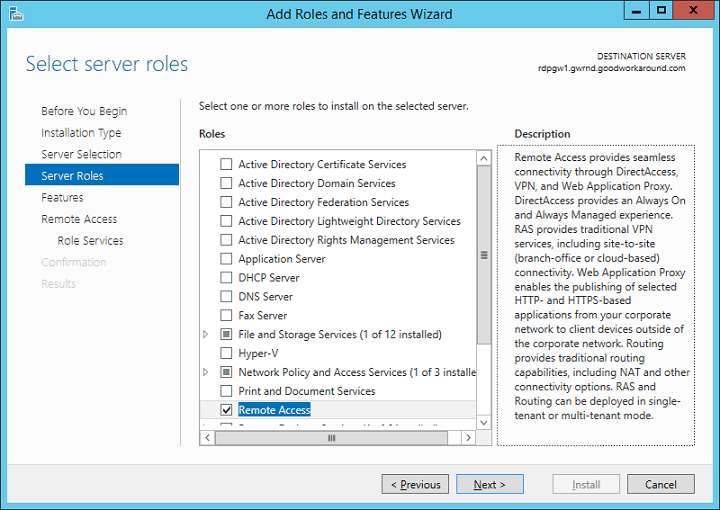
Next, next, next to the Role Features page and choose Web Application Proxy.

Start the Web Application Proxy wizard.

In the wizard, read the text and click next.
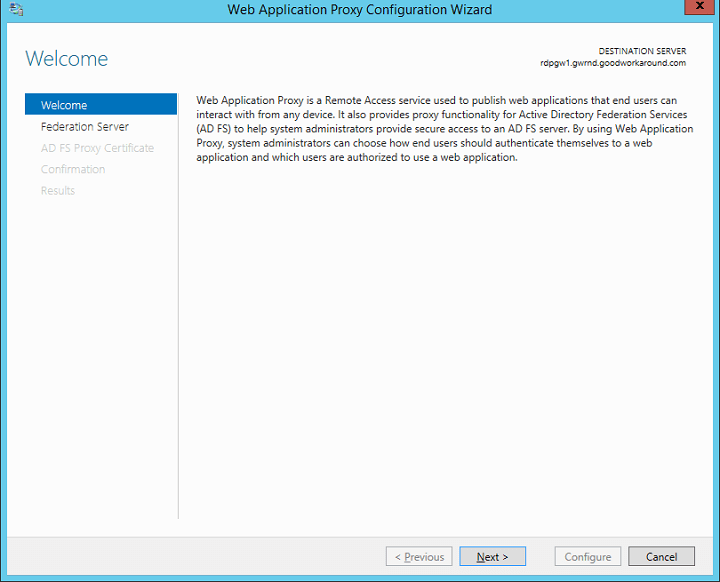
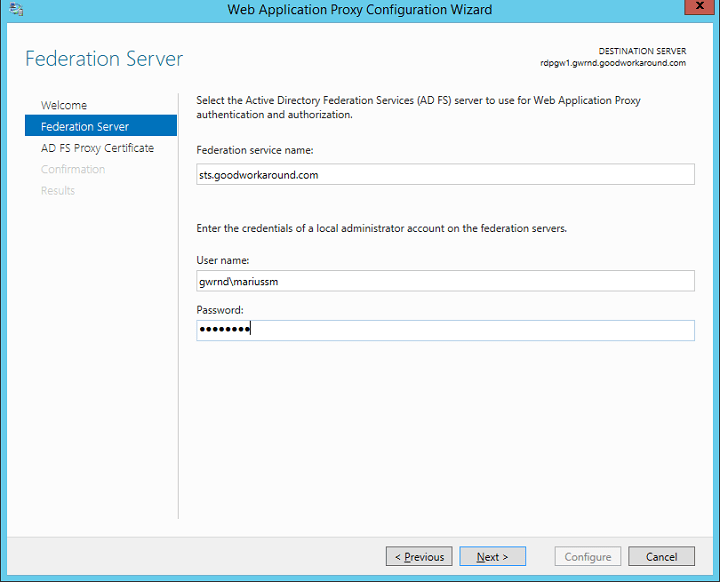
Type in the federation server name and administrator credentials. These credentials will only be used once in order to create a proxy trust, and they are not stored.

Import and choose the same certificate as on your ADFS server. This can also be different, but that’s just one more certificate to keep valid.
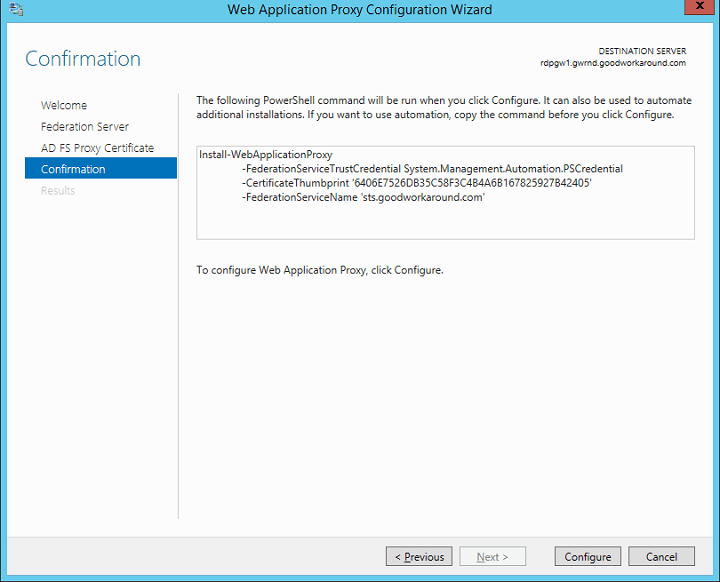
Hit “configure” and you are done.
After finishing the wizard, the Remote Access Management console will automatically start. Create a new pass-through publishing by clicking publish in the right menu.
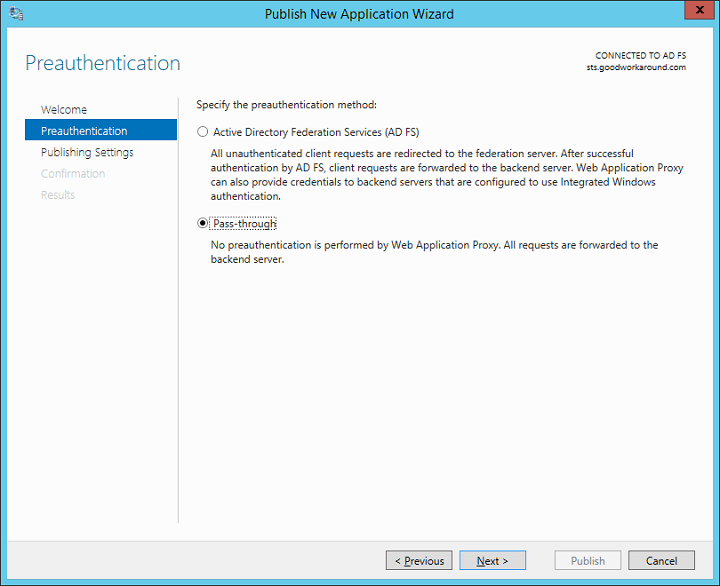
Fill in your information. The external and internal url must be the same.
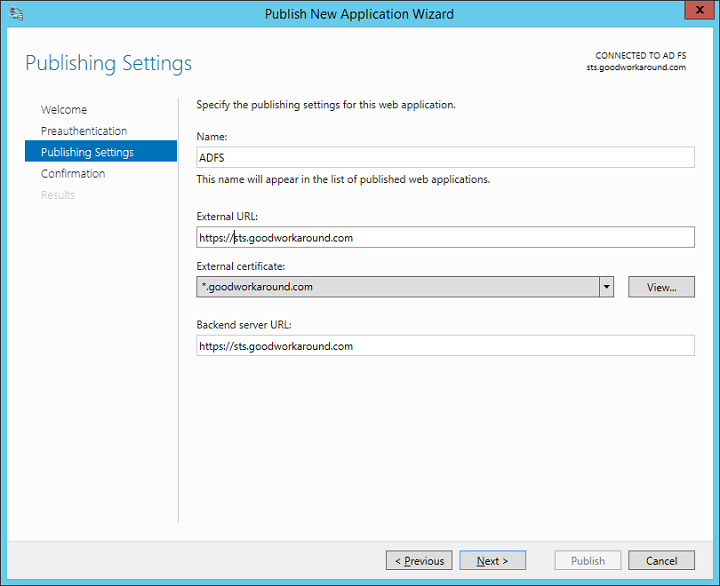
Now you have published ADFS. What you now must do is to make the WAP accessible from the internet and point the federation server name in public/internet DNS to the WAP. In my case this means pointing sts.goodworkaround.com to the WAP server.

Now you should verify that https://sts.goodworkaround.com/adfs/ls/IdpInitiatedSignon.aspx is available and working from the internet.

Federating Office 365

Your ADFS setup is now ready to be used with Office 365. You can follow the same guides for configuring your ADFS with 2012 R2 as with 2008 R2 and 2012. Anyway, here is how.

Start by installing the Microsoft Online Services Sign-In Assistant and the Microsoft Online Services Sign-In Assistant. You can find instructions for this here at TechNet. It can be a good idea to install this on the ADFS server, but you can also do this from other computers as long as they can contact the ADFS server.

After installing these two components, on the ADFS server start a PowerShell as administrator and type the cmdlet Import-Module MsOnline. After successfully importing the module, continue with Connect-MsolService. You will be asked for credentials. Type a global administrator i Office 365.

If running the PowerShell on another computer, use the Set-MsolADFSContext cmdlet to point to the ADFS server.

In order to federate domains, they must be verified in the Office 365 portal. You can check this with the Get-MsolDomain cmdlet. This should show the domain as verified.

If the domain is verified, use the Convert-MsolDomainToFederated with the DomainName parameter to federate a domain. You should also use the SupportMultipleDomains parameter, or you will not be able to use the same ADFS servers to federate other domains in the same tenant. Here is the whole PowerShell.

Import-Module MsOnline
Connect-MsolService
Get-MsolDomain
Convert-MsolDomainToFederated -DomainName goodworkaround.com -SupportMultipleDomain:$true

Testing Office 365 sign-on

After you have successfully federated the domain, you are ready to test signing into Office 365 via federation. In order for this to work you should already have set up Windows Azure Directory Synchronization Tool, and your UPN suffixes should match federated domains.

No matter whether a user have an Exchange Online license assigned or not, we can test federation by going to http://outlook.com/goodworkaround.com. This should now automatically redirect to your ADFS server. If you use this URL externally, you will get to ADFS through WAP. If you use this URL internally, you should get to ADFS directly, and possibly have single sign-on. Log on with a upn such as marius@goodworkaround.com and you should be redirected to Outlook Web Access (if you have no license, you should get an error from OWA that you do not have a mailbox).

It is also a good idea to test the proxy by testing other sign-on options than web redirect. My suggestion is that you grant a user Global Administrator in the Office 365 portal and try to sign into the Microsoft Online PowerShell with the UPN marius@goodworkaround.com and the password.

Hope this helps someone! If you have any questions, use the comment section below. I have done this so many times that there might be some steps I forget to mention.

FIM – Clear runs from PowerShell

FIM provides a Windows Management Interface (WMI) namespace for working with the synchronization service. This is root\MicrosoftIdentityIntegrationServer, and contains a couple of classes. One of them is MIIS_SERVER. This can be used to clear runs. This must be run as a user with either membership in the FIMAdmins or the FIMSyncOperators group.

# Get the MIIS_SERVER class
$lstSrv = @(get-wmiobject -class "MIIS_SERVER" -namespace "root\MicrosoftIdentityIntegrationServer" -computer ".")
# Clear runs older than 3 days
$date = (get-date).addDays(-3)
# Create string in correct format (yyyy-MM-ddTH:m:s.000)
$datestr = $date.year.ToString()+"-"+$date.month.ToString().PadLeft(2,"0")+"-"+$date.day.ToString().PadLeft(2,"0")+"T"+$date.hour.ToString().PadLeft(2,"0")+":00:00.000"
# Run the query
$lstSrv[0].ClearRuns($datestr)

Using Windows Server 2012 R2 Server Manager to manage 2008 R2 servers

A topic that some administrators have searched for and not found too much information about, is how to configure a Windows Server 2008 R2 server to be managed from Server Manager on Windows Server 2012 (R2). This is fully possible, and fairly easy. This is a very quick guide to how.

Start by installing .NET 4.0. You can find this here. Then, continue installing Windows Remote Management 3.0 (KB 2506143) from here. After installing these two, configure Windows Remote Management 3.0 to listen for incomming connections with the following command. Remember to run this as administrator.


PS: > winrm quickconfig

Answer yes to all questions. This will automatically configure a listener and firewall exceptions. After this command completes, you will be able to add the server to Server Manager.

If you also require reading performance counters in order to trigger performance alers in Server Manager, you will also need to install KB 2682011.

Outlook AutoDiscover redirect limit (0x800c8206)

Today I encountered something I’ve not seen before, and I am sure more people will encounter this. If a client is in an Active Directory site without an AutoDiscover serviceConnectionPoint (SCP), it will try to connect to all AutoDiscover instances in the organization simultaneously. If the user have been cross-forest migrated, a redirect response will come from each server, and if there are more than 8 of them, Outlook reaches a redirect limit and fails to AutoDiscover.

After a cross-forest migration, the targetAddress of the source Active Directory object will be set to an address in the routing domain. For example when you do migrate to Office 365 / Exchange Online, your user will get a tenant.mail.onmicrosoft.com address, in my case mailNickname@gwrnd.mail.onmicrosoft.com. After the migration, when requesting details from AutoDiscover On-Premise, the response will be a redirect to the Exchange Online autodiscover. The problem is that when SCP is enabled in Outlook, it will count each response On-Premise as a redirect. This means that if it requests from all of your AutoDiscover instances, it will fail (the limit is 10).

If you believe this is your issue, you can look for error code 0x800c8206 in “Test E-mail Autoconfiguration” in Outlook. If you find this error code, here is your solution.

Disable SCP on the client

Instead of having Outlook look for SCPs in AD, you can disable this feature by adding the following to the registry on the client.


[HKEY_CURRENT_USER\Software\Microsoft\Office\14.0\Outlook\AutoDiscover]
"ExcludeScpLookup"=dword:00000001

With this disabled, Outlook will work more like on the internet. It will look at the UserPrincipalName (UPN), and try autodiscover.goodworkaround.com if your UPN ends with @goodworkaround.com. The reason this helps is that it will only get one response On-premise, not one per AutoDiscover virtual directory.

Configure AutoDiscoverSiteScope

By default a CAS only serves its own site. You can use the cmdlet Set-ClientAccessServer -identity -AutodiscoverSiteScope Oslo,Beijing,Boston,Seattle to configure it to serve more sites. This can help if you for example have 4 datacenters with 3 AutoDiscover instances in each, and some sites in AD does not have an Exchange server. The sites with the Exchange server will try all of the 12 AutoDiscover instances, and fail because it reaches the limit. If you configure the site to only try one of the sites, it will succeed because it will only try 3 servers.

Reduce the number of AutoDiscover instances

Do you really need 12? Remember that this is a lightweight service, and you can have a CAS without AutoDiscover. If you can manage to have 8 or less AutoDiscover instances you are safe.

Hope this helps someone.

ADFS authentication customization

Active Directory Federation Services (ADFS) offers the possibility of a lot of customization. Because it’s C# based and running on IIS, you can do basically everything. However, most people want to add a two factor authentication or customizing the looks and feel. In this article we will first implement an additional shared password for all users, and then show how you can extend this functionallity to implement two factor authentication mechanism.

When doing these customizations, you will need to use forms authentication. This means I assume that you know how to configure this (your ADFS proxy server(s) are already configured like this). The files we will be modifying is FormsSignIn.aspx and FormsSignIn.aspx.cs.

The first thing you would want, is to add the following to your FormsSignIn.aspx file. This just adds the PIN text box, nothing else.

<tr>
	<td>
		<span class="Label">PIN</span>
	</td>
	<td>
		
	</td>
	<td>&nbsp;</td>
</tr>

After modifying the file, your login page should look something like the following.

When you hit enter og the Sign In-button, the method SubmitButton_Click defined in FormsSignIn.aspx.cs is called. By default, this just involves calling SignIn( UsernameTextBox.Text, PasswordTextBox.Text ) and catching an exception if the authentication fails, but we want more. Continue on editing FormsSignIn.aspx.cs, replacing SubmitButton_Click with the following modified version.

protected bool VerifyPIN(string username, string PIN)
{
	return PIN.Equals("12345")
}

protected void SubmitButton_Click( object sender, EventArgs e )
{
	try
	{
		if(!VerifyPIN(UsernameTextBox.Text, PINTextBox) {
			ErrorTextLabel.Visible = true;
			ErrorTextLabel.Text = "Wrong PIN"
			return;
		}

		// PIN was ok, let's continue with SignIn
		SignIn( UsernameTextBox.Text, PasswordTextBox.Text );
	}
	catch ( AuthenticationFailedException ex )
	{
		HandleError( ex.Message );
	}
}

After changing this, the PIN for all users must be 12345, or they will not be able to log on. Now this does not seem to handy, i understand, but at this point you can instead of checking whether the PIN is 12345, check against a database, a web service, a radius service or other One-Time Password services. Just put whatever you need in the VerifyPIN function. I’ll make an article on it some day.

DirSync reports cd-error when litigation hold is enabled

Just experienced a problem with a Exchange 2010 SP3 Hybrid environment, with Office 365 wave 15. When In-place Hold is activated (typically for eDiscovery), DirSync returns cd-error when exporting the user attributes to Active Directory. This will not affect the functionallity, but will give you events in the Event Viewer telling you the following.

Executing export run profile on source MA failed for System.ManagementPropertyData. Failed to export objects:
dn="CN=User account,OU=User accounts,DC=goodw,DC=goodworkaround,DC=com",error-type=cd-error,error-code=87

If you open miisclient.exe (please do not do this if you do know know FIM!), you will see the cd-error on the SourceAD Management Agent, on the Export run profile. Digging further down will show you “Parameter incorrect”, and digging even further down, shows you that you are unable to export the attribute msExchUserHoldPolicies.

Doing some quick searches gives you this, telling you that this is a new attribute in Exchange 2013. Go ahead and extend the Active Directory schema to Exchange 2013, and you should see this error go away.

Eject DVD iso from Hyper-V 2012 using PowerShell

Very short article this one. Ever tried googling/binging for how to eject the dvd-drive in Hyper-V 2012 using PowerShell? It is actually very easy and logical, and also documented in the examples.

The following Get-Help cmdlet shows you how to do this.

# Get-Help Set-VMDvdDrive -examples

Basically do the following to eject ALL your dvd-drives (first line), or use the second line to eject all dvd drives that have mounted an ISO from the E:\Install directory. You can of course also use the third line to eject from a single VM.

# Get-VM | Get-VMDvdDrive | Set-VMDvdDrive -path $null
# Get-VM | Get-VMDvdDrive | where{if($_.Path) {$_.Path.ToLower().StartsWith("e:\install\")}} | Set-VMDvdDrive -path $null
# Get-VM dc1.marius.local | Get-VMDvdDrive | Set-VMDvdDrive -path $null

Drupal 7 on Lighttpd with rewrite

Apache is a well known web server that I have used quite a lot. It does however have it’s problems. First of all Apache is a memory hog of dimensions and is not working very well on low memory servers like Virtual Private Servers (VPS). Second it’s quite very mainstream so some security holes are discovered. And third, it is very big and therefore also very slow.

As I have currently been experimenting with a VPS, I have been working on making Drupal 7 working properly on Lighttpd, with pretty URLs / mod_rewrite enabled with quite good results. I have found no best practices for running Drupal on Lighttpd, so here is my configuration.

My setup

Operating System Debian 6 – 64 bit
Web server Lighttpd 1.4.28
PHP version 5.3
PHP modules imagick, mysql, mysqli, cgi-fcgi, gd, curl, iconv, mcrypt, pdo, pdo_mysql

Configuring lighttpd with php and rewrite

server.modules = (
        "mod_access",
        "mod_alias",
        "mod_compress",
        "mod_redirect",
        "mod_rewrite",
        "mod_fastcgi"
)

server.document-root        = "/var/www"
server.upload-dirs          = ( "/var/cache/lighttpd/uploads" )
server.errorlog             = "/var/log/lighttpd/error.log"
server.pid-file             = "/var/run/lighttpd.pid"
server.username             = "www-data"
server.groupname            = "www-data"

index-file.names            = ( "index.php", "index.html",
                                "index.htm", "default.htm",
                               " index.lighttpd.html" )

url.access-deny             = ( "~", ".inc" )

static-file.exclude-extensions = ( ".php", ".pl", ".fcgi" )

include_shell "/usr/share/lighttpd/use-ipv6.pl"

dir-listing.encoding        = "utf-8"
server.dir-listing          = "disable"

compress.cache-dir          = "/var/cache/lighttpd/compress/"
compress.filetype           = ( "application/x-javascript", "text/css", "text/html", "text/plain" )

include_shell "/usr/share/lighttpd/create-mime.assign.pl"
include_shell "/usr/share/lighttpd/include-conf-enabled.pl"

fastcgi.server = ( ".php" => ((
                "bin-path" => "/usr/bin/php5-cgi",
                "socket" => "/tmp/php.socket"
        ))
)

There are some changes from the default configuration file. First of all the modules mod_rewrite and mod_fastcgi is enabled. Then PHP is configured as a fastcgi server module.

The site configuration

$HTTP["host"] =~ "^goodworkaround\.com$" {
        server.document-root = "/home/marius/websites/drupal7/"
        server.errorlog = "/var/log/lighttpd/goodworkaround.com.error.log"
        accesslog.filename = "/var/log/lighttpd/goodworkaround.com.access.log"
        server.error-handler-404 = "/e404.php"

        url.rewrite-if-not-file += (
                "^/([^.?]*)\?(.*)$" => "/index.php?q=$1&$2",
                "^/([^.?]*)$" => "/index.php?q=$1",
                "([a-zA-Z\-\.\/\?\=\&]*)" => "/index.php"
        )
}

The important part here is the rewrite rules that you will need to make pretty URLs work. This is my own creation, so please refer to this page if you copy it and post it somewhere. 😉

This rewrite rule will work with things like overlay, image styles etc, all with pretty URLs enabled.

Have fun!