Up until now there has been no good way to have a managed service identity on tenant A granted access to resources or graph scopes in tenant B. Finally there is a way to achieve this!
There is a little caveat though, and that is that you will still need another app registration, but by using this new preview, we no longer need client secrets or certificates. Let’s have a look at how this works!
The Microsoft Graph is powerful, however it can be a bit daunting at times due to the sheer number of endpoints and parameters. Just for the access package feature of entitlement management, you have endpoints for assignments, approvals, approval stages, resource role scopes, assignment policies, assignment requests, catalogs, resources… you get the point. In this blog post we will be working with assigning existing access packages to users, just because that is a simple process that might be difficult to understand from the documentation.
Custom security attributes in Entra ID is a feature that allows you to add attribute sets and attributes to your tenant, which you can use on all your user and application objects. A fairly common ask in Entra ID is the ability to store “secret data”, such as social security numbers, and making sure only certain principals can read these values. Here is where custom security attributes come into play. You can add an attribute set “PersonalInformation” to your tenant, and add “SSN” as an attribute to this attribute set. You can then tag each user with values, which only will be readable by those assigned the “Attribute assignment reader” role on tenant level or attribute set level.
However, currently Entra ID does not allow for these to be a part of issued tokens, not part of outbound synchronization rules and not as criteria for criteria based groups. So yeah, not really a first class citizen currently. For issued tokens, we can do something about it though!
There are often situations where you may want to query the Microsoft Graph for certain stuff, such as any person that is a manager for someone. Let’s have a look on ways to that, and then how we can improve it.
Recently a script popped up in my LinkedIn feed, where the scripts indeed fetches all users that are managers for someone. Now, let it be said that as long as the script works for your use case – go for it! But let’s analyze the script a bit with runtime in mind.
The below is a very simplified version of the script:
# 1. Get all users from the Graph, but keep only the id
$users = Get-MgUser -All | Select-Object Id

# 2. Find all users that are managers by checking whether they have direct reports
$managers = $users | Where-Object {
    Get-MgUserDirectReport -UserId $_.Id
}

# 3. Get the details of the managers
$managerDetails = $managers | ForEach-Object {
    Get-MgUser -UserId $_.Id | Select-Object Id, DisplayName, Mail, UserPrincipalName
}
This script will essentially:
Get all users in the tenant from the Graph, including the id, displayname, mail and userprincipalname
But then we select to keep only the id
For each user, send a request to get the direct reports of the user, to check whether they are a manager or not
For each user that had direct reports, send a request to get all the required attributes
First of all, we could optimize this a bit by not selecting away the attributes under #1, simply by doings this:
# 1. Get all users from the Graph, but keep only the id
$users = Get-MgUser -All -Property id, displayname, mail, userprincipalname

# 2. Find all users that are managers by checking whether they have direct reports
$managerDetails = $users | Where-Object {
    Get-MgUserDirectReport -UserId $_.Id
}
The result is the same, but we do not need to get the managers again. However, while we do reduce the number of requests sent to the Graph, we will need to get direct reports of each and every user in the tenant. This means that if you have 60 000 users, you need to send 60 000 of these requests. Assuming you can do 3 requests per second, this is almost 6 hours of run time.
So, what can we do to improve?
The Graph contains a lot of features that can help us out, such as the $expand option! Let’s see what we can do with that?
First of all, we can get a list of direct reports when getting users:
Or we can get the manager along with the user:
We can use the Graph SDK as well, and check the speed of both:
In my tenant with 67,680 users, this took 142 secondsfor expandingmanager, and 117 seconds for direct reports. That is actually the opposite of what I thought, as I was sure that expanding manager would be way faster, since direct reports are multi valued.
Now, from this we can either go through directReports:
So, the total runtime is way faster, between 2 and 3 minutes, and it is also waysimplier than the original code that we started with, just because we utilized the expand feature.
Microsoft Graph SDK uses Kiota for serialization of generic objects from Graph, and this currently causes major headaches. I wanted to get two custom security attributes (CSAs) for my users, namely “personalinformation” attribute set and “firstname” and “lastname”, but the generic AdditionalData dictionary for CustomSecurityAttributes on Microsoft.Graph.Models.User was litterally impossible to use, even though the values were present i non-public members (_Properties). The issue is documented on github .
The solution I came up with is not optimal but works:
internal class DefaultStudentDisplayNameHandler : IStudentDisplayNameHandler
    {
        public string GetDisplayName(User user)
        {
            // Check whether CSA is present and return that
            if(user.CustomSecurityAttributes != null) {
                if(user.CustomSecurityAttributes.AdditionalData.ContainsKey("personalinformation")) {
                    var personalInformation = (UntypedNode) user.CustomSecurityAttributes.AdditionalData["personalinformation"];

                    // This is a somewhat funky workaround for this issue: https://github.com/microsoftgraph/msgraph-sdk-dotnet/issues/2442
                    var tempJson = KiotaJsonSerializer.SerializeAsString(personalInformation);
                    var asDict = System.Text.Json.JsonSerializer.Deserialize<Dictionary<string, object>>(tempJson);

                    if(asDict != null && asDict.TryGetValue("lastname", out var lastname) && asDict.TryGetValue("firstname", out var firstname)) {
                        return $"{firstname} {lastname}";
                    }
                }
            }

            return user.DisplayName ?? user.Id ?? "Unknown";
        }
    }
Essentially – serialize to json and deserialize back into a Dictionary<string,object>. Hope this solution helps someone to not spend 2 hours crawling the web with no luck.
Do you need to increase the speed of your scripts that reads the members of many groups? Look no further, this is how to do it properly with the $batch endpoint.
Just a quick post on how to solve an issue where an Azure Static Web App with Blazor WASM and Entra ID sign-in causes a 404 not found when redirected back to authentication/login.
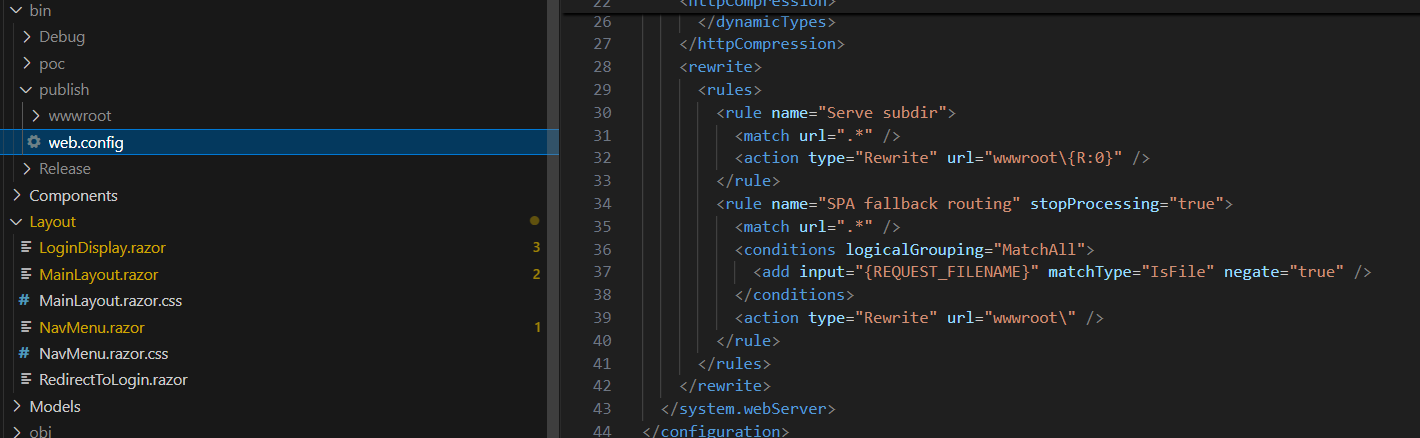
Essentially, in your Blazor WASM project you will have a web.config that should fix this, but is not compatible with Azure Static Web Apps:
To workaround this, simply place a staticwebapp.config.json file in your wwwroot folder with the following contents:
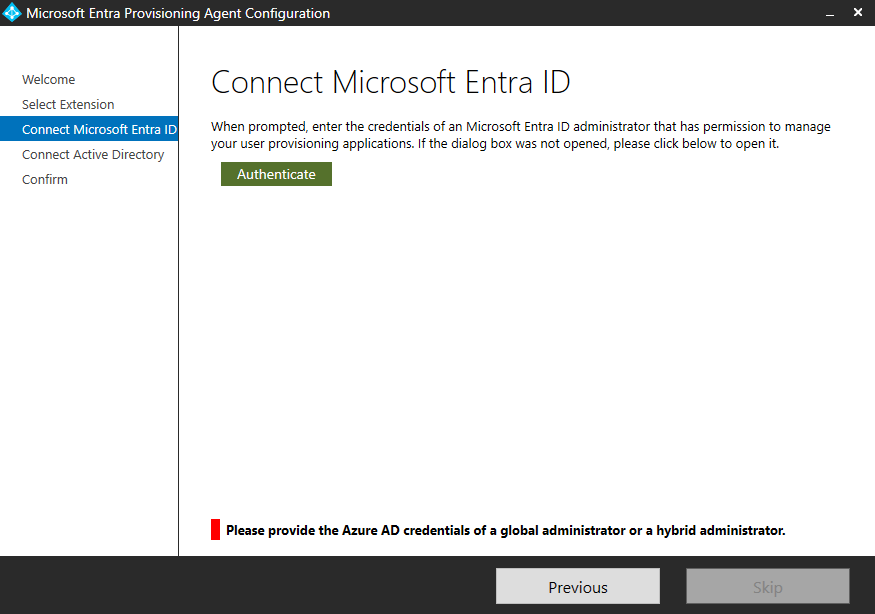
Just reporting about a quick issue I found when configuring Entra Cloud Sync. The user that was trying to configure the agent had Global Administrator assigned through PIM for Groups, meaning he was eligible member of a Group, and the group was active Global Administrator.
This will cause an error message:
Please provide the Azure AD credentials of a global administrator or a hybrid administrator
To fix, add yourself as a Global Admin in other means than through being eligible for a group – such as directly!
I am often asked to come up with solutions for populating different types of applications with user data. One fairly common thing is to require Entra ID users to be populated in a database of some sort, and while we could very easily PowerShell our way through that, reading from the Graph and send SQL queries, we want an out of the box solution. This exists, and is called ECMA Connector Host.
And what does ECMA stand for? ECMA stands for Extensible Connectivity Management Agent and stems from the world of Microsoft Identity Manager (MIM). Using the Connector Host, Entra ID has a feature to actually run MIM connectors, without requiring the full MIM installation.
With the public preview of the new API-driven inbound provisioning for Entra ID (Previously known as Azure Active Directory), Microsoft is enabling new methods for integrating HR systems or other sources of record for employees or users. These APIs can be used by HR vendors to directly integrate their HR systems to Entra ID, or by system integrators reading data from services like ERP and writing it to Entra ID. There has of course always been the option of creating users through Microsoft Graph, but this does not support on-premises Active Directory.
Just as with how the Workday and SuccessFactors integrations have been working up until now, hybrid configurations with plain old Active Directory is also supported through a provisioning agent, which we will configure in this blog post.



 Good Workaround!